By: Team W17-3 Since: Aug 2019 Licence: MIT
- 1. Introduction
- 2. Understanding This User Guide
- 3. Quick Start
- 4. Features
- 4.1. General Commands
- 4.2. Detailed Management Commands
- 4.2.1. Savings Account Management
- 4.2.1.1. Adding savings bank account
/add /savings - 4.2.1.2. Editing savings bank account
/edit /savings - 4.2.1.3. Deleting savings bank account
/delete /savings - 4.2.1.4. Adding expenditures for savings bank account
/add /bankexpenditure - 4.2.1.5. Editing expenditures for savings bank account
/edit /bankexpenditure - 4.2.1.6. Deleting expenditures for savings bank account
/delete /bankexpenditure - 4.2.1.7. Adding deposit to savings bank account
/add /deposit - 4.2.1.8. Editing deposit details for savings bank account
/edit /deposit - 4.2.1.9. Deleting deposit for savings bank account
/delete /deposit
- 4.2.1.1. Adding savings bank account
- 4.2.2. Investment Account Management
- 4.2.2.1. Adding investment bank account
/add /investment - 4.2.2.2. Editing investment bank account
/edit /investment - 4.2.2.3. Deleting investment bank Account
/delete /investment - 4.2.2.4. Adding investment bonds
/add /bonds - 4.2.2.5. Editing Bond details
/edit /bonds - 4.2.2.6. Deleting bonds
/delete /bonds
- 4.2.2.1. Adding investment bank account
- 4.2.3. Credit Card Management
- 4.2.3.1. Adding credit card
/add /card - 4.2.3.2. Editing credit card
/edit /card - 4.2.3.3. Deleting credit card
/delete /card - 4.2.3.4. Adding expenditures for credit cards
/add /cardexpenditure - 4.2.3.5. Editing expenditures for credit cards
/edit /cardexpenditure - 4.2.3.6. Deleting expenditures for credit cards
/delete /cardexpenditure - 4.2.3.7. Adding monthly credit card bill to savings account
/add /cardbill - 4.2.3.8. Deleting credit card bill from savings account
/delete /cardbill
- 4.2.3.1. Adding credit card
- 4.2.4. Financial Goal Management
- 4.2.5. Profile Management
- 4.2.1. Savings Account Management
- 4.3. Utility Commands
- 4.3.1. Finding information stored in OwlMoney
/find- 4.3.1.1. Finding savings account details
/find /savings - 4.3.1.2. Finding investment account details
/find /investment - 4.3.1.3. Finding credit card details
/find /card - 4.3.1.4. Finding bond details
/find /bonds - 4.3.1.5. Finding bank transaction details
/find /banktransaction - 4.3.1.6. Finding card transaction details
/find /cardtransaction - 4.3.1.7. Finding recurring expenditure details
/find /recurbankexp
- 4.3.1.1. Finding savings account details
- 4.3.2. Listing multiple details
/list - 4.3.3. Transferring money between accounts
/transfer - 4.3.4. Recurring expenditures management
- 4.3.5. Updating profile
- 4.3.1. Finding information stored in OwlMoney
- 5. Future Enhancements
[coming in v2.0] - 6. FAQ
- 7. Command Summary
1. Introduction
OwlMoney is an application designed to assist undergraduates and fresh graduates to track and manage their finances.
OwlMoney is specially tailored for those who prefer using a Command Line Interface (CLI). The commands used to interact with OwlMoney are designed to be simple and intuitive, so even those who are unfamiliar with CLI can use OwlMoney with ease.
OwlMoney also comes with a minimalistic design that presents information in an organized manner.
Interested in using OwlMoney to plan your finances easily? Jump to, Section 3, “Quick Start” to get started!
2. Understanding This User Guide
2.1. Basic Information
This user guide provides you with tips for a quick and easy way to set up and install OwlMoney.
You can find all the details of OwlMoney’s features, tips, frequently asked questions and a summary of the available commands.
You can use the Table of Contents above to navigate effortlessly between the sections.
Look out for the following icons that could aid you in this user guide:
|
This symbol denotes information that you may want to take note of. |
|
This symbol denotes a tip that you may find useful when using our application. |
|
This symbol denotes a warning message which you need to be careful of when using our application. |
Additionally, you may also encounter the following text styles:
-
Commands, parameters, and file paths will be in this
format -
Important messages will be bold
2.2. Navigating Around Our Application
OwlMoney comes with a very clean and easy to use CLI, so don’t worry even if you are a new user! You can expect to navigate around our application with ease!
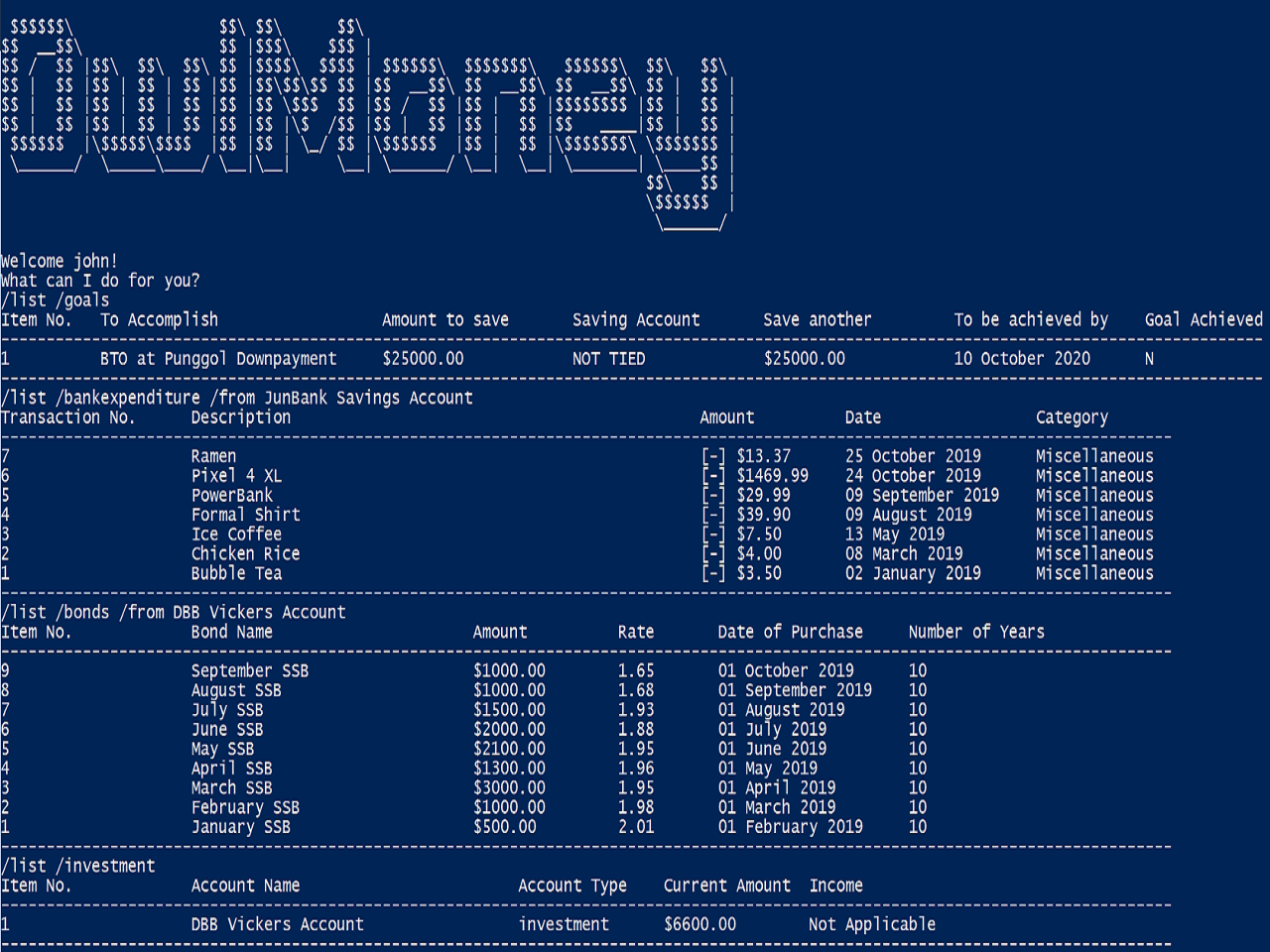
As long as you have some experience using a command-line interface, the moment you type your command and press Enter, the result appears immediately!
3. Quick Start
-
Ensure you have Java Version 11 installed on your computer.
-
Download the latest
OwlMoney-v1.4.jarhere. -
Copy the
OwlMoney-v1.4.jarfile to the folder you want to use as the home folder for OwlMoney. -
Open a Command Prompt or Powershell, navigate to the target folder and type
java -jar ./OwlMoney-v1.4.jarto start OwlMoney. OwlMoney should appear in a few seconds. -
Maximise the screen to enjoy the best experience of OwlMoney, it performs best on displays 1920x1080 and above.
-
As this is your first time starting up this program, you have to create a profile by typing your
USERNAME(e.g. John) when prompted and pressing Enter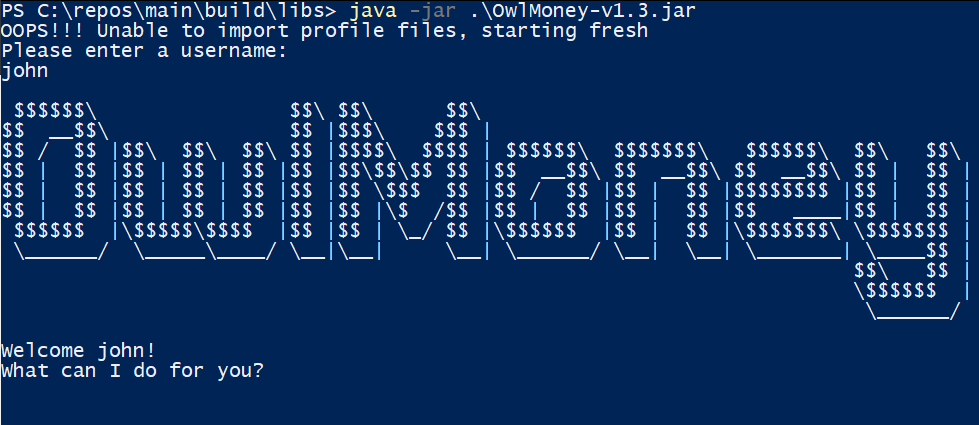 Figure 2. Successful start-up of OwlMoney
 -
You can now try entering commands in the command box and press Enter to execute it!
e.g. try typing/helpand pressing Enter will list down the commands available. -
Some example commands you can try:
-
/add /savings /name JunBank Savings Account /amount 4719.90 /income 2000: adds a newJunBank Savings Account, which has an initial amount of $4719.90. -
/delete /savings /name JunBank Savings Account: deletes JunBank Savings Account -
/list /savings: lists all savings accounts -
/exit: exits OwlMoney
-
-
Refer to, Section 4, “Features” for details of each command.
-
Refer to, Section 6, “FAQ” for a list of common questions that have been answered.
4. Features
In this section, the expected command format will be introduced, and you can expect to learn the various commands you can use.
|
Don’t worry if you don’t understand everything at once. |
Command Format
-
Words in
UPPER_CASEare the parameters to be supplied by the user-
e.g. in
/add /savings /name ACCOUNT_NAME,ACCOUNT_NAMEis a parameter which can be used as:-
/add /savings /name JunBank Savings Account /amount 218.90 /income 0 -
/add /savings /name Standard Bank Investment Account /amount 123.45 /income 5678
-
-
-
Items in square brackets are optional parameters
-
e.g.
/category [/category TAG]can be used as:-
/add /bankexpenditure /amount 13.50 /from JunBank Savings Account /date 1/1/2019 /desc bubble tea [/category
entertainment]
(with optionalcategoryparameter) -
/add /savings /name JunBank Savings Account /amount 218.90 /income 0(without optionalcategoryparameter)
-
-
|
Many of our command parameters can be rearranged! Feel free to rearrange the order of entering parameters as you read along this user guide! |
|
Parameter values cannot be empty (unless otherwise stated). |
4.1. General Commands
4.1.1. Viewing help: /help
Don’t worry if you are feeling lost! You can use this User Guide document to gain a better understanding of OwlMoney's commands.
To see a list of commands available, simply enter /help in the command box.
|
Alternatively, you can access this User Guide document by clicking here. |
4.1.2. Undo Commands: /undo (Coming in v2.0)
Accidentally typed a wrong command? Don’t worry, simply type the /undo command and you will be back to where you
started!
4.1.3. Exiting OwlMoney : /exit
If you want to exit OwlMoney, you can enter /exit in the command box.
We hope you had a wonderful experience using OwlMoney. Do come back to manage your finances soon!
4.2. Detailed Management Commands
Financial management starts with managing your money!
OwlMoney provides various detailed management commands that help you to do just that!
They include the management of various bank accounts ranging from savings and investment accounts to recording expenditures and setting financial goals.
4.2.1. Savings Account Management
In this section, you’ll be introduced to commands and parameters that help you to manage your savings account and expenditures associated with it in OwlMoney.
Below is a list of command parameters that you can expect to use for the commands in this section.
Parameter |
Description |
Acceptable Range of Values |
|
Indicates the name of the savings bank account. (e.g. JunBank Savings Account) |
Take note that there is a maximum of 30 character limit. |
|
Indicates the amount of money. (e.g. 2113.30) |
|
|
Indicates the amount of money coming in per month from any sources. (e.g. Salary, pocket money, scholarship allowance) |
|
|
Indicates the date the expenditure was made. (e.g. 2/2/2019) |
|
|
Indicates the description of the transaction. |
Take note that there is a maximum of 50 character limit. |
|
Indicates the transaction number in the list when displayed. It is used for editing or deleting expenditures. |
|
|
The category that the expenditure can be tagged to. (e.g. Dining) |
Take note that there is a maximum of 15 character limit. |
4.2.1.1. Adding savings bank account /add /savings
Before you can add any expenditures, you will need to add a savings account first.
It’s easy to add a savings account!
Here’s how you can use the /add /savings command.
Command Syntax
/add /savings /name ACCOUNT_NAME /amount AMOUNT /income INCOME
|
A profile needs to be created first before you are eligible to add an account. A savings account is compulsory as most features in OwlMoney require it. There can only be a maximum of 7 savings account. |
Example
-
/add /savings /name JunBank Savings Account /amount 218.90 /income 2000
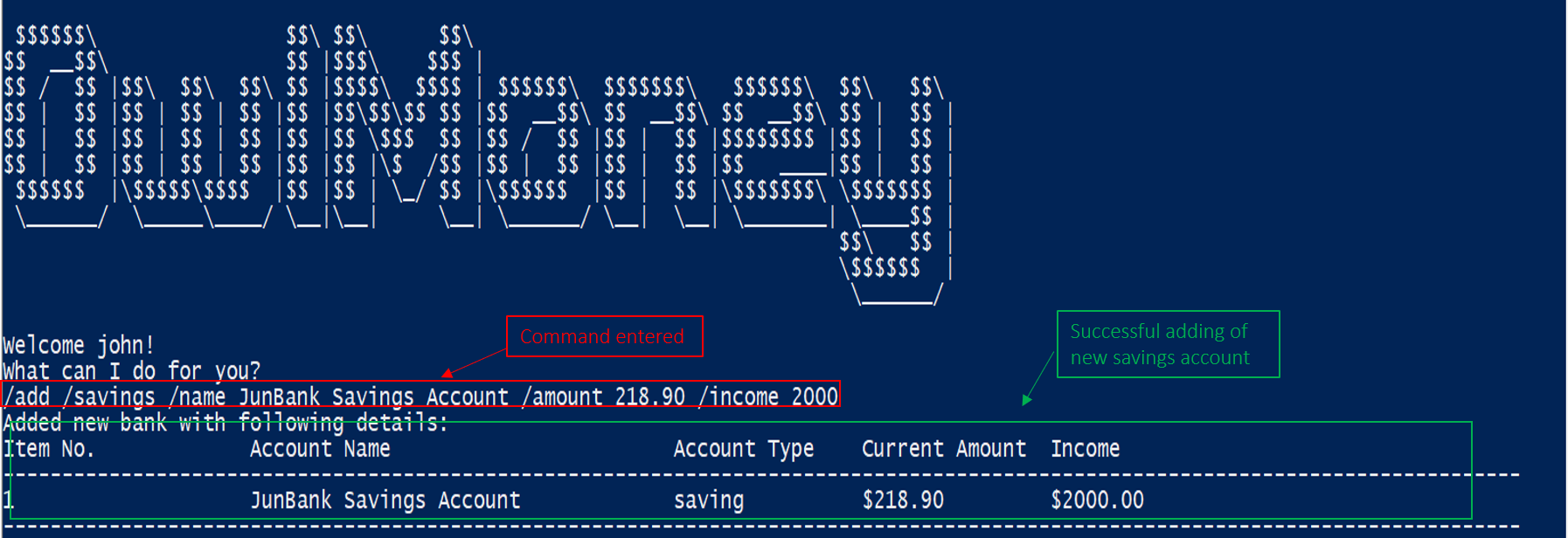
/add /savings.Adds a savings account named JunBank Savings Account which has an initial amount
of $218.90 inside with a monthly income of 2000 automatically credited into the account
every start of the month.
4.2.1.2. Editing savings bank account /edit /savings
Changes made to your savings account? Reflect them on OwlMoney as well!
Command Syntax
/edit /savings /name ACCOUNT_NAME [/newname ACCOUNT_NAME] [/amount AMOUNT] [/income INCOME]
|
At least one of |
Example
-
/edit /savings /name JunBank Savings Account /newname JulyBank Savings Account
Edits JunBank Savings Account name to JulyBank Savings Account.
-
/edit /savings /name JunBank Savings Account /newname JulyBank Savings Account /amount 2000.25

/edit /savings.Edits JunBank Savings Account name to JulyBank Savings Account and sets the new amount in the account to $2000.25.
-
/edit /savings /name JunBank Savings Account /newname JulyBank Savings Account /amount 2000.25 /income 5000
Edits JunBank Savings Account name to JulyBank Savings Account and sets the new amount in the account to $2000.25
with a new income of $5000.
-
/edit /savings /name JunBank Savings Account /amount 2000.25
Edits JunBank Savings Account by setting the new amount in the account to $2000.25.
-
/edit /savings /name JunBank Savings Account /amount 2000.25 /income 5000
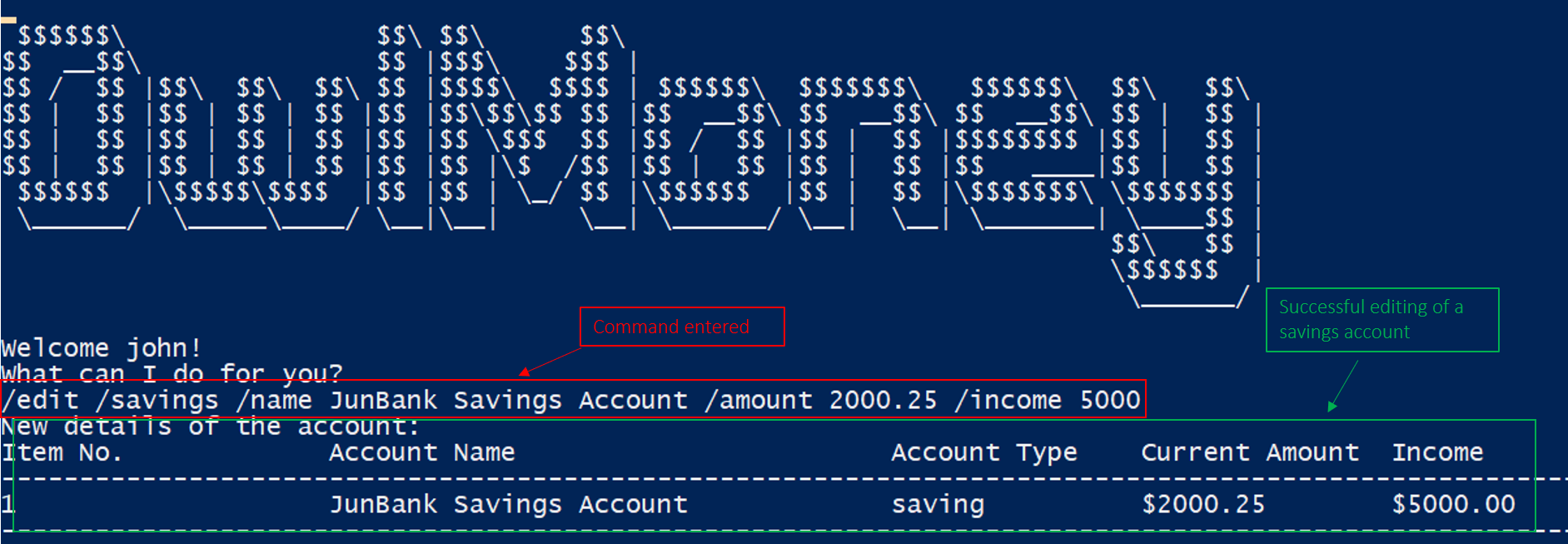
/edit /savings.Edits JunBank Savings Account by setting the new amount in the account to $2000.25 with an income of $5000.
-
/edit /savings /name JunBank Savings Account /income 5000
Edits JunBank Savings Account by setting the income to $5000.
4.2.1.3. Deleting savings bank account /delete /savings
Closed your savings bank account? You can reflect that on OwlMoney as well!
Command Syntax
/delete /savings /name ACCOUNT_NAME
|
All transactions (e.g. expenditures and deposits) related to the savings account will be deleted. |
Example
-
/delete /savings /name JunBank Savings Account
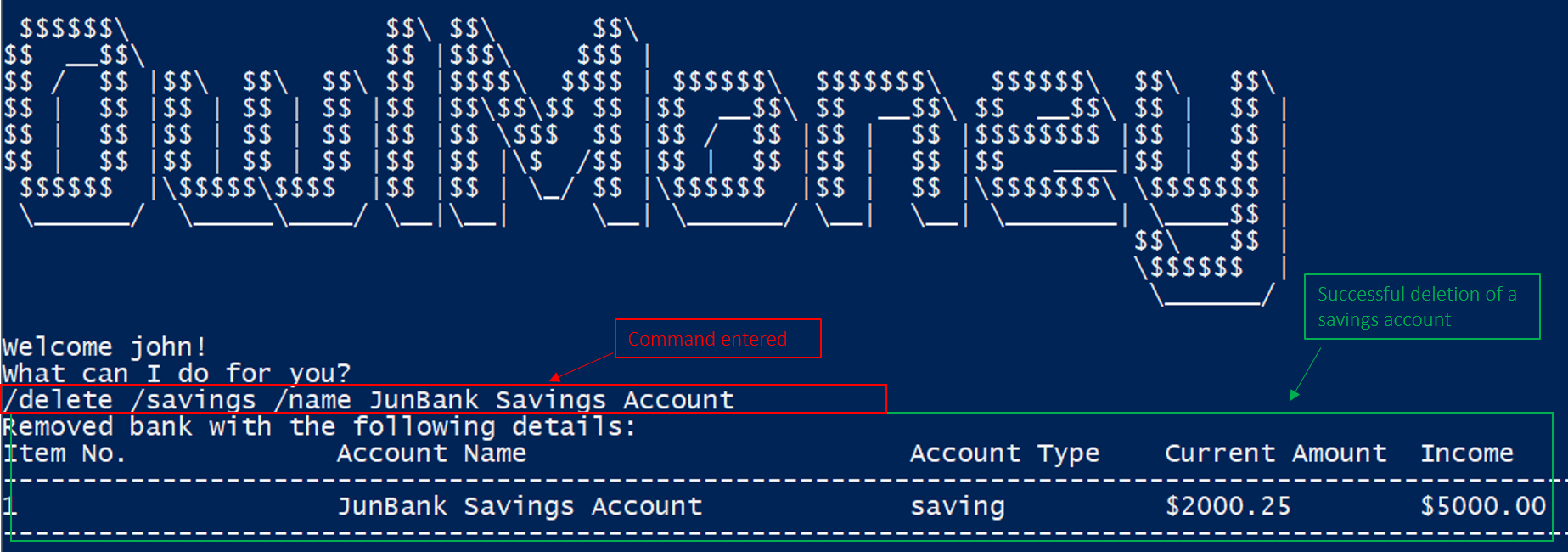
/delete /savings.Deletes a savings account named JunBank Savings Account.
4.2.1.4. Adding expenditures for savings bank account /add /bankexpenditure
Spending is a daily affair and it is difficult to keep track of so many of them. Fret not!
OwlMoney allows you to keep track of your spending and categorise them as well!
Command Syntax
/add /bankexpenditure /amount AMOUNT /from ACCOUNT_NAME /date DATE /desc DESCRIPTION [/category CATEGORY]
|
An expenditure cannot be added to an investment bank account. |
Example
-
/add /bankexpenditure /amount 1.20 /from JunBank Savings Account /date 28/09/2019 /desc bubble tea /category
Dining
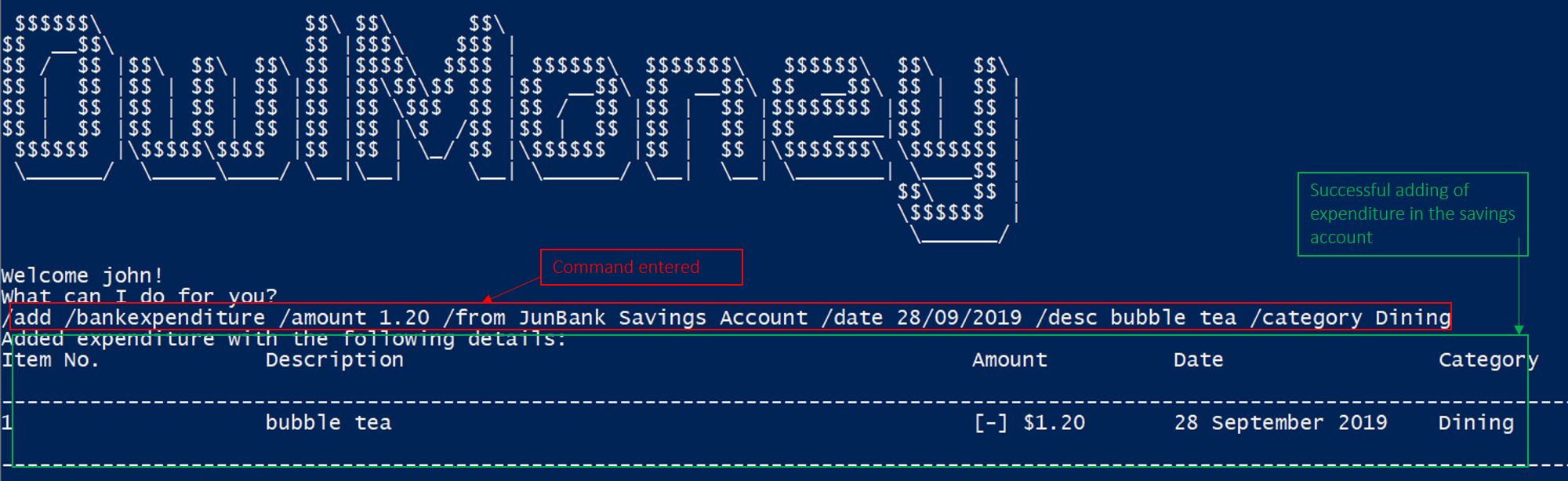
/add /bankexpenditure.Adds an expenditure that deducts from JunBank Savings Account dated on 28/09/2019 that costs $1.20 with
the description of bubble tea and category of Dining.
4.2.1.5. Editing expenditures for savings bank account /edit /bankexpenditure
Spent lesser than you initially recorded? You can edit them here!
Command Syntax
/edit /bankexpenditure /from ACCOUNT_NAME /transno TRANSACTION_NUMBER [/desc DESCRIPTION] [/category CATEGORY] [/amount
AMOUNT] [/date DATE]
|
At least one of |
|
To find out which transaction to edit, use the |
Example
-
/edit /bankexpenditure /from JunBank Savings Account /transno 2 /desc Uniwlo Shirt
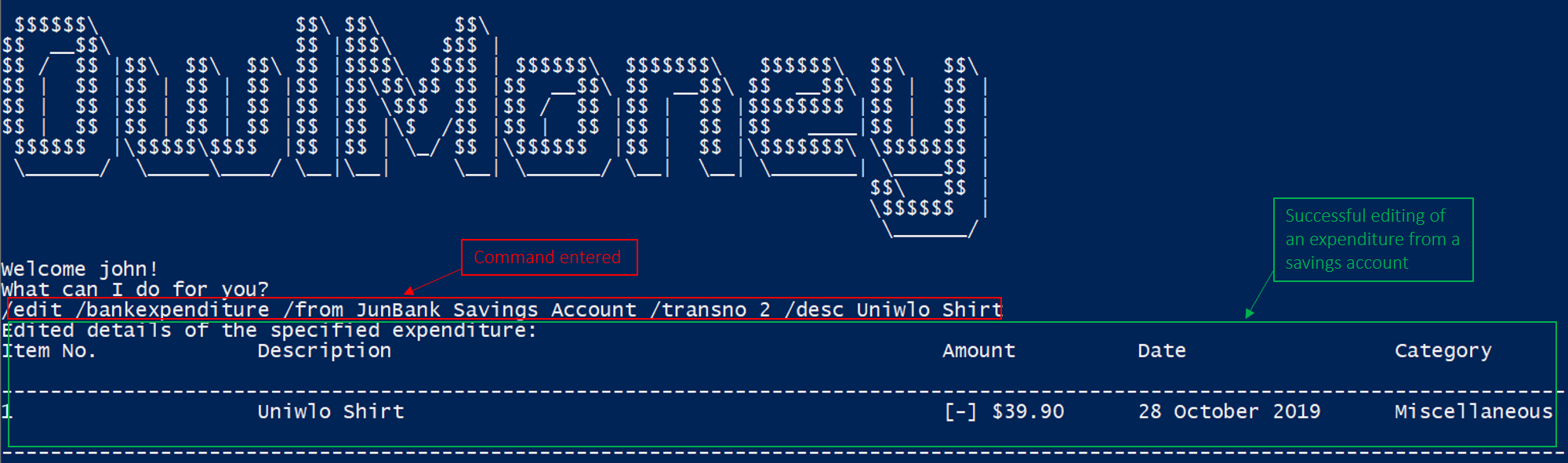
/edit /bankexpenditure.Edits expenditure 2 that was charged to JunBank Savings Account to a new description of Uniwlo Shirt.
-
/edit /bankexpenditure /from JunBank Savings Account /transno 4 /category miscellaneous
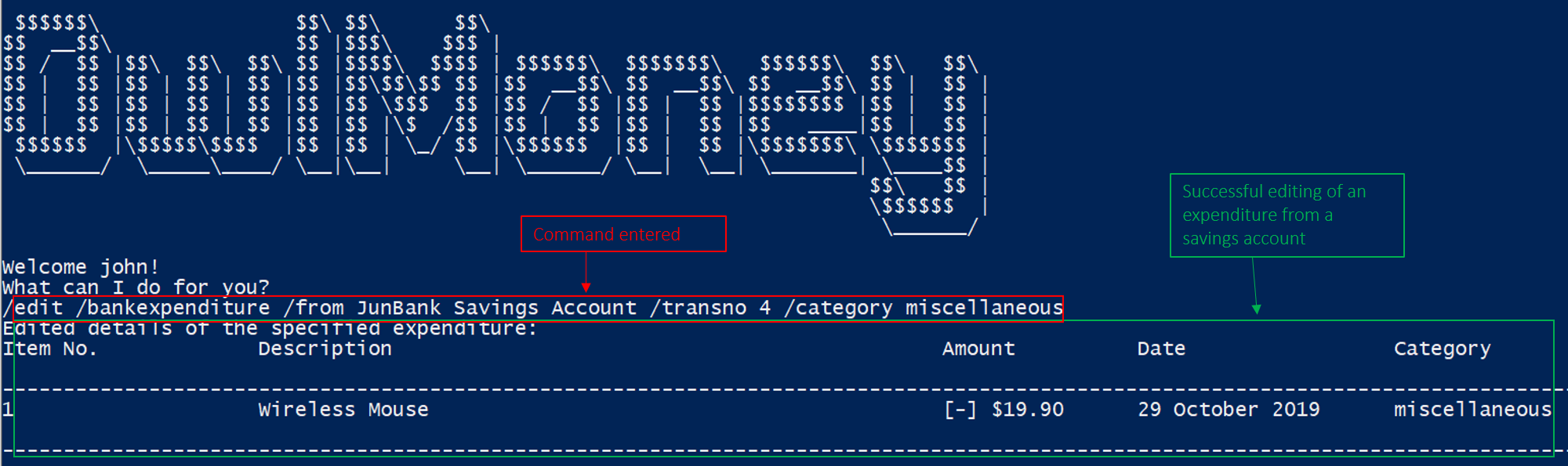
/edit /bankexpenditure.Edits expenditure 4 that was charged to JunBank Savings Account to a new category of miscellaneous.
-
/edit /bankexpenditure /from JunBank Savings Account /transno 5 /amount 3.50
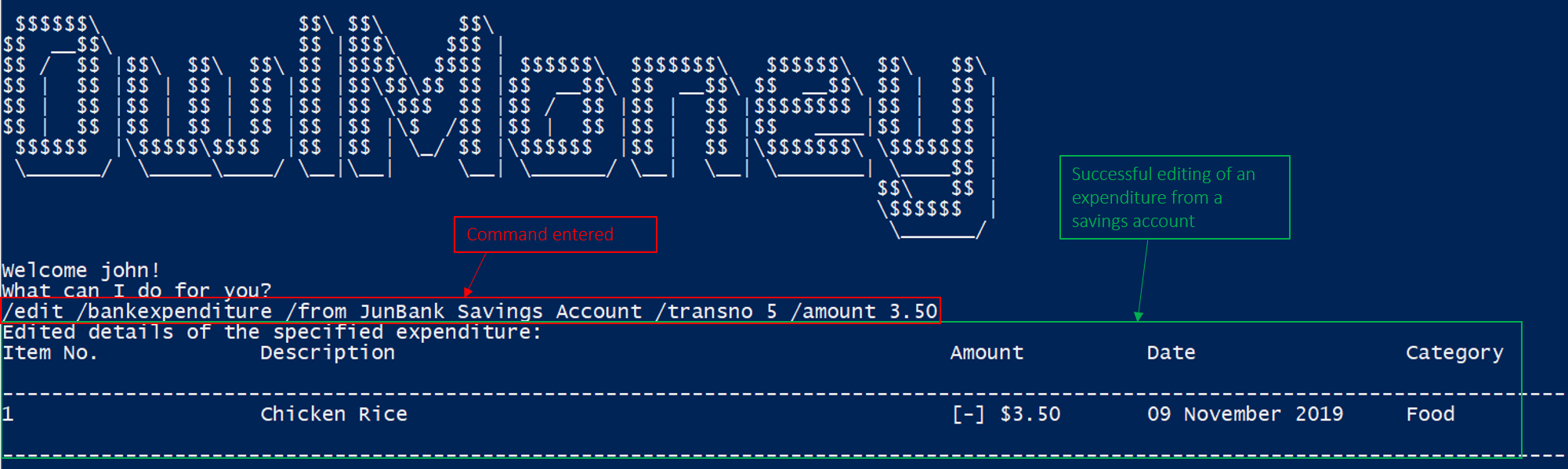
/edit /bankexpenditure.Edits expenditure 5 that was charged to JunBank Savings Account to an amount of $3.50.
4.2.1.6. Deleting expenditures for savings bank account /delete /bankexpenditure
Accidentally added a transaction that did not happen? You can delete it!
Command Syntax
/delete /bankexpenditure /from ACCOUNT_NAME /transno TRANSACTION_NUMBER
|
To find out which expenditure to delete, use the |
Example
-
/delete /bankexpenditure /from JunBank Savings Account /transno 1
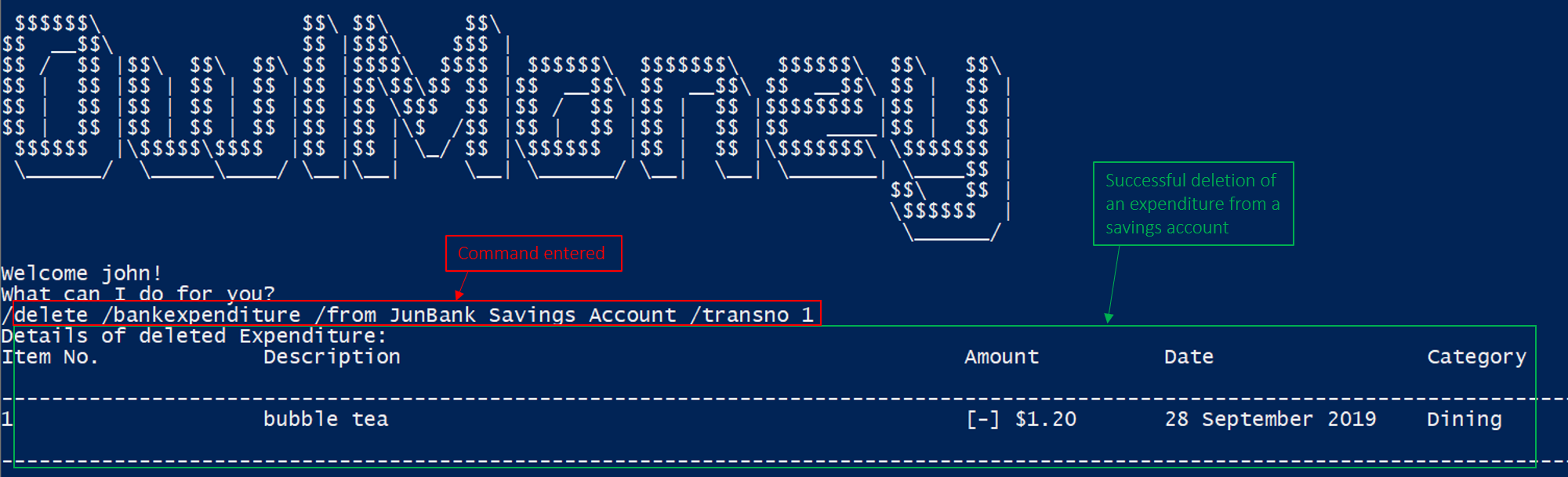
/delete /bankexpenditure.Deletes an expenditure from JunBank Savings Account with transaction number 1.
4.2.1.7. Adding deposit to savings bank account /add /deposit
Saved up some spare cash to deposit into your bank account? Record them here!
Command Syntax
/add /deposit /to ACCOUNT_NAME /amount AMOUNT /desc DESCRIPTION /date DATE
Example
-
/add /deposit /to JunBank Savings Account /amount 300 /desc FREELANCE WORK /date 10/10/2019
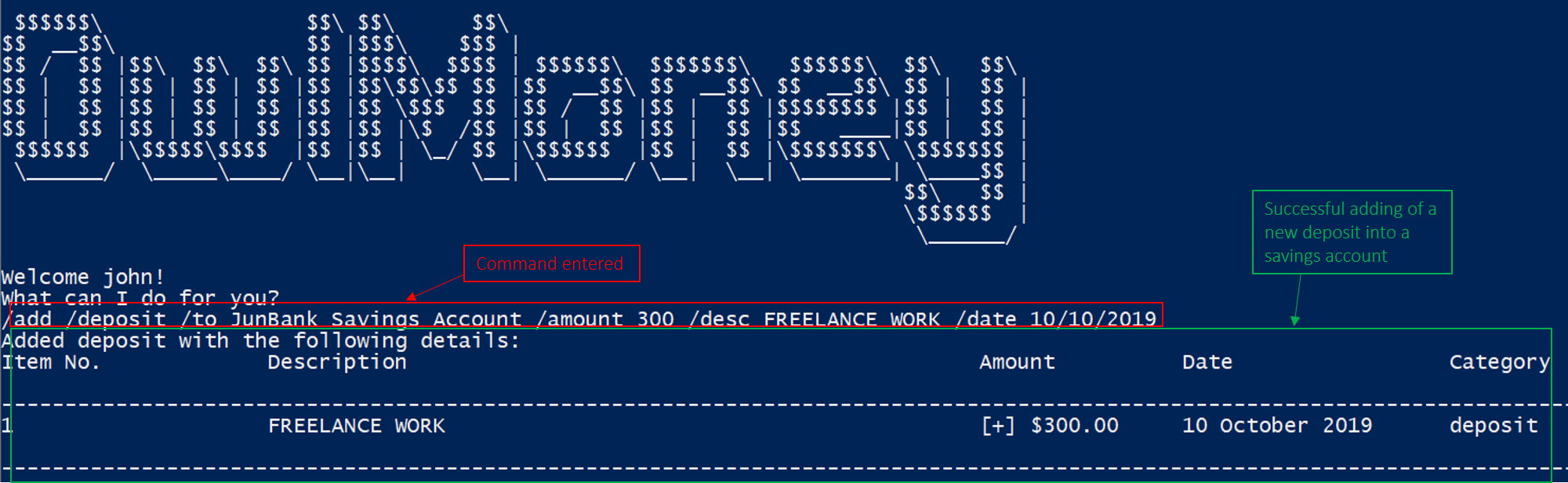
/add /deposit.Deposits $300 earned from FREELANCE WORK work into JunBank Savings Account.
4.2.1.8. Editing deposit details for savings bank account /edit /deposit
Accidentally added more zeroes than expected when entering your deposit? Edit them here!
Command Syntax
/edit /deposit /from ACCOUNT_NAME /transno TRANSACTION_NUMBER [/desc DESCRIPTION] [/amount AMOUNT] [/date DATE]
|
At least one of |
|
To find which to deposit to edit, use the |
Example
-
/edit /deposit /from JunBank Savings Account /transno 11 /desc FREELANCE WORK /amount 270 /date 29/10/2019
Edits the deposit with transaction number 11 deposited to JunBank Savings Account to a new description of
FREELANCE WORK, setting a new amount of $270 and a new date of 29/11/2019
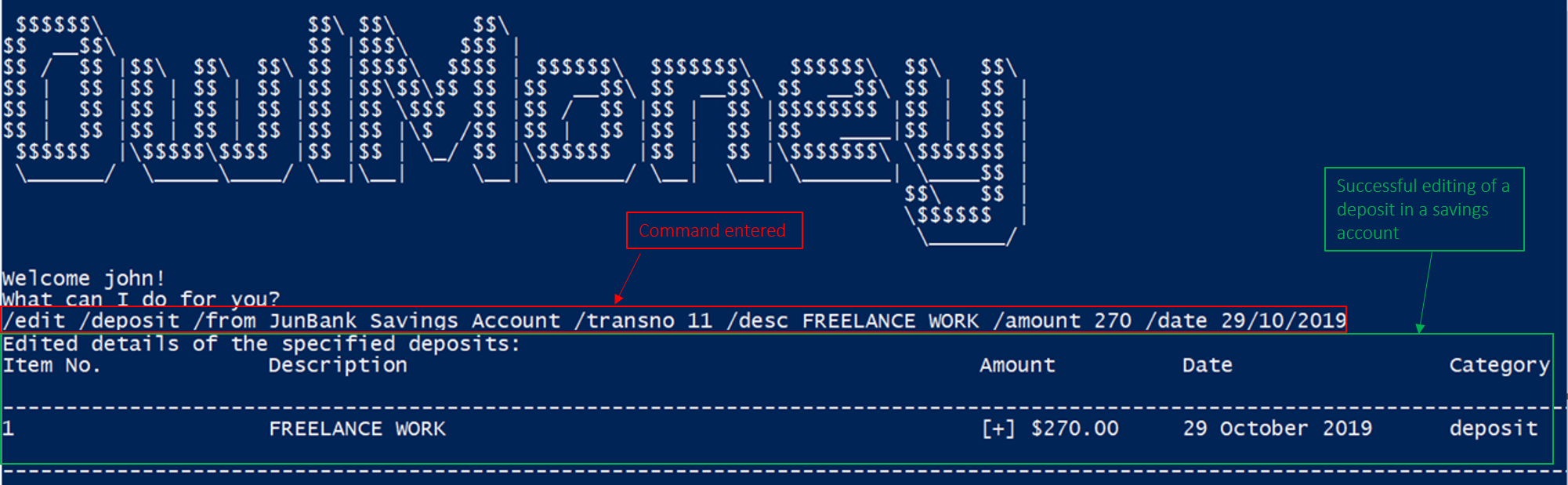
/edit /deposit.-
/edit /deposit /from JunBank Savings Account /transno 11 /amount 500
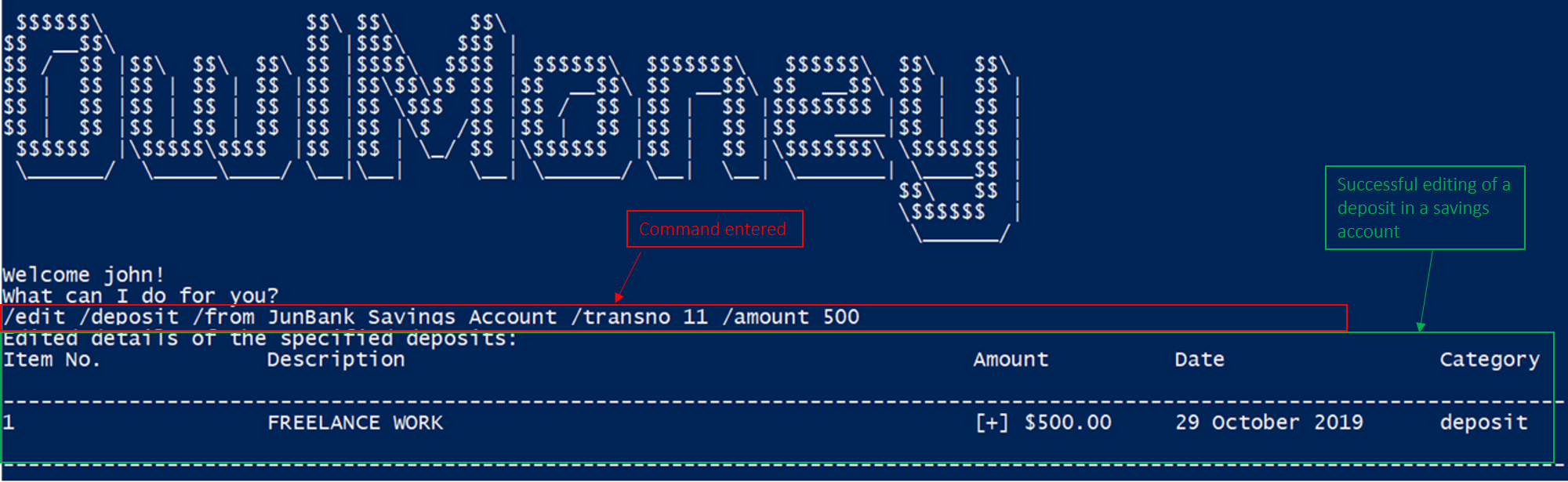
/edit /deposit.Edits the deposit with transaction number 11 deposited to JunBank Savings Account to a new amount of $500.
4.2.1.9. Deleting deposit for savings bank account /delete /deposit
Accidentally added a deposit that you have not done? You can delete it here!
Command Syntax
/delete /deposit /from ACCOUNT_NAME /transno TRANSACTION_NUMBER
|
To find out which recurring expenditure to delete, use the |
Example
-
/delete /deposit /from JunBank Savings Account /transno 11
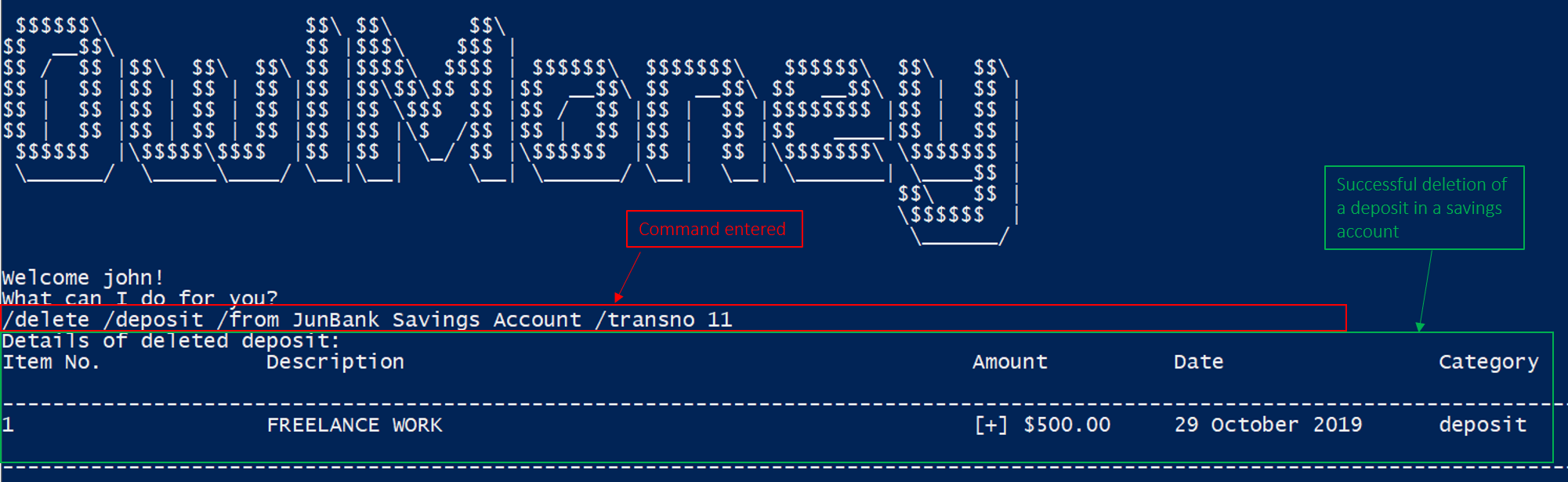
/delete /deposit.Deletes a deposit with transaction number 11 from JunBank Savings Account.
4.2.2. Investment Account Management
In this section, you’ll be introduced to commands and parameters that help you to manage your investment account and bonds that you can track in OwlMoney.
Below is a list of command parameters that you can expect to use for the commands in this section.
Parameter |
Description |
Acceptable Range of Values |
|
Indicates the name of the investment bank account. (e.g. DBB Vickers Account) |
Take note that there is a maximum of 30 character limit. |
|
Indicates the amount of money. (e.g. 2113.30) |
|
|
Indicates the name of the investment bond purchased. (e.g. June SSB) |
Take note that there is a maximum of 30 character limit. |
|
Indicates the coupon rate of the investment bond in percentage. (e.g. 1.92) |
|
|
Indicates the date the bond was purchased. (e.g. 2/2/2019) |
|
|
Indicates the number of years the investment bond lasts. |
|
4.2.2.1. Adding investment bank account /add /investment
Want to start investing to grow your wealth? No problem!
All you need to do is to add an investment account!
Here’s how you can use the /add /investment command.
Command Syntax
/add /investment /name ACCOUNT_NAME /amount AMOUNT
|
There can only be a maximum of 3 investment accounts. |
Example
-
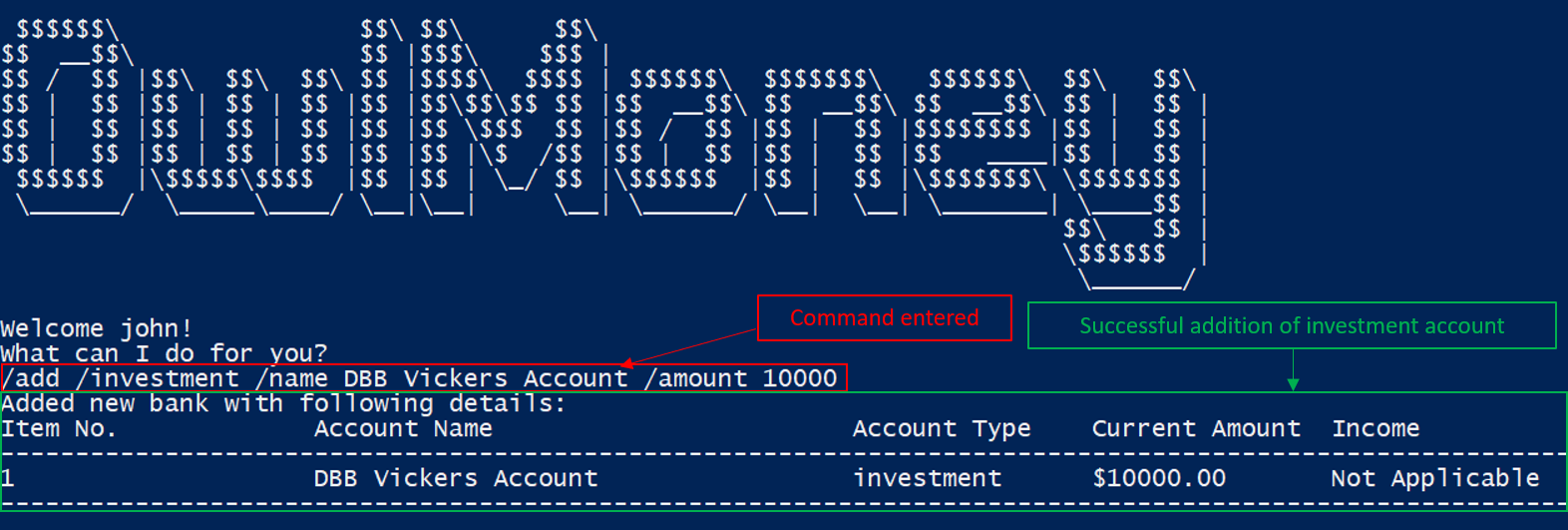
/add /investment /name DBB Vickers Account /amount 10000
Adds an investment account named DBB Vickers Account which has an initial amount
of $10000 inside that you can start investing with.
/add /investment4.2.2.2. Editing investment bank account /edit /investment
Changes made to your investment account? Here is how you can do it!
Command Syntax
/edit /investment /name ACCOUNT_NAME [/newname ACCOUNT_NAME] [/amount AMOUNT]
|
At least one of |
Example
-
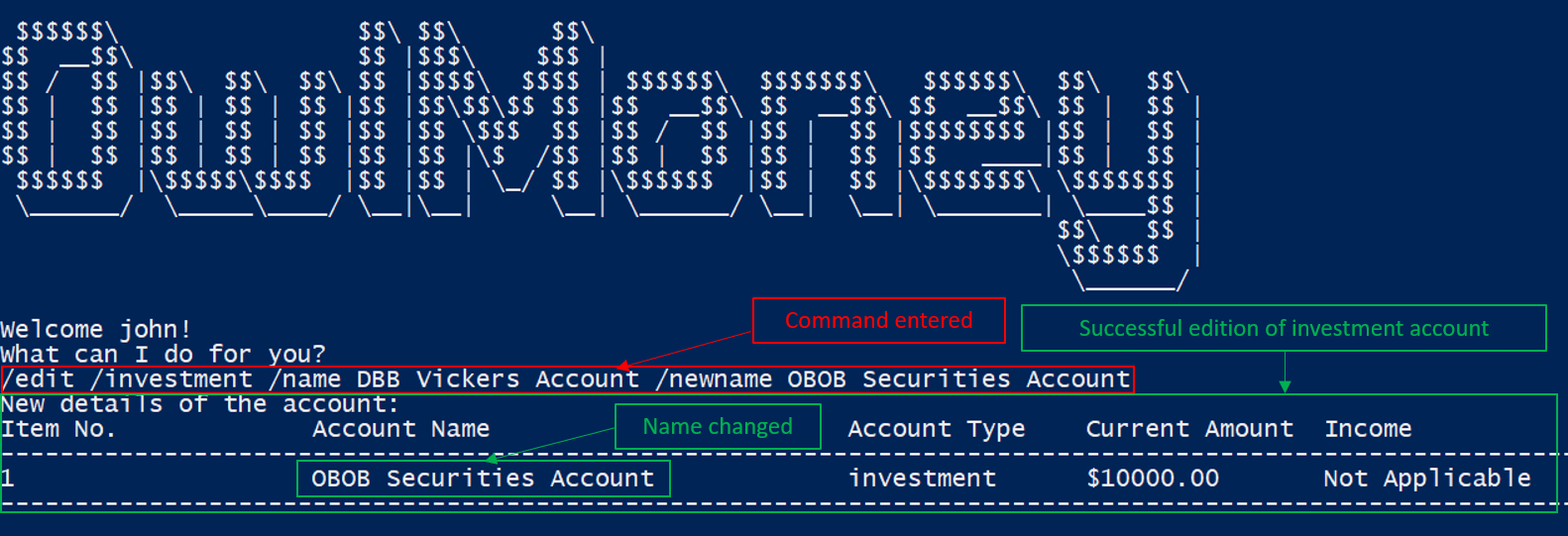
/edit /investment /name DBB Vickers Account /newname OBOB Securities Account
Edits the name of the account from DBB Vickers Account to OBOB Securities Account.
/edit /investment-
/edit /investment /name DBB Vickers Account /amount 50000
Edits the amount in DBB Vickers Account to $50000.
-
/edit /investment /name DBB Vickers Account /newname OBOB Securities Account /amount 50000
Edits the name of the account from DBB Vickers Account to OBOB Securities Account and the amount in the account
to $50000.
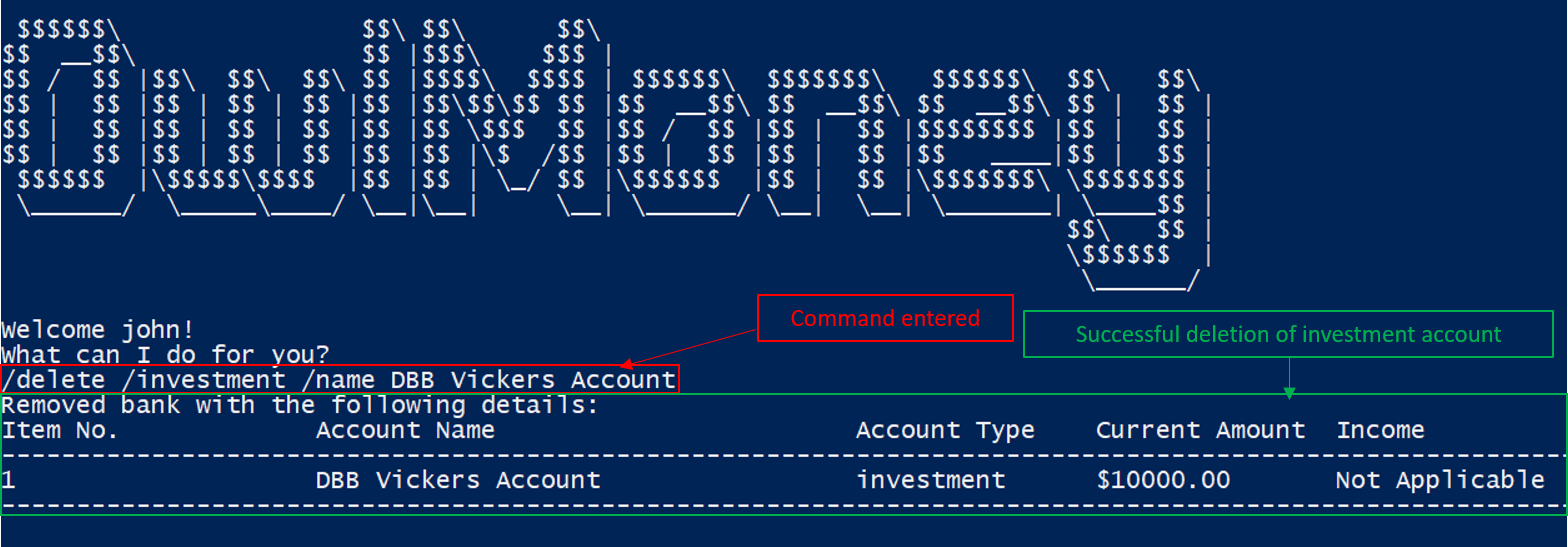
4.2.2.3. Deleting investment bank Account /delete /investment
You can also close your investment bank account on OwlMoney as well!
Command Syntax
/delete /investment /name ACCOUNT_NAME
|
All transactions (e.g. bonds) related to the investment bank account will be deleted. |
Example
-
/delete /investment /name DBB Vickers Account
Deletes an investment account named DBB Vickers Account.
/delete /investment4.2.2.4. Adding investment bonds /add /bonds
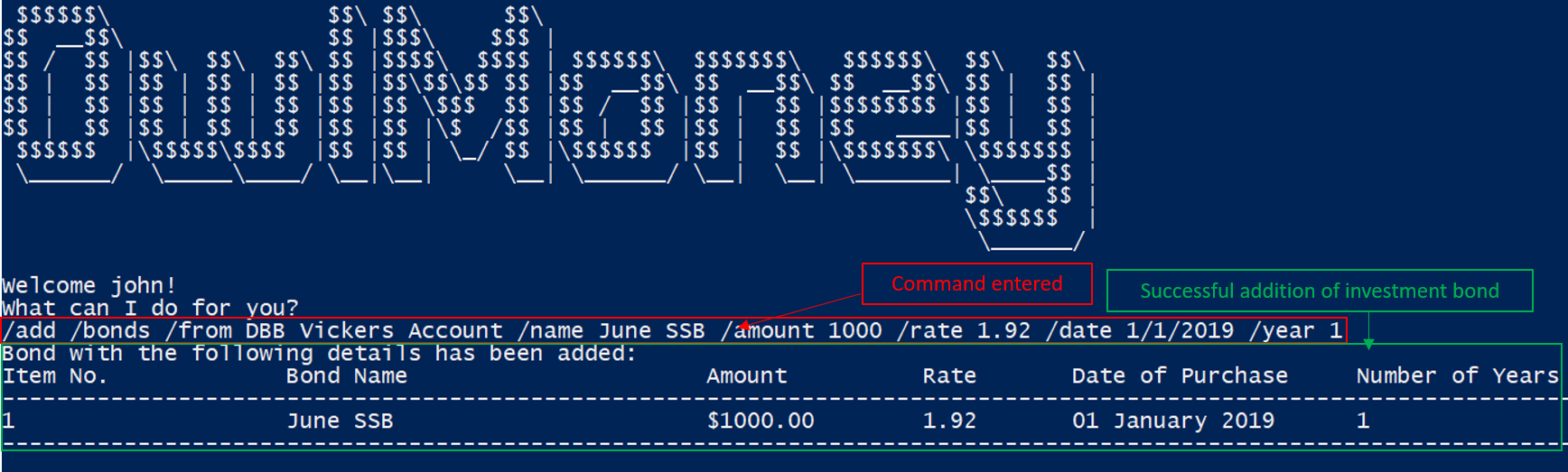
Signed up for a bond? Finding it difficult to keep up with the interest? No worries! OwlMoney allows efficient tracking of your semi-annual coupon interest!
Command Syntax
/add /bonds /from ACCOUNT_NAME /name BOND_NAME /amount AMOUNT /rate BOND_RATE /date DATE /year YEARS
|
An investment account needs to be created first to add bonds. Bonds can only be added to investment accounts. There can only be a maximum of 20 investment bonds per investment account. |
Example
-
/add /bonds /from DBB Vickers Account /name June SSB /amount 1000 /rate 1.92 /date 1/1/2019 /year 1
Adds a bond named June SSB charged to DBB Vickers Account at $1000 with an interest rate of 1.92% bought on
1/1/2019 for 1 year(s).
/add /bonds4.2.2.5. Editing Bond details /edit /bonds
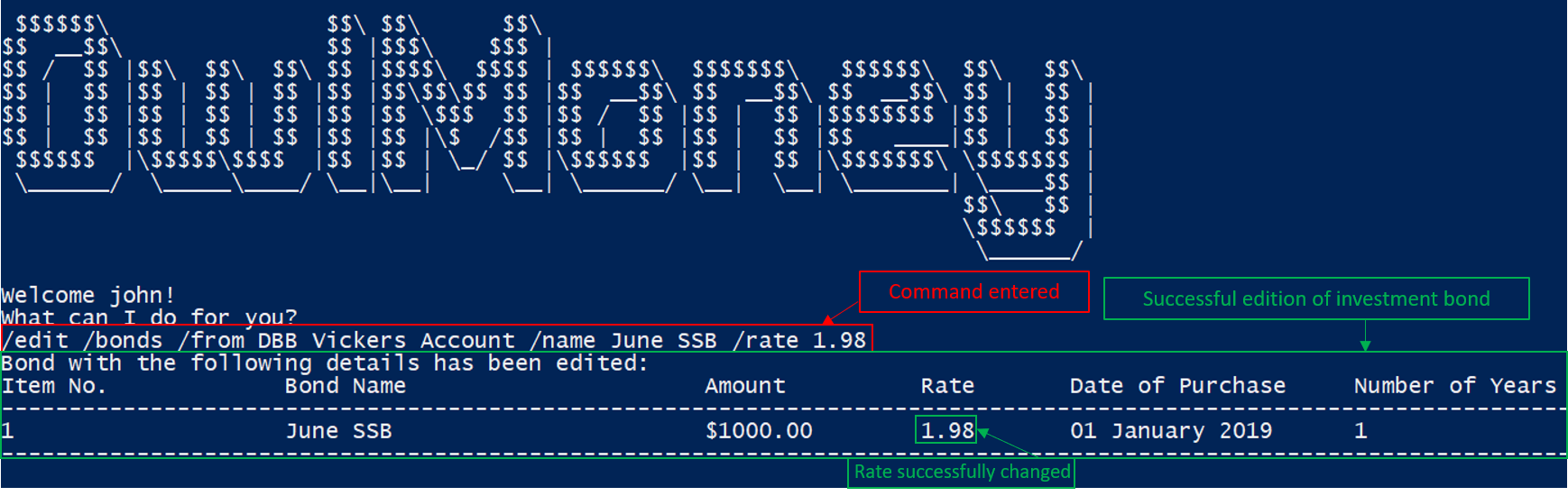
Change in your investment details? Edit them here!
Command Syntax
/edit /bonds /from ACCOUNT_NAME /name BOND_NAME [/rate BOND_RATE] [/year YEARS]
|
At least one of Only Editing
|
Example
-
/edit /bonds /from DBB Vickers Account /name June SSB /rate 1.98
Edits the bond named June SSB charged to DBB Vickers Account with a new interest rate of 1.98%.
/edit /bonds4.2.2.6. Deleting bonds /delete /bonds
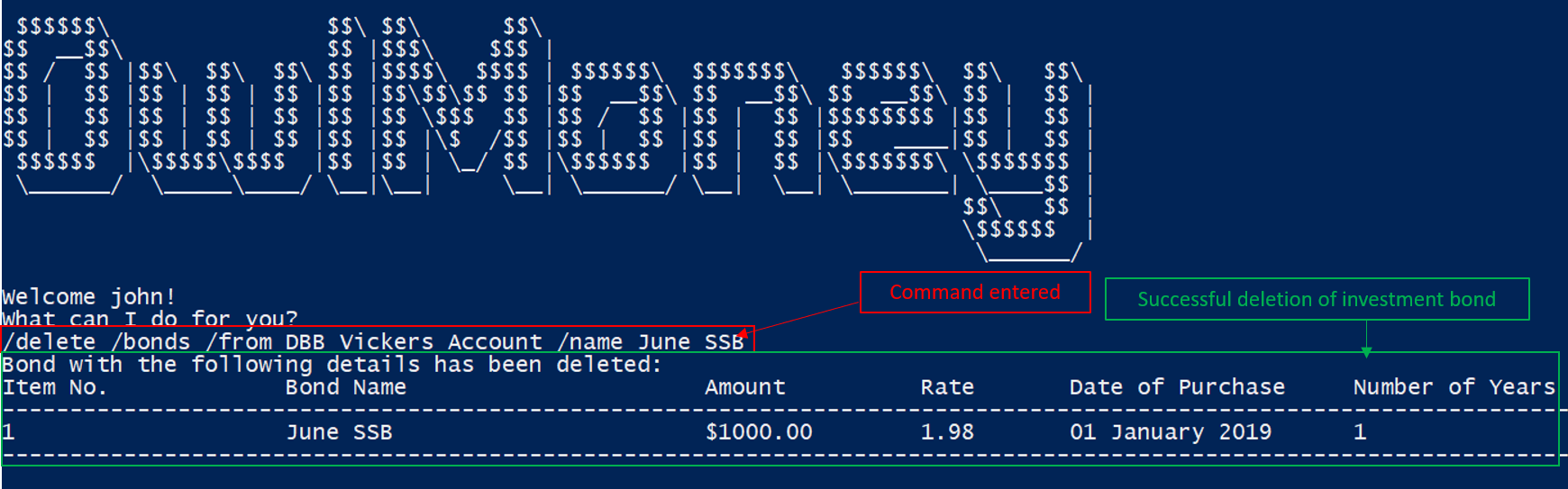
Sold your bonds? Delete it from OwlMoney!
Command Syntax
/delete /bonds /from ACCOUNT_NAME /name BOND_NAME
Example
-
/delete /bonds /from DBB Vickers Account /name June SSB
Deletes the bond named June SSB charged to DBB Vickers Account.
/edit /bonds4.2.3. Credit Card Management
In this section, you’ll be introduced to commands and parameters that help you to manage your credit cards and expenditures associated with it in OwlMoney.
Below is a list of command parameters that you can expect to use for the commands in this section.
Parameter |
Description |
Acceptable Range of Values |
|
Indicates the name of the credit card. (e.g. POBB Everyday Card) |
Take note that there is a maximum of 30 character limit. |
|
Indicates the name of the savings bank account. (e.g. JunBank Savings Account) |
Take note that there is a maximum of 30 character limit. |
|
Indicates the credit limit of the credit card. (e.g. 5000.00) |
|
|
Indicates the cashback returns rate of the credit card in percentage. Cashback will be deposited back into savings account upon adding of card bill. (e.g. 20 for 20%) |
|
|
Indicates the amount of money. (e.g. 2113.30) |
|
|
Indicates the date the expenditure was made. (e.g. 2/2/2019) |
|
|
Indicates the month and year the expenditure was made. (e.g. 10/2019) |
|
|
Indicates the description of the transaction. |
Take note that there is a maximum of 50 character limit. |
|
The category that the expenditure can be tagged to. (e.g. Dining) |
|
|
Indicates the transaction number in the list when displayed. It is used for editing or deleting expenditures. |
|
4.2.3.1. Adding credit card /add /card
Have a credit card? We can help you track your spending and cashback rebates with it!
Here’s how you can use the /add /card command.
Command Syntax
/add /card /name CARD_NAME /limit CARD_LIMIT /rebate CASHBACK_RATE
|
OwlMoney only supports cards with a credit limit to encourage you to spend less! There can only be a maximum of 20 credit cards. |
Example
-
/add /card /name POBB Tomorrow Card /limit 10000 /rebate 1.5
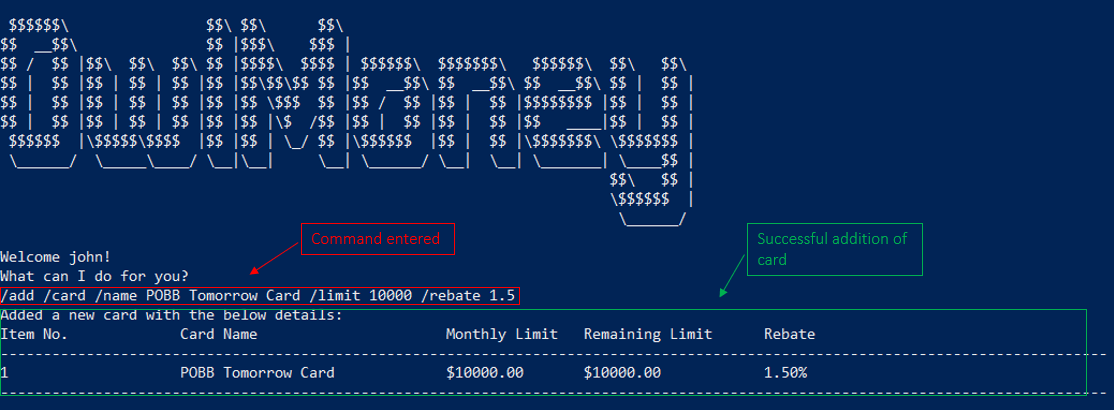
/add /cardAdds a credit card named POBB Tomorrow Card which has a credit limit of $10 000 and
cashback rate of 1.5%
4.2.3.2. Editing credit card /edit /card
Change in your credit card rebates rate? You can change them here as well!
Command Syntax
/edit /card /name CARD_NAME [/newname CARD_NAME] [/limit CARD_LIMIT] [/rebate CASHBACK_RATE]
|
At least one of
|
Example
-
/edit /card /name POBB Tomorrow Card /newname JunBank GoodVibes Card

/edit /cardEdits the credit card name from POBB Tomorrow Card to JunBank GoodVibes Card.
-
/edit /card /name POBB Tomorrow Card /limit 10000
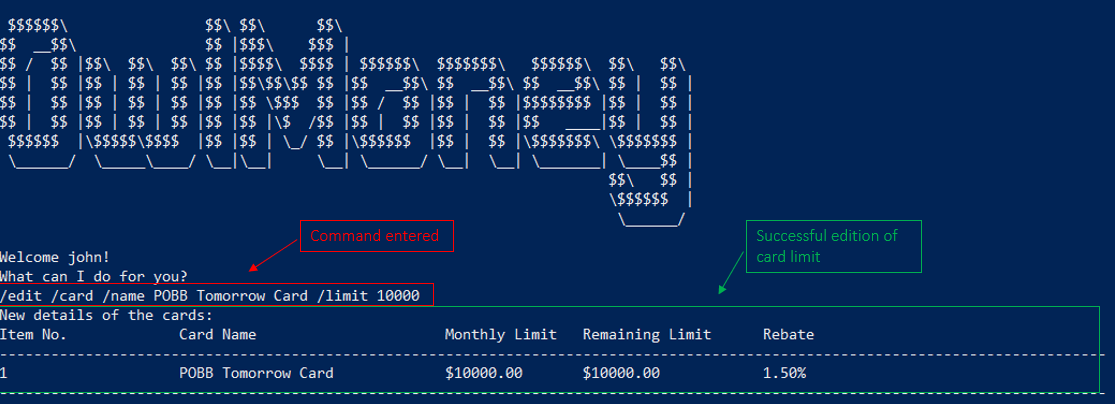
/edit /cardEdits the credit limit of POBB Tomorrow Card to $10000.
-
/edit /card /name POBB Tomorrow Card /rebate 2.25
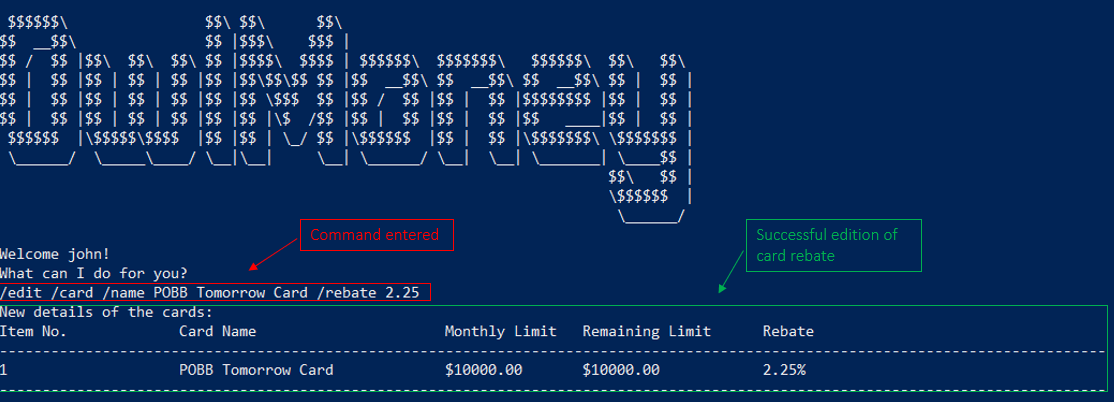
/edit /cardEdits the cashback rate of POBB Tomorrow Card to 2.25%.
4.2.3.3. Deleting credit card /delete /card
Cancelled your credit card as well, you can delete them here too!
Command Syntax
/delete /card /name CARD_NAME
|
All transactions (e.g. expenditures) related to the credit card will be deleted. |
Example
-
/delete /card /name POBB Tomorrow Card
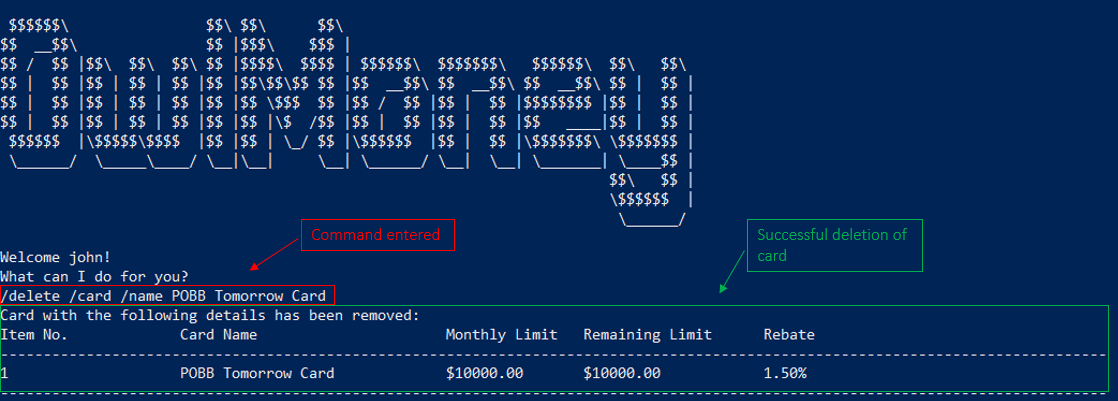
/delete /cardDeletes a credit card named POBB Tomorrow Card.
4.2.3.4. Adding expenditures for credit cards /add /cardexpenditure
Charged an expenditure to your credit card to earn cashback rebates? You can record them here!
Command Syntax
/add /cardexpenditure /amount AMOUNT /from CARD_NAME /date DATE /desc DESCRIPTION [/category CATEGORY]
Example
-
/add /cardexpenditure /amount 1.20 /from POBB Tomorrow Card /date 28/09/2019 /desc bubble tea /category Dining
Adds an expenditure that charged to POBB Tomorrow Card dated 28/09/2019 that costs $1.20 with the description of bubble
tea and category of Dining.
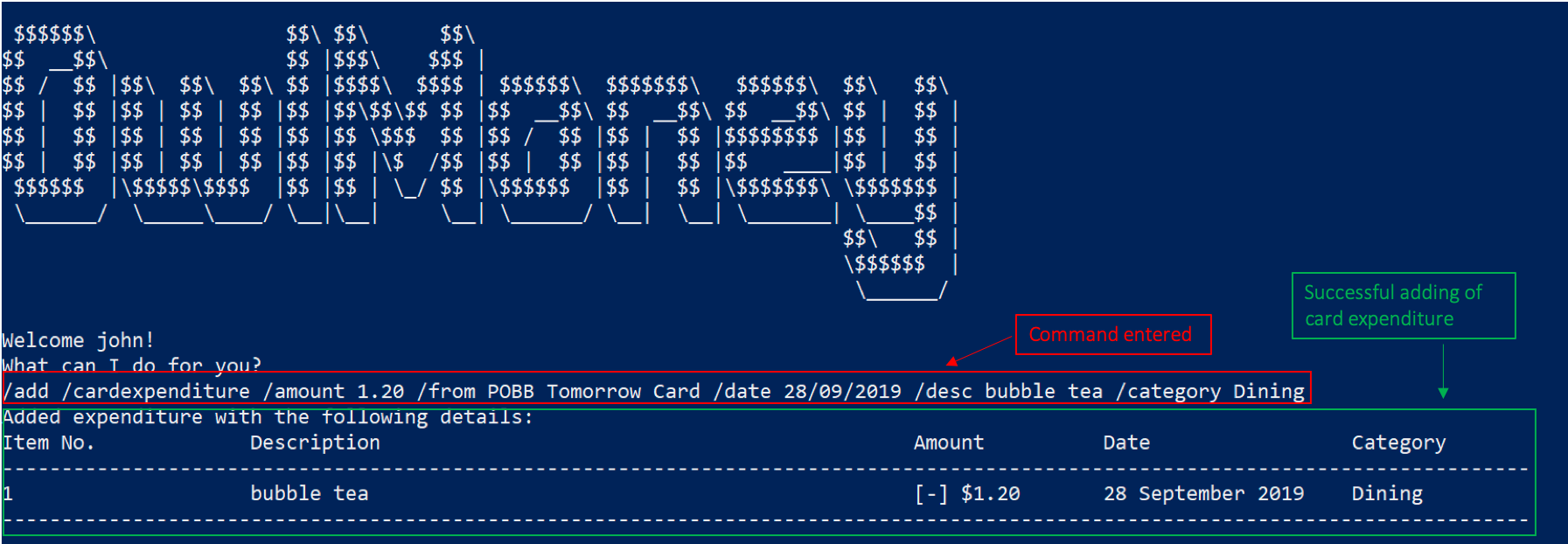
/add /cardexpenditure.4.2.3.5. Editing expenditures for credit cards /edit /cardexpenditure
Charged more expenditure to your card than you initially recorded? You can edit them here!
Command Syntax
/edit /cardexpenditure /from CARD_NAME /transno TRANSACTION_NUMBER [/desc DESCRIPTION] [/category CATEGORY] [/amount
AMOUNT] [/date DATE]
|
At least one of |
|
To find out which transaction to edit, use the Only unpaid expenditures can be edited. |
Example
-
/edit /cardexpenditure /from POBB Tomorrow Card /transno 2 /desc Uniwlo Shirt
Edits expenditure 2 that was charged to POBB Tomorrow Card to a new description of Uniwlo Shirt.
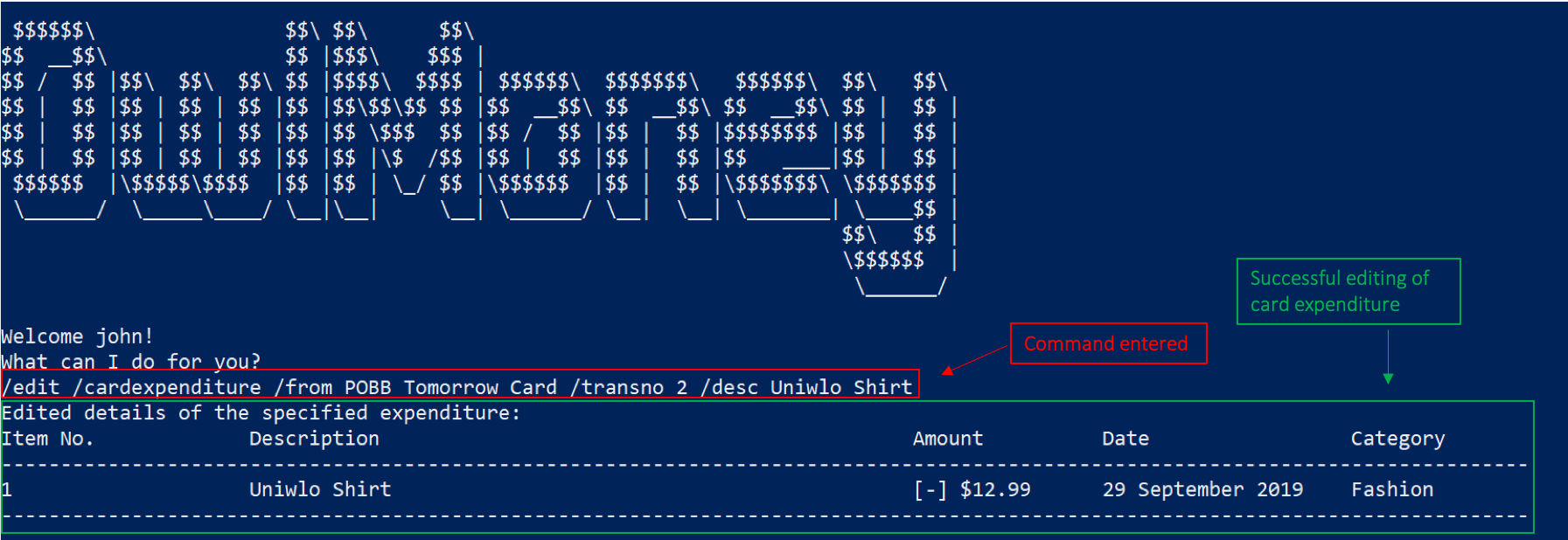
/edit /cardexpenditure.-
/edit /cardexpenditure /from POBB Tomorrow Card /transno 5 /amount 3.50
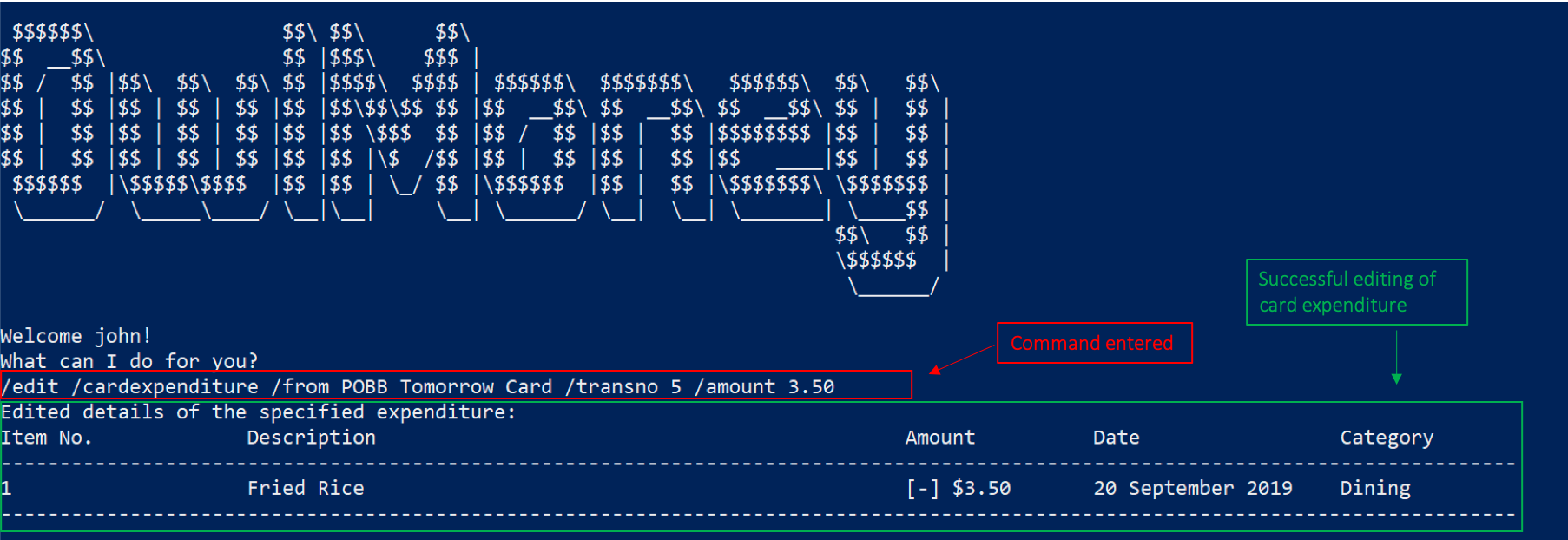
/edit /cardexpenditure.4.2.3.6. Deleting expenditures for credit cards /delete /cardexpenditure
Accidentally added a transaction that did not happen? You can delete it!
Command Syntax
/delete /cardexpenditure /from CARD_NAME /transno TRANSACTION_NUMBER
|
To find out which expenditure to delete, use the Only unpaid expenditures can be deleted. |
Example
-
/delete /cardexpenditure /from POBB Tomorrow Card /transno 1
Deletes an expenditure from POBB Tomorrow Card with transaction number 1.
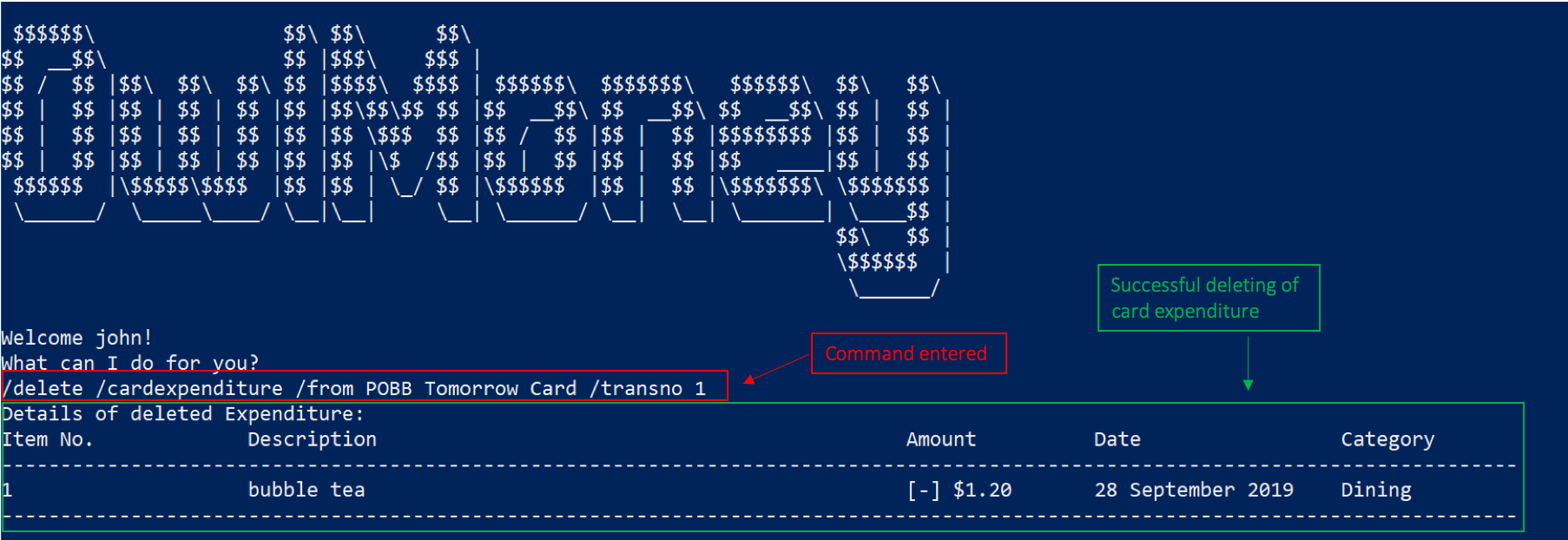
/delete /cardexpenditure.4.2.3.7. Adding monthly credit card bill to savings account /add /cardbill
Charge your credit card monthly bill to your savings account! This will add a credit card bill expenditure and also deposit the monthly rebate to your savings account.
Command Syntax
/add /cardbill /card CARD_NAME /date YEARMONTH /bank ACCOUNT_NAME
|
The credit card bill expenditure and rebates deposit will be reflected in the savings account dated today. Rebates will be calculated based on the current credit card rebate, no matter which month the credit card transaction is from. |
Example
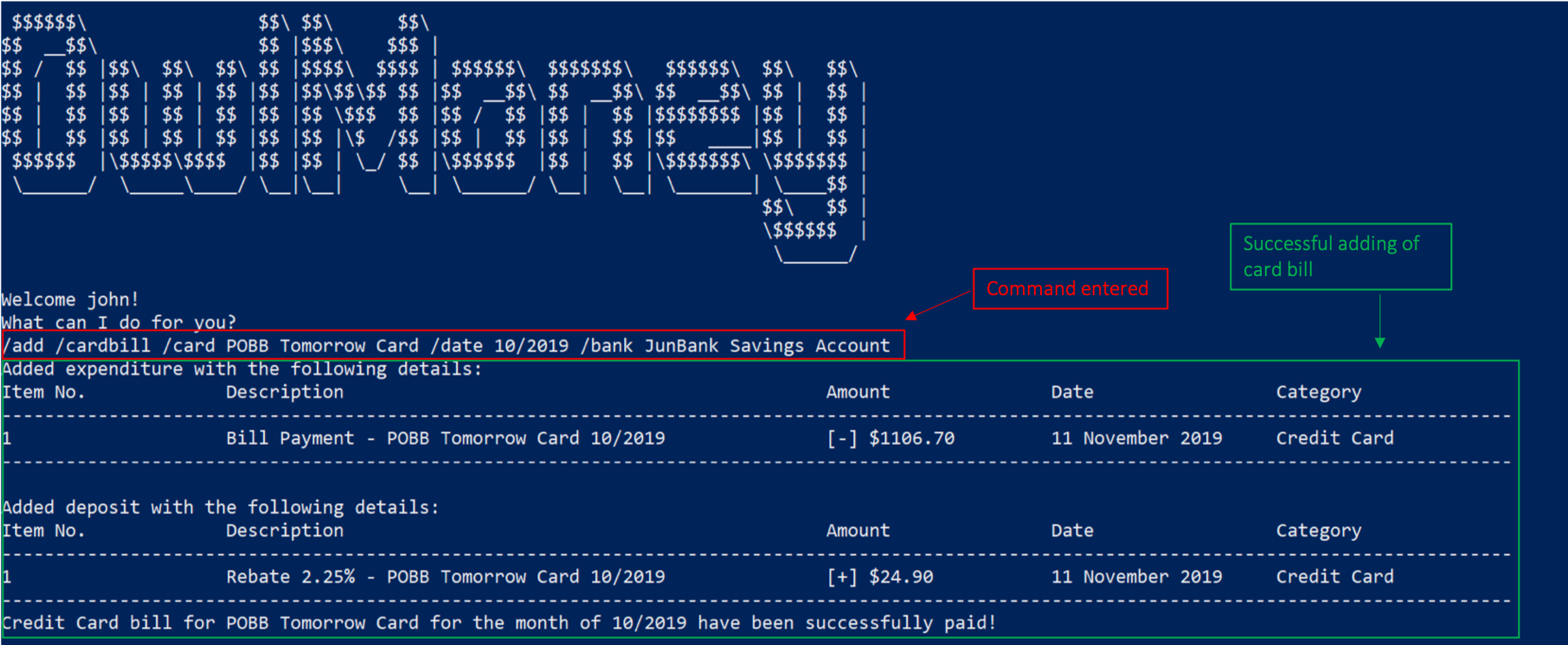
-
/add /cardbill /card POBB Tomorrow Card /date 10/2019 /bank JunBank Savings Account
Adds a credit card bill expenditure dated today to JunBank Savings Account with total card expenditures from POBB
Tomorrow Card in the month and year of 10/2019.
Rebates for the month will also be deposited back to JunBank Savings Account.
/add /cardbill.4.2.3.8. Deleting credit card bill from savings account /delete /cardbill
Made a mistake in charging of credit card bill or decided to add more card transaction for an already paid month? You can delete your credit card bill, which will delete the bill expenditure and rebate deposit from your savings account!
Command Syntax
/delete /cardbill /card CARD_NAME /date YEARMONTH /bank ACCOUNT_NAME
|
Do not use the |
Example
-
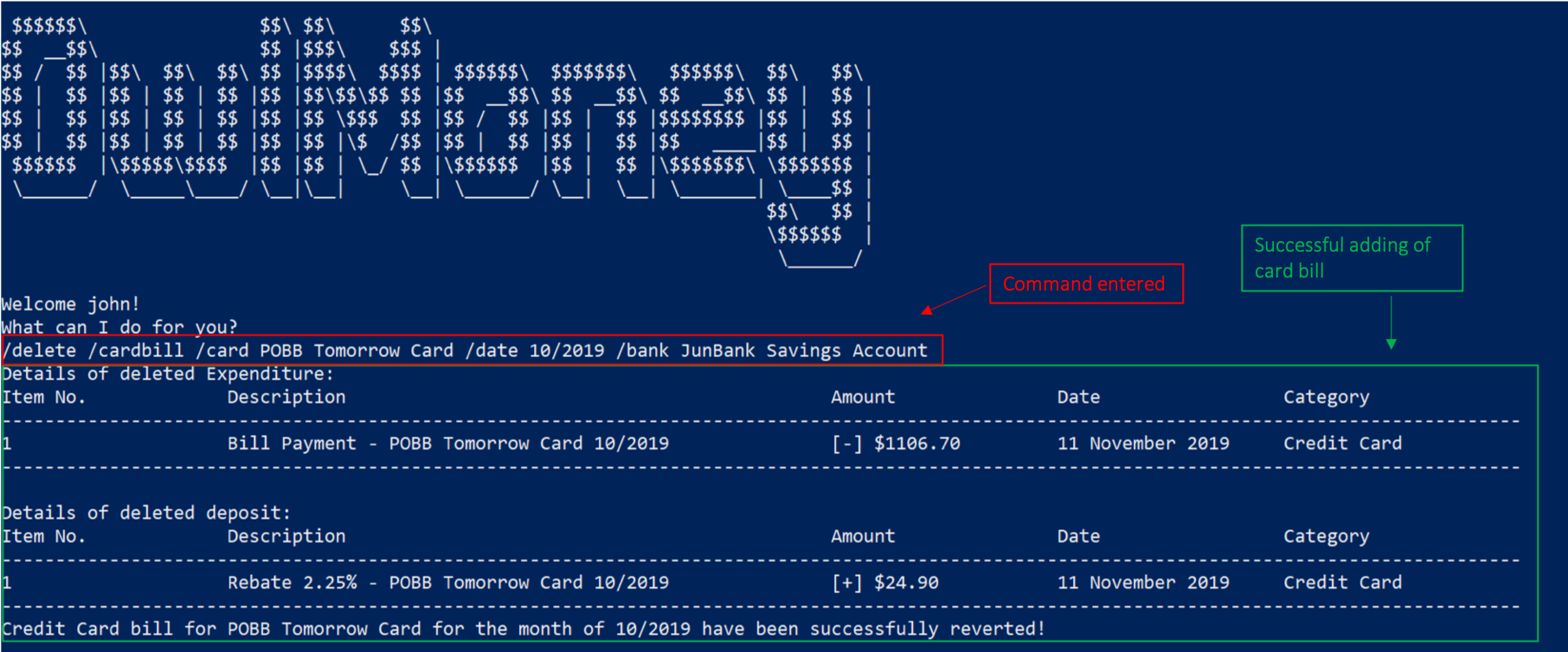
/delete /cardbill /card POBB Tomorrow Card /date 10/2019 /bank JunBank Savings Account
Deletes credit card bill expenditure and rebate deposit from JunBank Savings Account. All credit card
expenditures from 10/2019 will be marked as unpaid from POBB Tomorrow Card.
/delete /cardbill.4.2.4. Financial Goal Management
In this section, you’ll be introduced to commands and parameters that can get you started to create financial goals to achieve your short and long term goals in OwlMoney.
Below is a list of command parameters that you can expect to use for the commands in this section.
Parameter |
Description |
Acceptable Range of Values |
|
Indicates the name of the goal you are setting. (e.g. Punggol BTO down payment) |
Take note that there is a maximum of 20 character limit. |
|
Indicates the amount of money. (e.g. 35000.00) |
|
|
Indicates the date you wish to achieve your goal. (e.g. 1/12/2022) |
|
|
Indicates the number of days you wish to achieve your goal. |
|
|
Indicates the name of the savings account to link the goal for tracking purposes. (e.g. JunBank Savings Account) |
|
4.2.4.1. Adding financial goals /add /goals
Have a financial goal that you wish to achieve? We can certainly help you with that! Regardless whether it’s a short-term goal like saving for a holiday or a long-term goal like saving for your wedding or retirement, we’ve got you covered!
Earn an achievement when you reach your goal before your stipulated deadline and unlocked a new achievement! View your achievements using the command |
Command Syntax
/add /goals /name GOAL_NAME /amount TARGET_AMOUNT /by DATE [/from ACCOUNT_NAME]
/add /goals /name GOAL_NAME /amount TARGET_AMOUNT /in DAYS [/from ACCOUNT_NAME]
|
YOU CAN ONLY ADD UP TO 20 GOALS. |
Example
-
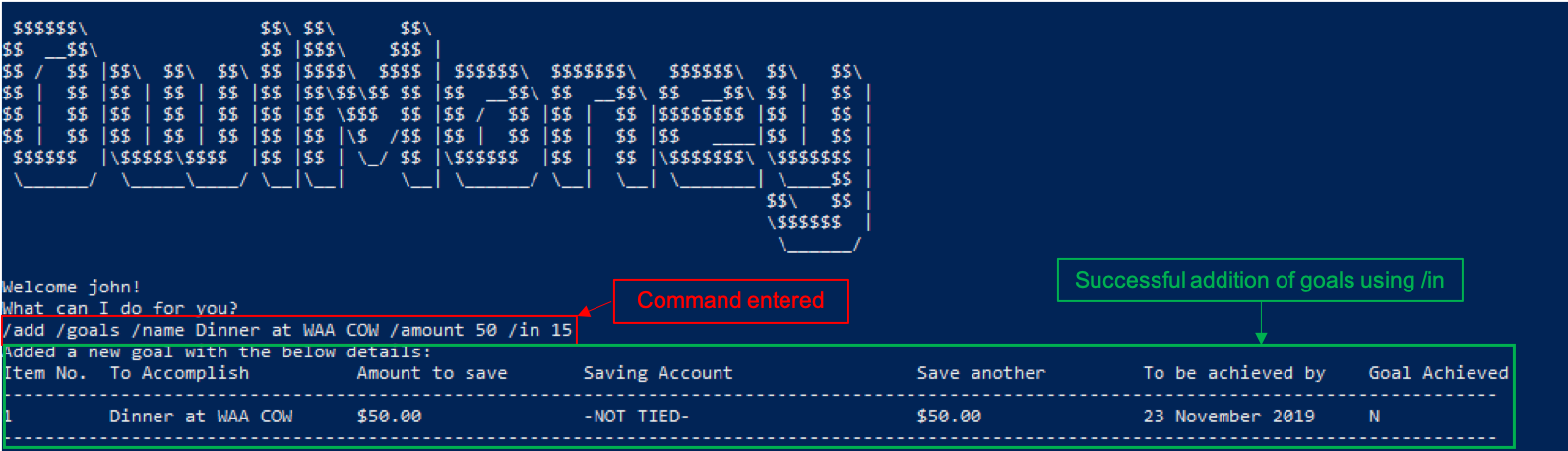
/add /goals /name Dinner at WAA COW /amount 50 /in 15
Adds a goal named Dinner at WAA COW which aims to save $50 in 15 days.
/in as date parameter-
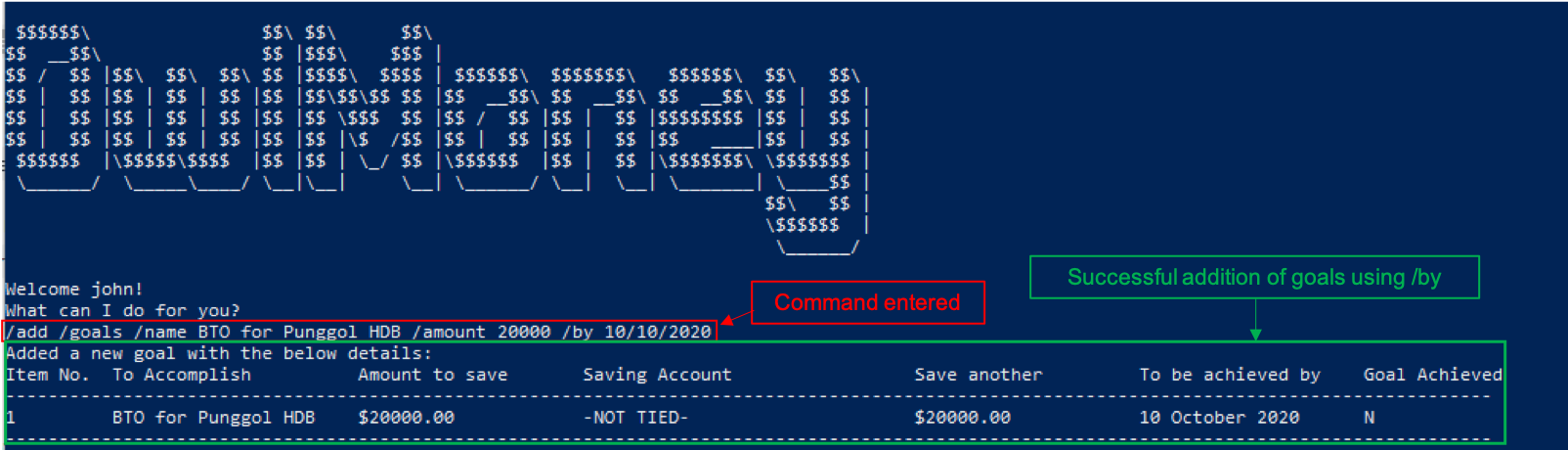
/add /goals /name BTO for Punggol HDB /amount 20000 /by 10/10/2020
Adds a goal named BTO for Punggol HDB which aims to save $20000 by 10/10/2020.
/by as date parameter-
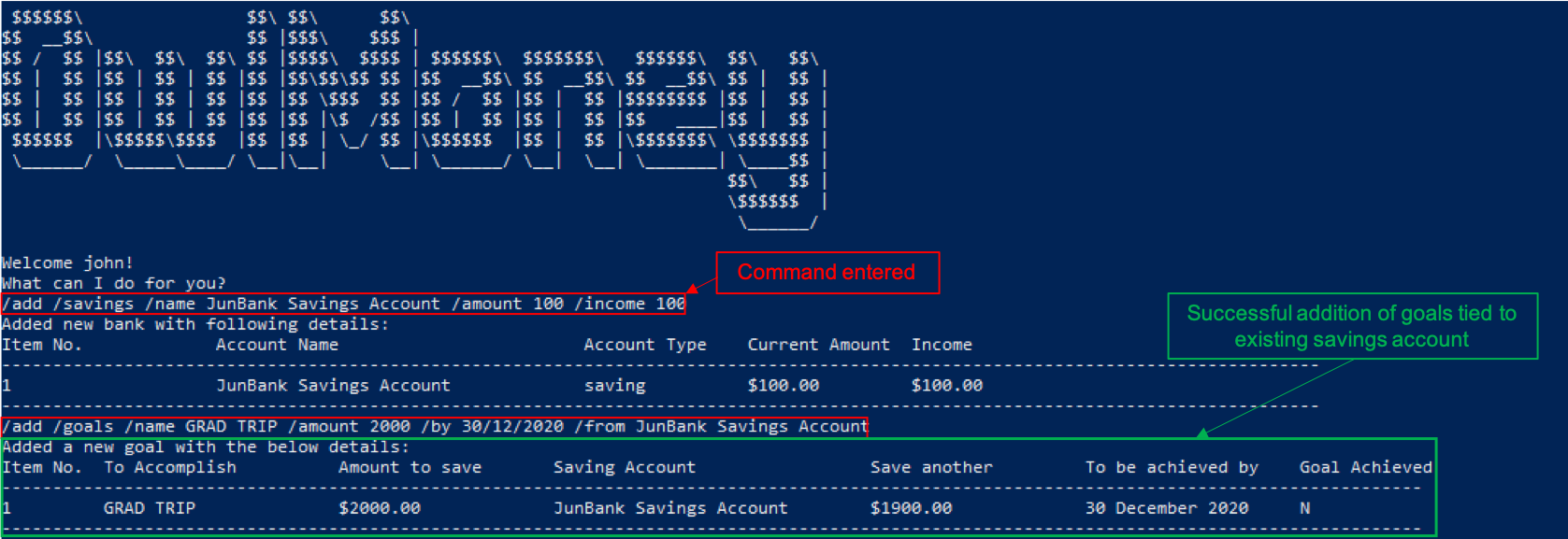
/add /goals /name GRAD TRIP /amount 2000 /by 30/12/2020 /from JunBank Savings Account
Adds a goal named GRAD TRIP which aims to save $2000 by 30/12/2020 and ties it to a savings account named JunBank
Savings Account.
/from parameter4.2.4.2. Editing financial goals /edit /goals
Made changes to one of your goals? Amend it easily with our edit feature!
Command Syntax
/edit /goals /name GOAL_NAME [/newname GOAL_NAME] [/amount AMOUNT] [/in DAYS] [/by DATE] [/from ACCOUNT_NAME] [/mark 1]
|
At least one of
Untie your currently linked goals with the same ACCOUNT_NAME that you link to using |
Example
-
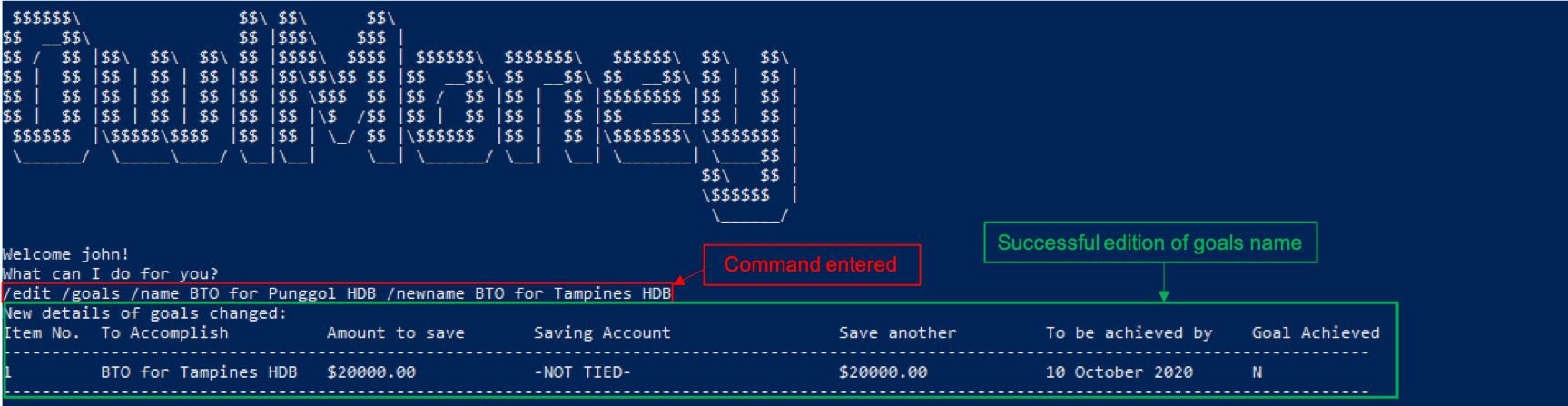
/edit /goals /name BTO for Punggol HDB /newname BTO for Tampines HDB
Edits the name of the goal from BTO for Punggol HDB to BTO for Tampines HDB.
/edit /goals /name and /newname-
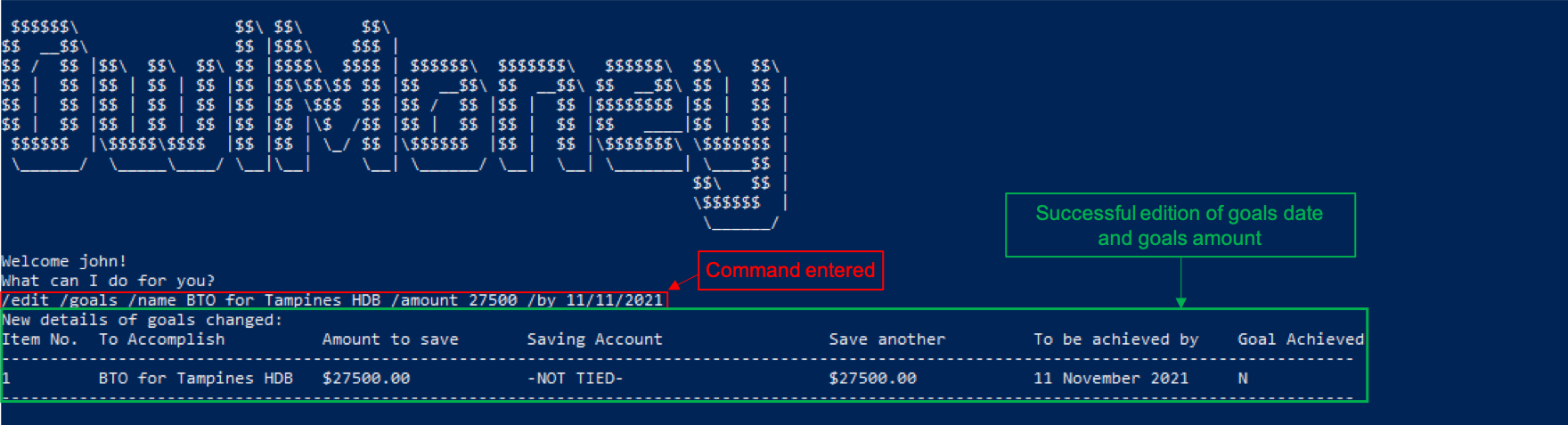
/edit /goals /name BTO for Tampines HDB /amount 27500
Edits the goal of BTO for Tampines HDB to a new date of 11/11/2021 and amount to $27500.
/edit /goals /name with /by and /amount|
You can also add a savings account using the edit feature if your existing goal has no account linked to it. |
-
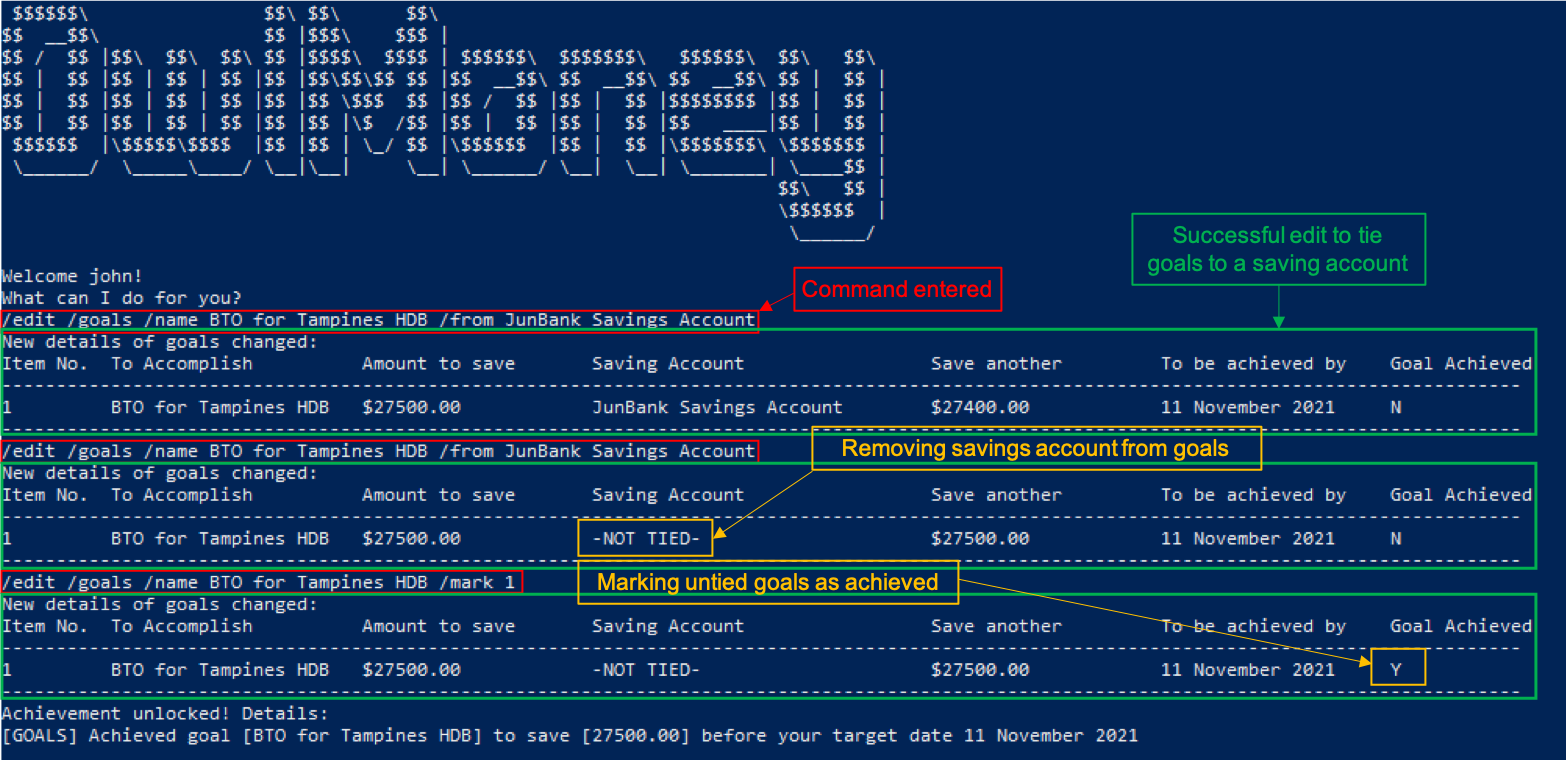
/edit /goals /name BTO for Tampines HDB /from JunBank Savings Account
Edits the savings account tied to BTO for Tampines HDB to JunBank Savings Account.
-
/edit /goals /name BTO for Tampines HDB /from JunBank Savings Account
Change your current goal to an un-tracked goals.
-
/edit /goals /name BTO for Tampines HDB /mark 1Marks un-tracked goals as done.
4.2.4.3. Deleting financial goals /delete /goals
Are your goals not relevant to you anymore?
Or achieved your goal? You can safely delete them!
Command Syntax
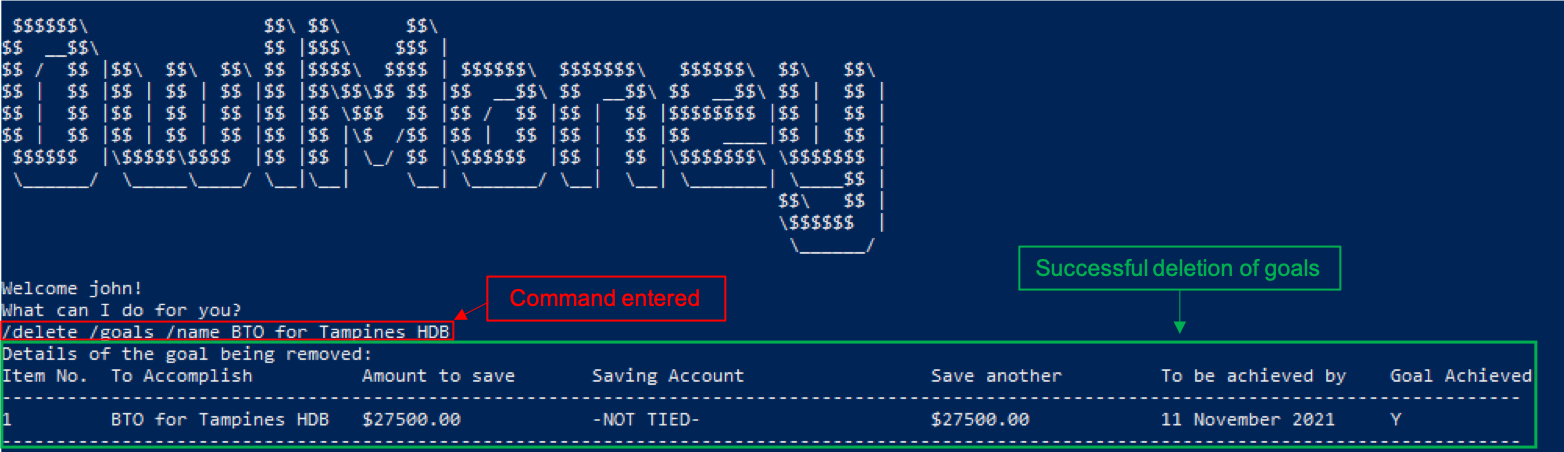
/delete /goals /name GOAL_NAME
Example
-
/delete /goals /name BTO for Tampines HDB
Deletes a goal named BTO for Tampines HDB.
/delete /goals /name4.2.5. Profile Management
4.2.5.1. Editing profile details /edit /profile
Thought of a new idea for your profile name? Change it now!
Command Syntax
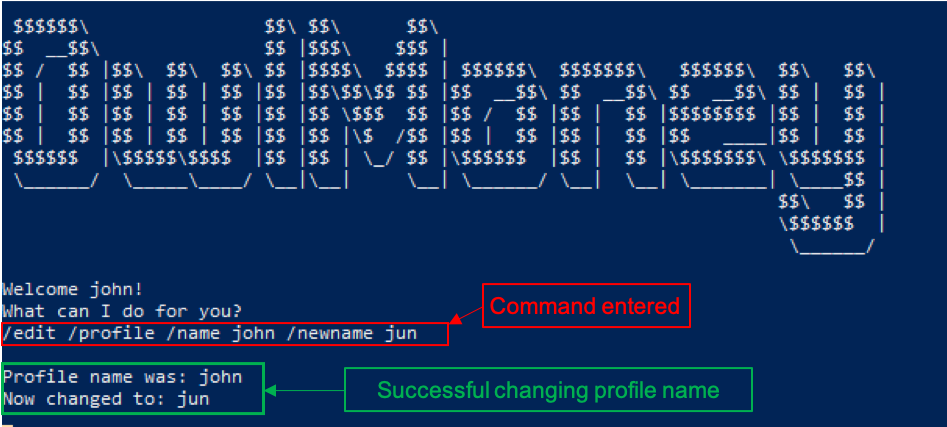
/edit /profile /name NAME /newname NAME
Example
/edit /profile /name john /newname jun
Edits the profile name from john to jun
/edit /profile /name and /newname4.3. Utility Commands
OwlMoney provides commands that are available for usage throughout the application.
They include capabilities like finding, listing, transferring money and advanced automation features!
4.3.1. Finding information stored in OwlMoney /find
In this section, you’ll be introduced to commands and parameters that help you to find and sieve information that you require quickly out of OwlMoney.
Below is a list of command parameters that you can expect to use for the commands in this section.
Parameter |
Description |
Acceptable Range of Values |
|
Indicates the name of the bank account. (e.g. DBB Vickers Account) |
Take note that there is a maximum of 30 character limit. |
|
Indicates the name of the credit card. (e.g. POBB Everyday Card) |
Take note that there is a maximum of 30 character limit. |
|
Indicates the name of the investment bond. (e.g. June SSB) |
Take note that there is a maximum of 30 character limit. |
|
Indicates the description of the transaction. |
Take note that there is a maximum of 50 character limit. |
|
Indicates the category of the transaction. |
Take note that there is a maximum of 15 character limit. |
|
Indicates the date the transaction was made. (e.g. 2/2/2019) |
|
4.3.1.1. Finding savings account details /find /savings
Can’t remember the name of your savings account? Don’t worry OwlMoney allows you to find out the details of your bank account as long as you remember part of your account name.
Command Syntax
/find /savings /name ACCOUNT_NAME
|
|
Example
-
/find /savings /name Jun
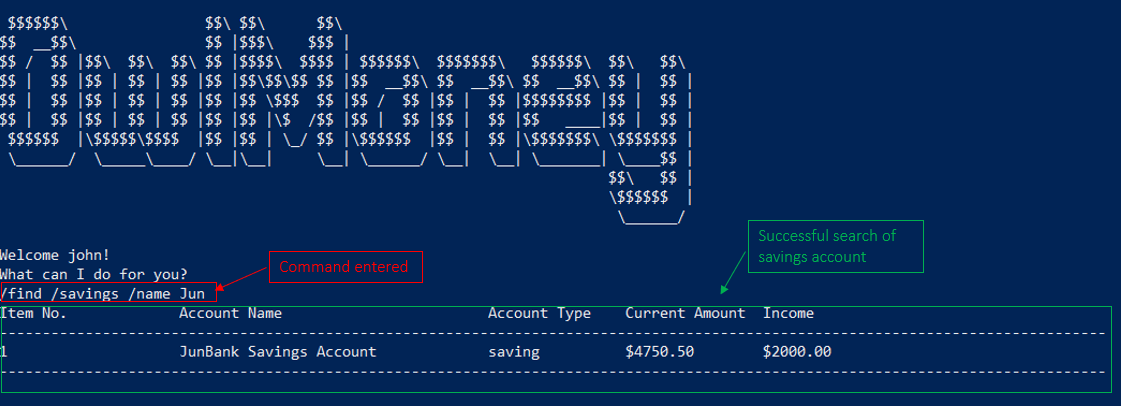
/find /savingsFinds and lists all savings accounts that have the phrase Jun in the account name.
4.3.1.2. Finding investment account details /find /investment
Can’t remember the name of your investment account? Don’t worry OwlMoney allows you to find out the details of your bank account as long as you remember part of your account name.
Command Syntax
/find /investment /name ACCOUNT_NAME
|
|
Example
-
/find /investment /name Vickers

/find /investmentFinds and lists all investment accounts that have the phrase Vickers in the account name.
4.3.1.3. Finding credit card details /find /card
Searching for a Credit Card but forgot the name? OwlMoney helps you by providing you various ways to do it!
Command Syntax
/find /card /name CARD_NAME
|
|
Example
-
/find /card /name POBB
Successful search of card after using /find /card
image::FindCardCommandExample.png[Caption="Figure : "]
Finds and lists all cards with the name that contains the phrase POBB.
4.3.1.4. Finding bond details /find /bonds
Searching for an investment bond within an investment account? OwlMoney can help you with that by providing you various ways to do it!
Command Syntax
/find /bonds /name BOND_NAME /from ACCOUNT_NAME
|
|
Example
-
/find /bonds /name SSB /from DBB Vickers Account
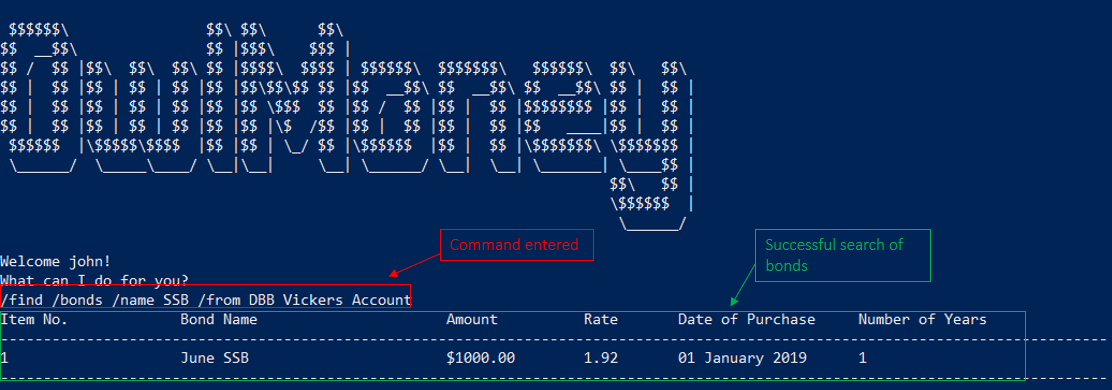
/find /bondsFinds and lists all bonds that contain the phrase SSB in the name from the investment account called DBB Vickers
Account.
4.3.1.5. Finding bank transaction details /find /banktransaction
Looking for a transaction from a bank account? OwlMoney is able to help you with that by providing you various ways to do it! It allows you to search by description, category or a date range!
Command Syntax
/find /banktransaction /name ACCOUNT_NAME [/desc DESCRIPTION] [/from DATE /to DATE] [/category CATEGORY]
|
Transactions includes both expenditures and deposits.
|
|
At least one of |
Example
-
/find /banktransaction /name JunBank Savings Account /desc bubble tea
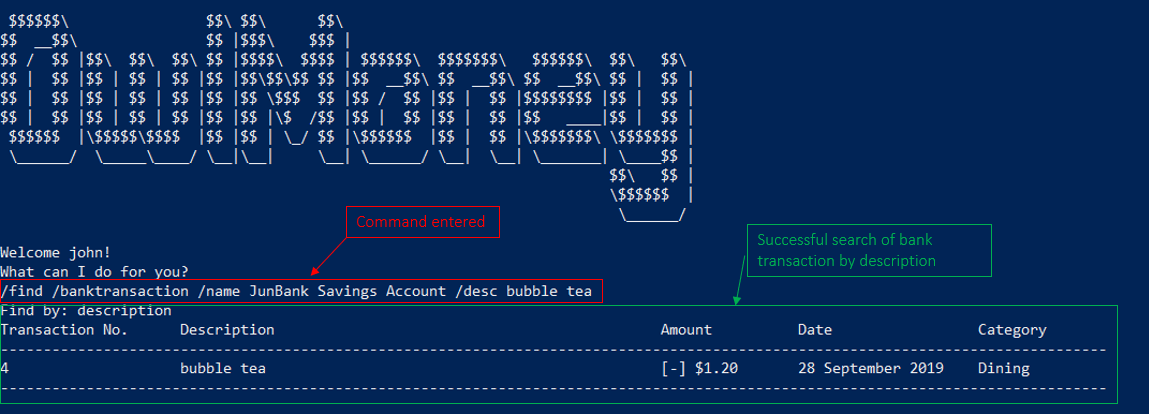
/find /banktransactionFinds and lists all transactions that match the description bubble tea charged to JunBank Savings Account.
-
/find /banktransaction /name JunBank Savings Account /category food
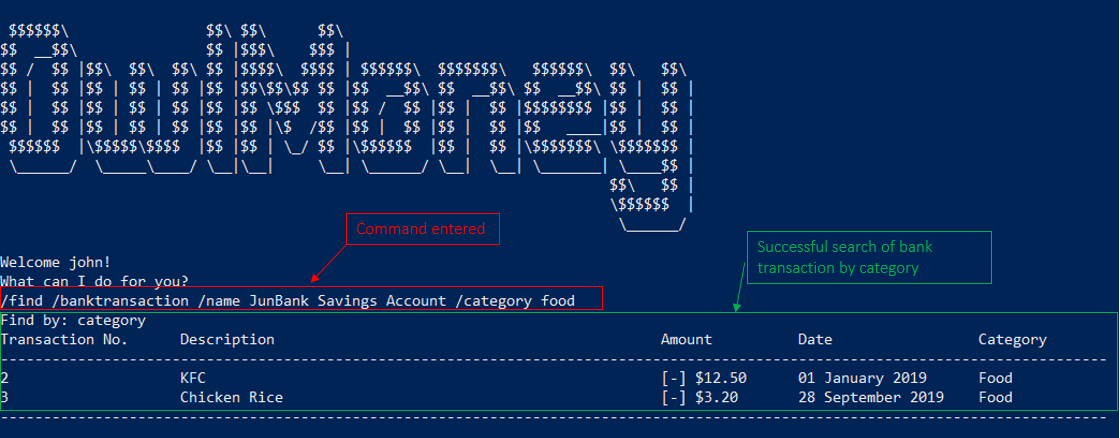
/find /banktransactionFinds and lists all transactions that match the category food from the bank named JunBank Savings Account
-
/find /banktransaction /name JunBank Savings Account /from 1/1/2019 /to 7/1/2019

/find /banktransactionFinds and lists all transactions that fall between the date range of 1/1/2019 and 7/1/2019 from the bank named
JunBank
Savings Account
.
-
/find /banktransaction /name JunBank Savings Account /desc bubble tea /from 1/1/2019 /to 7/1/2019 /category food
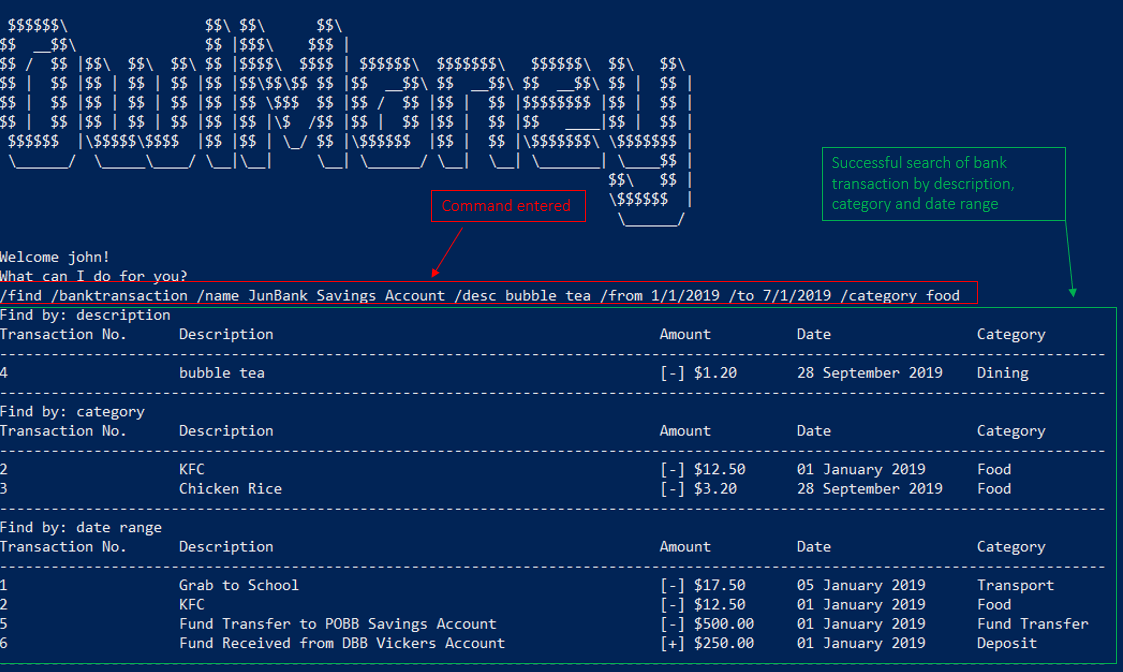
/find /banktransactionFinds and lists all transactions that match any one of the categories:
-
ACCOUNT_NAME → JunBank Savings Account | DESCRIPTION → bubble tea
-
ACCOUNT_NAME → JunBank Savings Account | FROM → 1/1/2019 TO → 7/1/2019
-
ACCOUNT_NAME → JunBank Savings Account | CATEGORY → food
|
In the last example above, OwlMoney provided you with the flexibility of performing 3 searches in one command:
|
4.3.1.6. Finding card transaction details /find /cardtransaction
Looking for transactions from a credit card? OwlMoney is able to help you with that by providing you various ways to do it! It allows you to search by description, category or a date range!
Command Syntax
/find /cardtransaction /name CARD_NAME [/desc DESCRIPTION] [/from DATE /to DATE] [/category CATEGORY]
|
Transactions includes both expenditures and deposits.
|
|
At least one of |
Example
-
/find /cardtransaction /name POBB Tomorrow Card /desc bubble tea
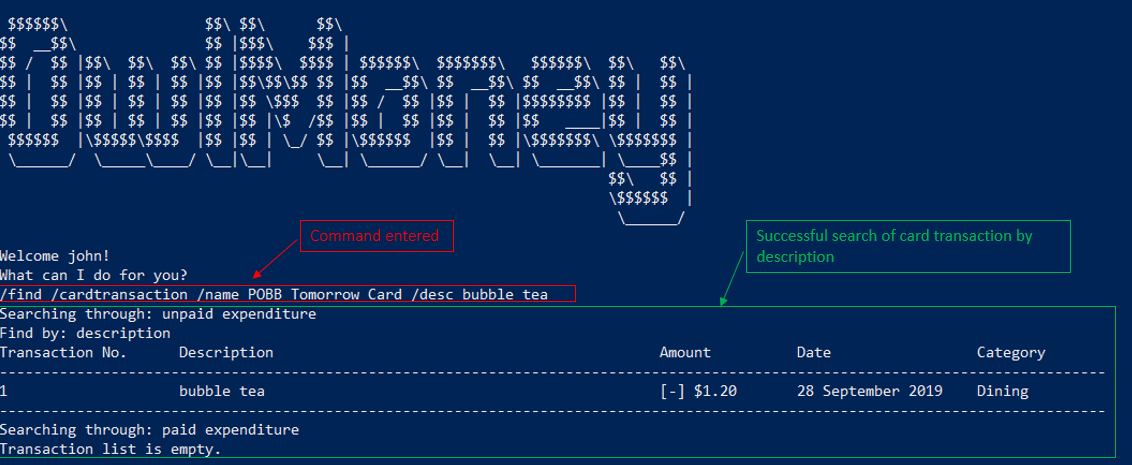
/find /cardtransactionFinds and list all transactions that match with the description bubble tea from the credit card named POBB
Tomorrow Card
-
/find /cardtransaction /name POBB Tomorrow Card /category food

/find /cardtransactionFinds and lists all transactions that match the category food from the credit card named POBB Tomorrow Card
-
/find /cardtransaction /name POBB Tomorrow Card /from 1/1/2019 /to 7/1/2019
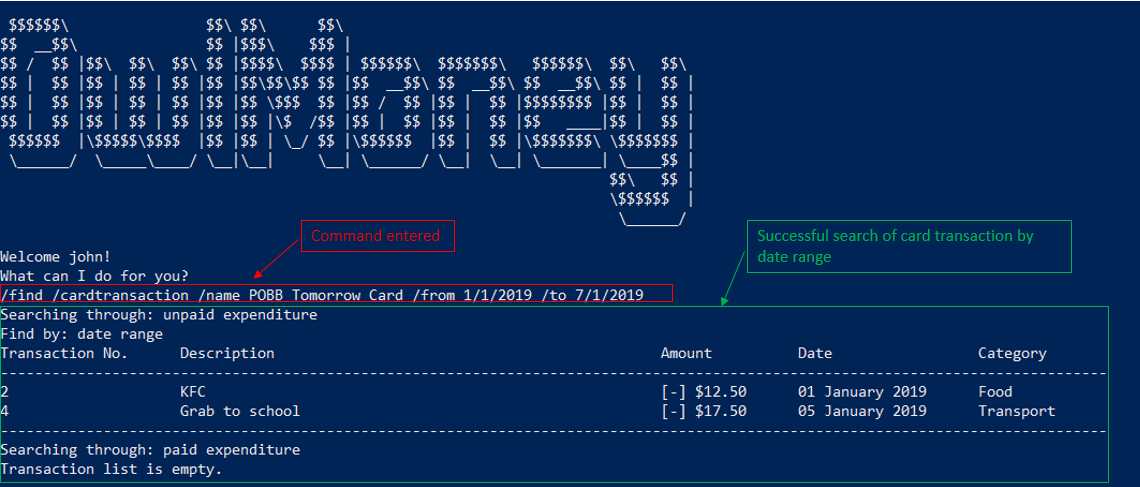
/find /cardtransactionFinds all transactions charged to POBB Tomorrow Card between 1/1/2019 and 7/1/2019.
-
/find /cardtransaction /name POBB Tomorrow Card /desc bubble tea /from 1/1/2019 /to 7/1/2019 /category food
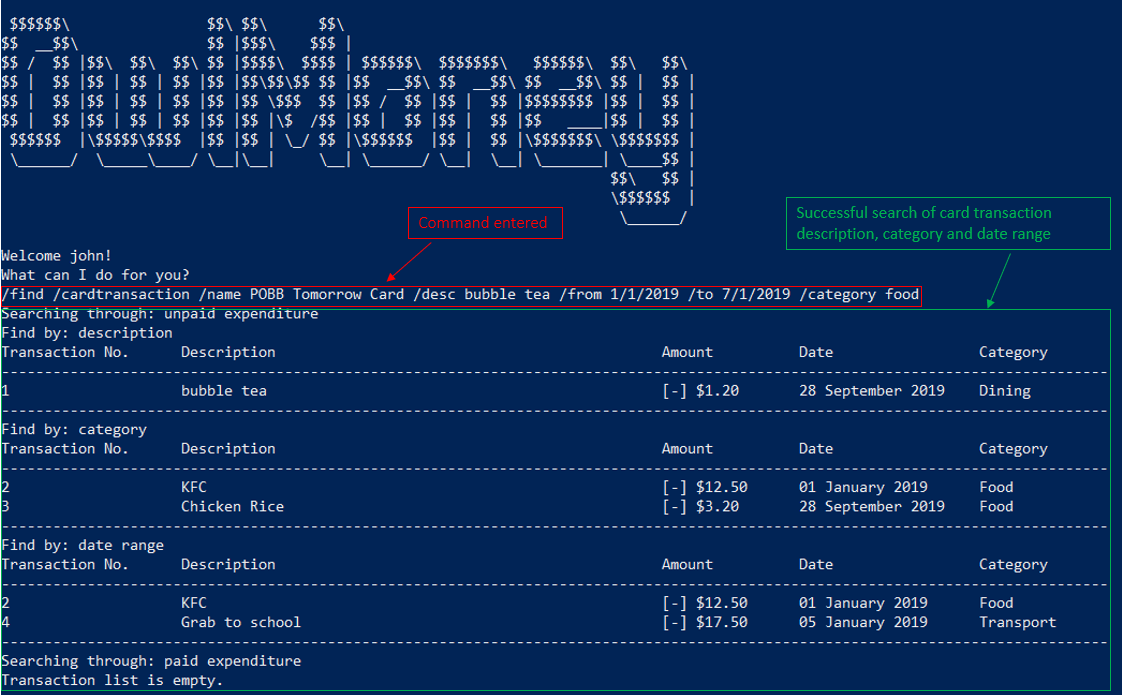
/find /cardtransactionFinds and lists all transactions that match any one of the categories:
-
CARD_NAME → POBB Tomorrow Card | DESCRIPTION → bubble tea
-
CARD_NAME → POBB Tomorrow Card | FROM → 1/1/2019 TO → 7/1/2019
-
CARD_NAME → POBB Tomorrow Card | CATEGORY → food
|
In the last example above, OwlMoney provided you with the flexibility of performing 3 searches in one command:
|
4.3.1.7. Finding recurring expenditure details /find /recurbankexp
Looking for a recurring expenditure from a savings account? OwlMoney is able to help you with that by providing you various ways to do it! It allows you to search by description or category!
Command Syntax
/find /recurbankexp /name ACCOUNT_NAME [/desc DESCRIPTION] [/category CATEGORY]
|
Recurring expenditure only exists in savings account.
|
|
At least one of |
Example
-
/find /recurbankexp /name JunBank Savings Account /desc spotif
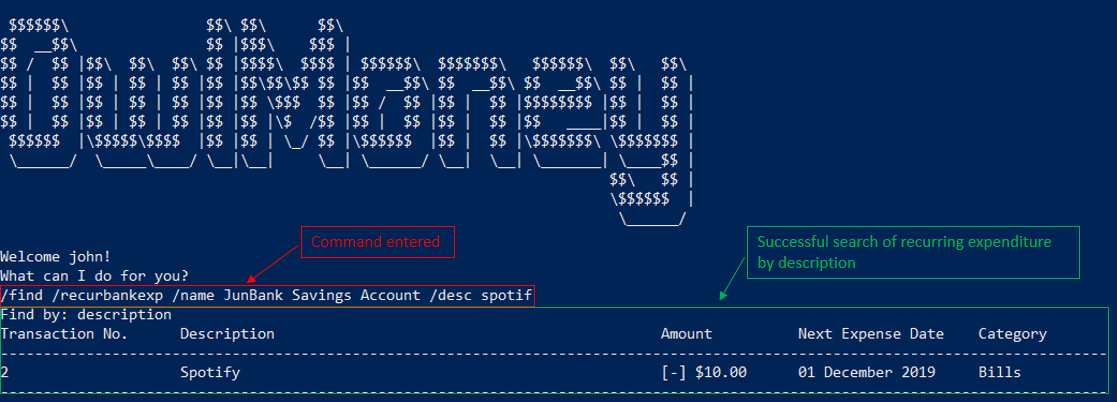
/find /recurbankexpFinds and lists all recurring expenditures that match the description spotif within JunBank Savings Account.
-
/find /recurbankexp /name JunBank Savings Account /category bills
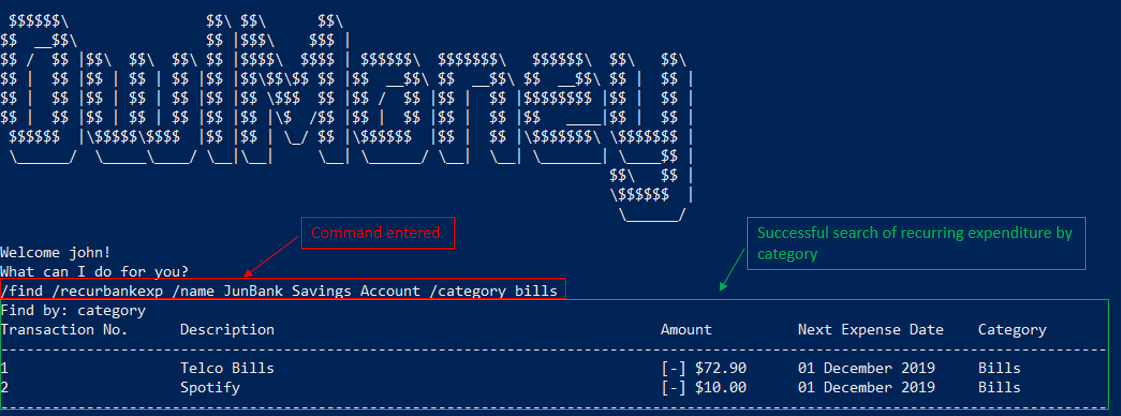
/find /recurbankexpFinds and lists all recurring expenditures that match the category bills within JunBank Savings Account
-
/find /recurbankexp /name JunBank Savings Account /desc spotif /category bills
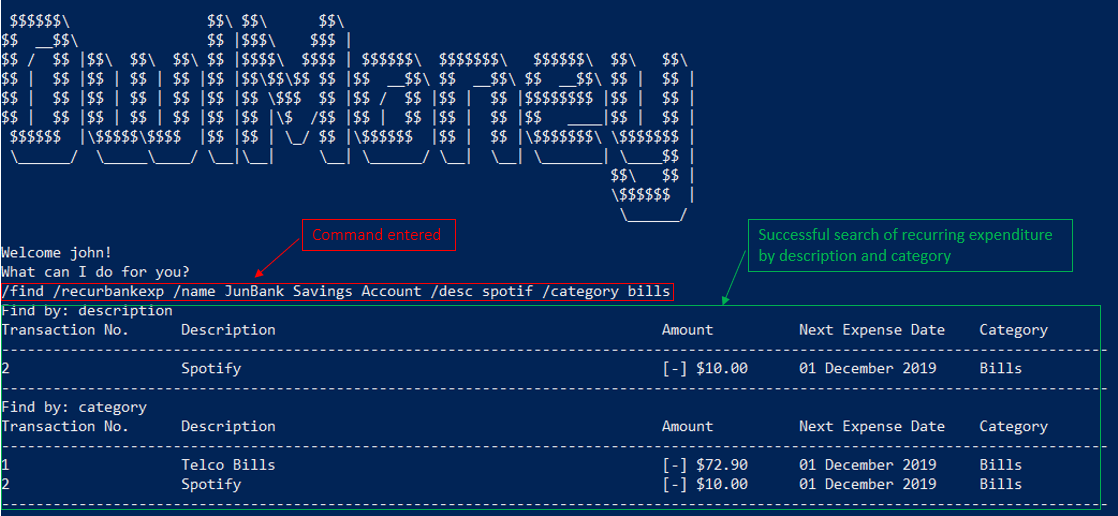
/find /recurbankexpFinds and lists all recurring expenditures that match any one of the categories:
-
ACCOUNT_NAME → JunBank Savings Account | DESCRIPTION → spotif
-
ACCOUNT_NAME → JunBank Savings Account | CATEGORY → bills
|
In the last example above, OwlMoney provided you with the flexibility of performing 2 searches in one command:
|
4.3.2. Listing multiple details /list
Curious to find out your transactions for your accounts? Let us show you how it can be done!
In this section, you’ll be introduced to commands and parameters that help you to transfer funds between different bank accounts in OwlMoney.
Below is a list of command parameters that you can expect to use for the commands in this section.
|
Indicates the name of the bank account. (e.g. DBB Vickers Account) |
Take note that there is a maximum of 30 character limit. |
|
Indicates the name of the credit card. (e.g. POBB Everyday Card) |
Take note that there is a maximum of 30 character limit. |
|
Indicates the number of transactions to list. |
|
Command Syntax
/list /achievement
/list /savings
/list /investment
/list /card
/list /goals
/list /bonds /from ACCOUNT_NAME [/num NUMBER]
/list /bankexpenditure /from ACCOUNT_NAME [/num NUMBER]
/list /cardexpenditure /from CARD_NAME [/num NUMBER]
/list /deposit /from ACCOUNT_NAME [/num NUMBER]
/list /recurbankexp /from ACCOUNT_NAME
|
Remaining Limit shown in |
|
When |
Example
-
/list /savings
Lists all savings accounts.
-
/list /investment
Lists all investment accounts.
-
/list /bankexpenditure /from JunBank Savings Account /num 60
Lists the most recent 60 expenditures tied to JunBank Savings Account.
-
/list /cardexpenditure /from POBB Tomorrow Card
Lists the most recent 30 expenditures tied to the POBB Tomorrow Card.

/list /cardexpenditure.-
/list /deposit /from JunBank Savings Account /num 10
Lists the most recent 10 deposits tied to JunBank Savings Account.
4.3.3. Transferring money between accounts /transfer
In this section, you’ll be introduced to commands and parameters that help you to transfer funds between different bank accounts in OwlMoney.
Below is a list of command parameters that you can expect to use for the commands in this section.
Parameter |
Description |
Acceptable Range of Values |
|
Indicates the name of the bank account. (e.g. DBB Vickers Account) |
Take note that there is a maximum of 30 character limit. |
|
Indicates the date the expenditure was made. (e.g. 2/2/2019) |
|
|
Indicates the amount of money. (e.g. 2113.30) |
|
4.3.3.1. Transferring funds between different bank accounts /transfer /fund
Thinking of transferring money between different accounts? We can do that too.
Command Syntax
/transfer /fund /from ACCOUNT_NAME /to ACCOUNT_NAME /amount AMOUNT /date DATE
|
OwlMoney provides you with the flexibility to transfer funds between different account types. (e.g. Savings to investment and vice-versa) |
Example
-
/transfer /fund /from JunBank Savings Account /to POBB Savings Account /amount 500 /date 1/1/2019
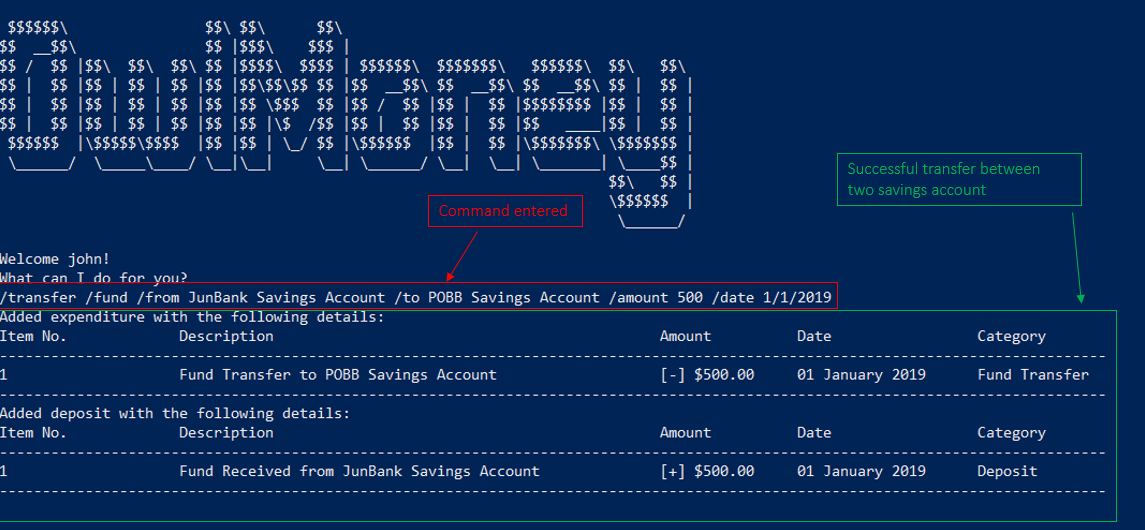
/transfer /fundTransfers $500 from JunBank Savings Account (savings account) to POBB Savings Account (savings account) on
1/1/2019.
-
/transfer /fund /from DBB Vickers Account /to JunBank Savings Account /amount 250 /date 1/1/2019
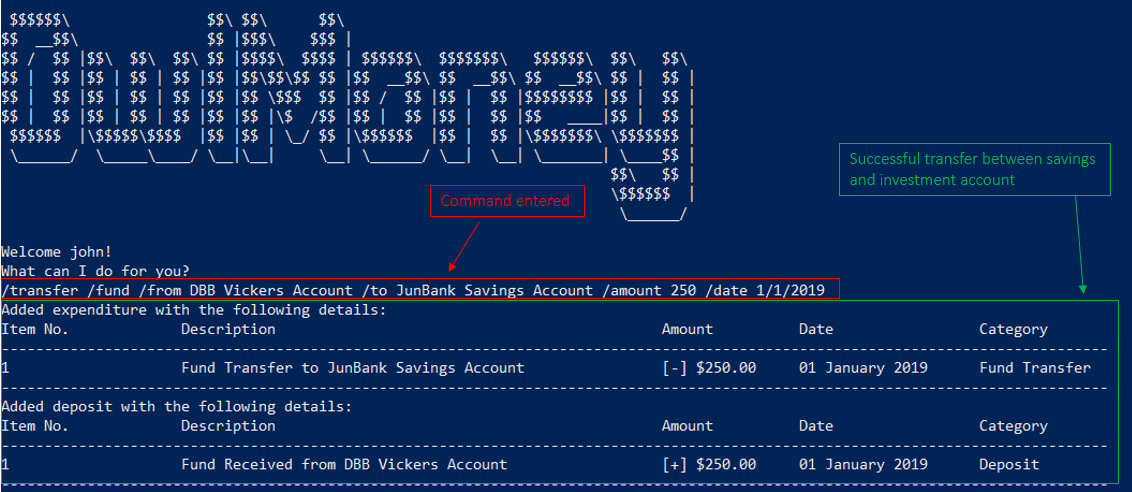
/transfer /fundTransfers $250 from DBB Vickers Account (investment account) to JunBank Savings Account (savings account) on
1/1/2019
.
4.3.4. Recurring expenditures management
In this section, you’ll be introduced to commands and parameters that help you to manage recurring expenditures in OwlMoney.
Below is a list of command parameters that you can expect to use for the commands in this section.
Parameter |
Description |
Acceptable Range of Values |
|
Indicates the name of the bank account. (e.g. DBB Vickers Account) |
Take note that there is a maximum of 30 character limit. |
|
Indicates the amount of money. (e.g. 2113.30) |
|
|
Indicates the description of the transaction. |
Take note that there is a maximum of 50 character limit. |
|
The category that the expenditure can be tagged to. (e.g. Bills) |
Take note that there is a maximum of 15 character limit. |
4.3.4.1. Adding recurring expenditures /add /recurbankexp
Postpaid mobile plan bills that are consistent monthly? We can save you the hassle from adding them every month!
Command Syntax
/add /recurbankexp /amount AMOUNT /from ACCOUNT_NAME /desc DESCRIPTION [/category CATEGORY]
Example
/add /recurbankexp /amount 72.90 /from JunBank Savings Account /desc Telco Bills /category Bills
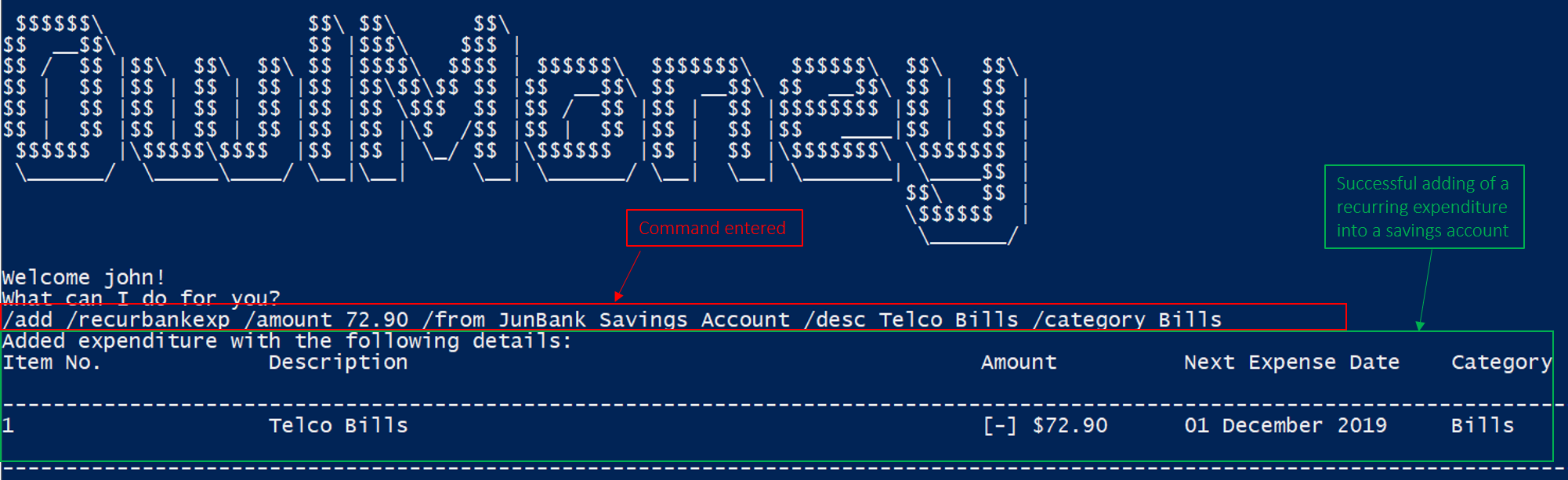
/add /recurbankexp.Adds a recurring expenditure that deducts $72.90 every 1st of the month to pay Telco Bills charged to JunBank
Savings Account categorised under the Bills category.
4.3.4.2. Editing recurring expenditure /edit /recurbankexp
Command Syntax
/edit /recurbankexp /from ACCOUNT_NAME /transno TRANSACTION_NUMBER [/desc DESCRIPTION] [/category CATEGORY] [/amount
AMOUNT]
|
At least one of |
Example
-
/edit /recurbankexp /from JunBank Savings Account /transno 2 /desc Telco Bills /amount 119.90

/edit /recurbankexp.Edits recurring expenditure number 2 description to Telco Bills to charge $119.90.
4.3.4.3. Deleting recurring expenditure /delete /recurbankexp
Cancelled your recurring bill? You can delete it!
Command Syntax
/delete /recurbankexp /from ACCOUNT_NAME /transno TRANSACTION_NUMBER
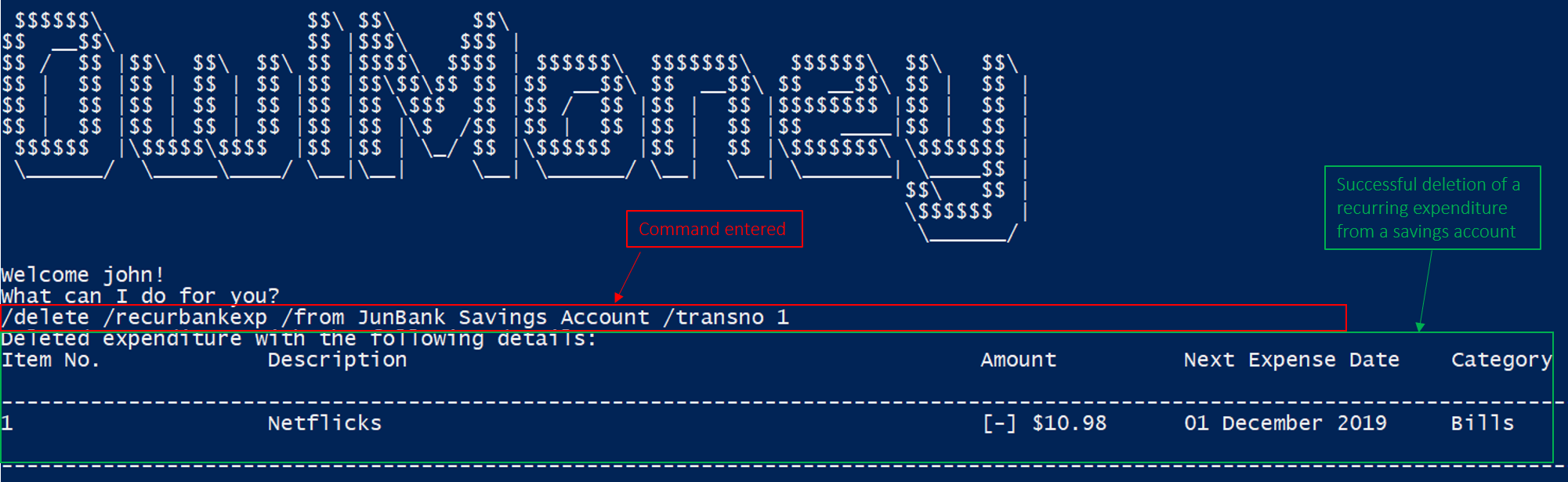
/delete /recurbankexp.|
To find out which recurring expenditure to delete, use the |
Example
-
/delete /recurbankexp /from JunBank Savings Account /transno 1
Deletes a recurring expenditure from JunBank Savings Account with transaction number 1.
4.3.5. Updating profile
Have some recurring transactions which have not been reflected yet? You can update your profile!
Command Syntax
/update
This updates any incoming income or interest that you are potentially scheduled to earn or any recurring expenditures that are supposed to be charged.
5. Future Enhancements [coming in v2.0]
5.1. Multi-Currency Support /currency USD
Multiple most currently used currencies will be supported in future releases. This will enable OwlMoney to support a wider range of users around the globe as well as to account for expenses made overseas, given the rise in online shopping.
5.2. Support for Stocks /stocks
Plans for stocks and options investment type will be supported in future releases. This will provide support for users who are more financially savvy in terms of growing their money with higher risk instruments.
5.3. Insurance tracking /insurance
Insurance is an important part of financial literacy. Ensuring that you are properly covered is important as medical bills are not cheap. Therefore, this feature will enable you to know what illnesses are covered and how much you are paying for the coverage.
6. FAQ
Q: How do I save my data in the application?
A: You do not need to save the data manually. Whenever you run any commands that make changes, OwlMoney's data are
saved automatically in the data directory.
Q: Can I edit the data stored in the files of the data directory?
A: Yes you MAY do it! However, you RISK corrupting YOUR DATA if you enter malformed inputs as OwlMoney
TRUSTS the modifications you make to the files. This is NOT A BUG and is designed as it is. OwlMoney MAY NOT
function optimally if malformed inputs are loaded in from corrupted save files.
Q: How do I edit the data stored in the files of the data directory?
A: We recommend you NOT to use Microsoft Excel to perform your edits because it modifies the formatting of the
.csv file. Therefore, use alternative tools like Notepad++ to perform your edits.
The data in the files are clearly labelled with column names in the .csv files and you can easily make sense of
it! As long as you follow the constraints set out for each PARAMETER as mentioned in all previous sections, you
should be fine!
Q: Does OwlMoney support other languages or locales?
A: OwlMoney currently DOES NOT support languages or locales other than English. If your system language
is not English, please change it before launching OwlMoney as we will not guarantee the smooth performance of
OwlMoney in other environments.
7. Command Summary
This section provides a quick reference for all commands available in OwlMoney.
7.1. General Commands
Task |
Purpose |
Command Format |
Example |
help |
Displays general commands to get users started |
|
|
Undo |
Undo your previous action |
|
|
Exit |
Exits the application |
|
|
7.2. Detailed Management Commands
7.2.1. Savings Account Management
Task |
Purpose |
Command Format |
Example |
Adding savings bank account |
Add a new savings bank account to the user’s profile. |
|
|
Editing savings bank account |
Edit the savings bank account’s details based on the new details given. |
|
|
Deleting savings bank account |
Delete an existing savings bank account from the user’s profile. |
|
|
Adding expenditures for savings bank account |
Add a new expenditure record to the savings bank account specified. |
|
|
Editing expenditures for savings bank account |
Edit an existing expenditure record tied to the savings bank account based on the new details given. |
|
|
Deleting expenditures for savings bank account |
Delete an existing expenditure record tied to the savings bank account. |
|
|
Adding deposit for savings bank account |
Add a new deposit record to the savings bank account. |
|
|
Editing deposit for savings bank account |
Edit an existing deposit record tied to the savings bank account based on the new details given. |
|
|
Deleting deposit for savings bank account |
Delete an existing deposit record tied to the savings bank account. |
|
|
7.2.2. Savings Account Management
Task |
Purpose |
Command Format |
Example |
Adding investment bank account |
Add a new investment bank account to the user’s profile. |
|
|
Editing investment bank account |
Edit the investment bank account’s details based on the new details given. |
|
|
Deleting investment bank account |
Delete an investment bank account from the user’s profile. |
|
|
Adding investment bonds for investment bank account |
Add an investment bond to the investment bank account specified. |
|
|
Editing investment bonds for investment bank account |
Edit an investment bond tied to the investment bank account specified based on the new details given. |
|
|
Deleting investment bonds for investment bank account |
Delete an investment bond tied to the investment bank account specified. |
|
|
7.2.3. Credit Card Management
Task |
Purpose |
Command Format |
Example |
Adding credit card |
Add a new credit card to the user’s profile. |
|
|
Editing credit card |
Edit the credit card details based on the new details given. |
|
|
Deleting credit card |
Delete a credit card from the user’s profile. |
|
|
Adding expenditures for credit card |
Add an expenditure record to the credit card specified. |
|
|
Editing expenditures for credit card |
Edit an expenditure record tied to the credit card specified based on the new details given. |
|
|
Deleting expenditures for credit card |
Delete an expenditure record tied to the credit card specified. |
|
|
Adding credit card bill |
Add a credit card bill expenditure and rebate deposit into savings account. |
|
|
Deleting credit card bill |
Delete a credit card bill expenditure and rebate deposit from savings account. |
|
|
7.2.4. Financial Goal Management
Task |
Purpose |
Command Format |
Example |
Adding financial goals |
Add a new financial goal to the user’s profile. |
|
|
Editing financial goals |
Edit the financial goal’s details based on the new details given. |
|
|
Deleting financial goals |
Delete a financial goal from the user’s profile. |
|
|
7.2.5. Profile Management
Task |
Purpose |
Command Format |
Example |
Editing profile details |
Edit the profile details based on the new details given. |
|
|
7.3. Utility Commands
Task |
Purpose |
Command Format |
Example |
Listing general details of the profile |
List the general details of the bank accounts, cards or goals in the profile. |
|
|
Listing specific details of cards, accounts, bonds, etc. |
List the general specific details of cards, accounts, bonds etc. |
|
|
Finding bank accounts or cards that match with the keyword specified by the user |
List the bank accounts or cards that match with the keyword specified. |
|
|
Finding investment bonds within a specified investment account that match with the keyword specified by the user |
List the bonds' details within a specified investment account that match with the keyword specified. |
|
|
Finding transaction records within a specified bank account or card that match with the keyword specified by the user |
List the transaction records within a specified bank account or card that match with the keyword specified. |
|
======= |
Finding recurring expenditure records within a specified savings account that matches with the keyword specified by the user |
List the recurring expenditure records within a specified savings account that match with the keyword specified. |
|
|
Transferring funds between bank accounts |
Transfer funds from one account to another account based on the amount specified by the user. |
|
|
Adding recurring expenditure for bank account |
Add a new recurring expenditure record to the savings bank account specified. |
|
|
Editing recurring expenditure for bank account |
Edit an existing recurring expenditure record tied to the savings bank account based on the new details given. |
|
|
Deleting recurring expenditure for bank account |
Delete an existing expenditure record tied to the savings bank account. |
|
|
Update outdated profile |
Checks all recurring transactions and updates the profile if needed. This includes income, recurring expenditures, interests from bonds. |
|
|