By: Team W17-3 Since: Aug 2019 Licence: MIT
- 1. Introduction
- 2. Setting up
- 3. Design
- 4. Implementation
- 5. Documentation
- 6. Testing
- 7. Dev Ops
- Appendix A: Product Scope
- Appendix B: User Stories
- Appendix C: Use Cases
- Appendix D: Non Functional Requirements
- Appendix E: Glossary
- Appendix F: Instructions for Manual Testing
- F.1. Launch and Shutdown
- F.2. Adding a savings account
- F.3. Editing a savings account
- F.4. Deleting a savings account
- F.5. Adding an investment account
- F.6. Editing an investment account
- F.7. Deleting an investment account
- F.8. Adding an investment bond
- F.9. Editing an investment bond
- F.10. Deleting an investment bond
- F.11. Adding a bank expenditure transaction
- F.12. Editing a bank expenditure transaction
- F.13. Deleting a bank expenditure transaction
- F.14. Adding a deposit transaction
- F.15. Editing a deposit transaction
- F.16. Deleting a deposit transaction
- F.17. Adding a recurring bank expenditure transaction
- F.18. Editing a recurring bank expenditure transaction
- F.19. Deleting a recurring bank expenditure transaction
- F.20. Adding a credit card
- F.21. Editing a credit card
- F.22. Deleting a credit card
- F.23. Adding a card expenditure
- F.24. Listing card expenditures
- F.25. Deleting a card expenditure
- F.26. Adding a card bill
- F.27. Deleting a card bill
- F.28. Transferring fund
- F.29. Finding savings accounts
- F.30. Finding investment accounts
- F.31. Finding cards
- F.32. Finding bonds
- F.33. Finding bank transactions
- F.34. Finding card transactions
- F.35. Finding recurring expenditure in a savings account
- F.36. Adding new goals
- F.37. Edit goals
- F.38. Delete goals
- F.39. List goals and achievement
1. Introduction
OwlMoney is a command-line based desktop application written in Java 11. It is written in an Object-Oriented Programming (OOP) fashion which provides multiple layers of abstraction for ease of customisability and modularity for future improvements and revisions. Interested in contributing to the OwlMoney project? This guide provides information that will not only help you get started as an OwlMoney contributor, but you’ll find useful to refer to even if you are already an experienced contributor.
2. Setting up
The sub-sections below introduces the prerequisites and steps required to get you started quickly so that you can start developing on this project quickly!
2.1. Prerequisites
-
JDK
11Only JDK 11 is officially supported -
IntelliJ IDE
IntelliJ by default has Gradle plugins installed.
Do not disable it. If you have disabled Gradle, go toFile>Settings>Pluginsto re-enable it.
2.2. Setting up the project on your computer
-
Fork this repo, and clone the fork to your computer
-
Open IntelliJ (if you are not in the welcome screen, click
File>Close Projectto close the existing project dialog first) -
Set up the correct JDK version for Gradle
-
Click
Configure>Project Defaults>Project Structure -
Click
New…and find the directory of the JDK
-
-
Click
Import Project -
Locate the
build.gradlefile and select it. ClickOK -
Click
Open as Project -
Click
OKto accept the default settings -
Open a console and run the command
gradlew processResources(Mac/Linux:./gradlew processResources). It should finish with theBUILD SUCCESSFULmessage.
This will generate all the resources required by the application and tests.
2.3. Verifying the setup
-
Run
owlmoney.Mainand try a few commands -
Run the tests to ensure they all pass.
2.4. Configurations to do before writing code
Before you get down and dirty and start writing code, the configurations below can ease your burden and fix common syntax and styling issues! Configure them and you will notice the benefits in the long run!
2.4.1. Configuring the coding style
This project follows oss-generic coding standards. IntelliJ’s default style is mostly compliant with ours but it uses a different import order from ours. To rectify,
-
Go to
File>Settings…(Windows/Linux), orIntelliJ IDEA>Preferences…(macOS) -
Select
Editor>Code Style>Java -
Click on the
Importstab to set the order-
For
Class count to use import with '*'andNames count to use static import with '*': Set to999to prevent IntelliJ from contracting the import statements -
For
Import Layout: The order isimport static all other imports,import java.*,import javafx.*,import org.*,import com.*,import all other imports. Add a<blank line>between eachimport
-
Optionally, you can follow the UsingCheckstyle.adoc document to configure Intellij to check style-compliance as you write code.
2.4.2. Updating documentation to match your fork
After forking the repo, the documentation will still have the OwlMoney branding.
If you plan to develop this fork as a separate product, you should do the following:
-
Configure the site-wide documentation settings in
build.gradle, such as thesite-name, to suit your own project. -
Replace the URL in the attribute
repoURLinDeveloperGuide.adocandUserGuide.adocwith the URL of your fork.
2.4.3. Setting up CI
Set up Travis to perform Continuous Integration (CI) for your fork. See UsingTravis.adoc to learn how to set it up.
After setting up Travis, you can optionally set up coverage reporting for your team fork (see UsingCoveralls.adoc).
| Coverage reporting could be useful for a team repository that hosts the final version but it is not that useful for your personal fork. |
Optionally, you can set up AppVeyor as a second CI (see UsingAppVeyor.adoc).
| Having both Travis and AppVeyor ensures your App works on both Unix-based platforms and Windows-based platforms (Travis is Unix-based and AppVeyor is Windows-based) |
2.4.4. Getting started with coding
When you are ready to start coding,
-
Get some sense of the overall design by reading Section 3.1, “Architecture”.
3. Design
The following section explains the design of OwlMoney.
It is described in a top-down approach to start you off with a broader view of the entire application before going into the specific implementations of the individual features.
3.1. Architecture

The Architecture Diagram given above explains the high-level design of the App. Given below is a quick overview of each component.
The .pptx files used to create diagrams in this document can be found in the diagrams folder.
To update a diagram, modify the diagram in the .pptx file, select the objects of the diagram, and choose Save as
picture.
|
Main has only one class called Main. It is
responsible for,
-
At app launch: Initializes the components in the correct sequence, and connect them up with each other.
-
At shut down: Shuts down the components and invokes the cleanup methods where necessary.
Commons represents a collection of classes used by multiple other components.
The following class plays an important role at the architecture level:
-
LogsCenter: Used by many classes to write log messages to OwlMoney’s log file.
The rest of the App consists of four components.
3.2. UI Component
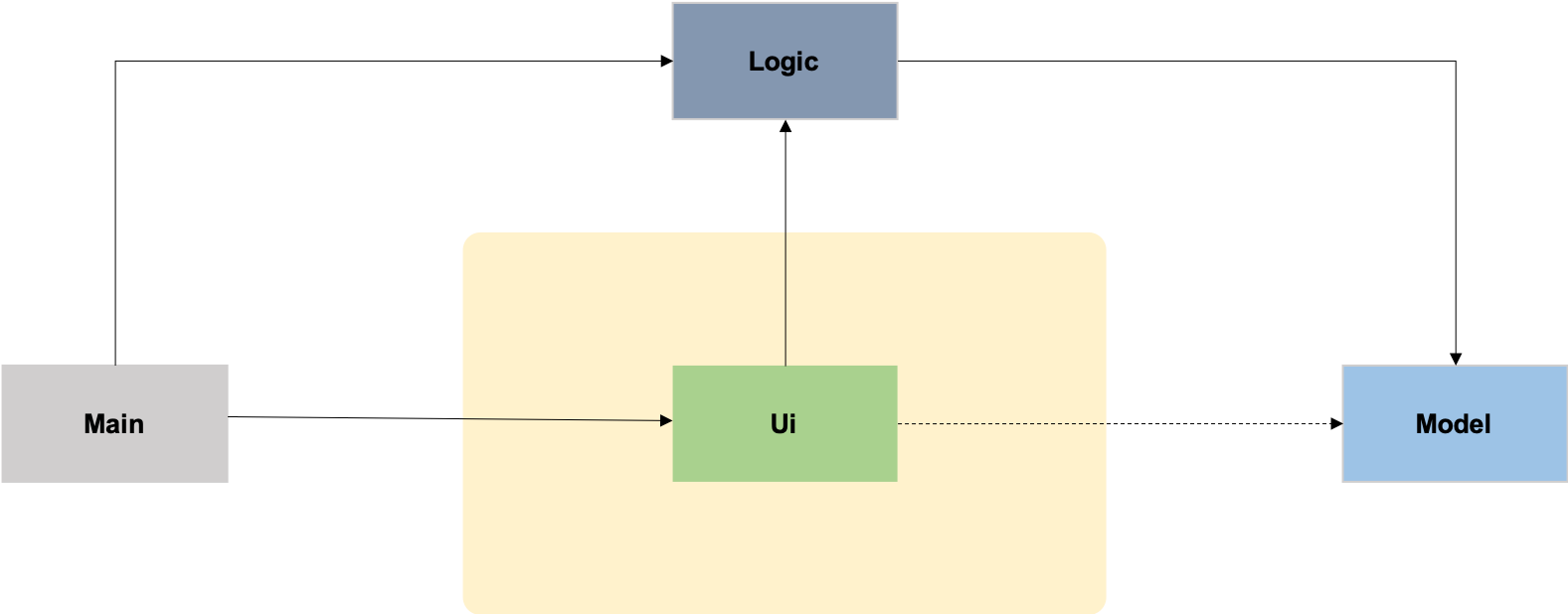
The Ui is responsible for printing output in a user-friendly manner and prints out changes made to Model by
Logic.
3.3. Logic Component

-
The
logicpackage consists of theparser,commandandregexpackages. -
The
parserpackage contains classes that are responsible for parsing user commands. -
The parser classes will make use of the
RegexUtilstored in theregexpackage to verify the correctness of user input and will return aCommandobject back toMainupon determining the validity of the input which is explained in Figure 4.
3.3.1. Parser
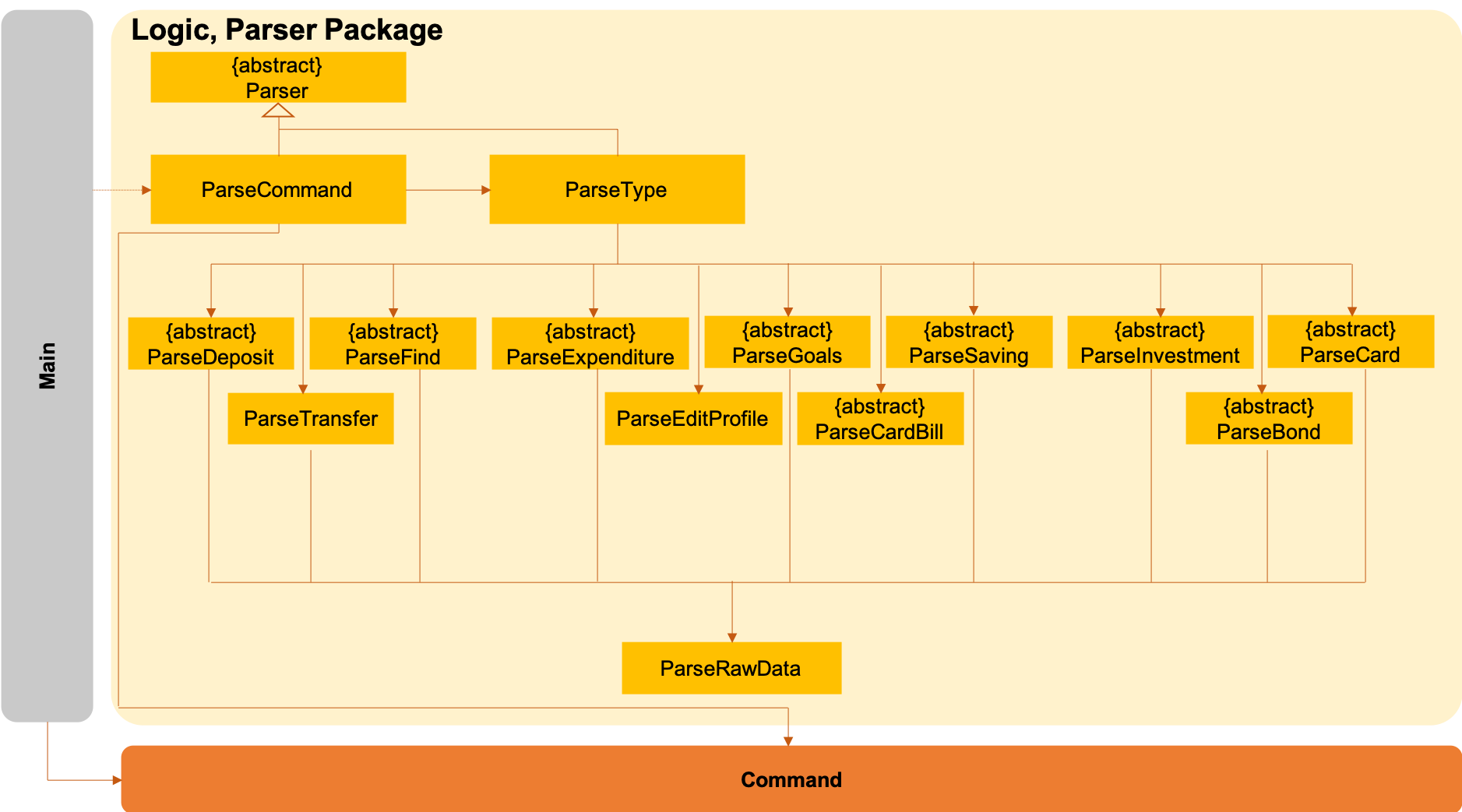
-
The
Logic.parserpackage consists ofParser,ParseCommand,ParseType,ParseRawDataand the abstractParserclasses that more specific parsers will inherit from. -
The
Parserclass provides general methods that more specific parser classes will require. -
The
ParseCommandclass parses the action from the user input (e.g./add,/delete,/edit), before passing the user input to theParseTypeclass for further parsing. -
The
ParseTypeclass will continue to parse the type of user input (e.g./card,/bank), before passing the user input to a more specificParserclass (e.g.ParseAddCardunder the abstract classParseCardwhich is not shown here) for further sophisticated parsing. -
The specific parser classes will then call
ParseRawDatato extract required parameters based on the Command and Type that was determined earlier inParseCommandandParseTypepreviously. -
The specific parser class will also check the correctness of the extracted parameters by using
RegexUtilstored in theregexpackage which is also part of thelogicpackage as shown in Figure 3. After which, the parser class will proceed to create an instance of the appropriate command class and return it back toMain.
3.3.2. Command
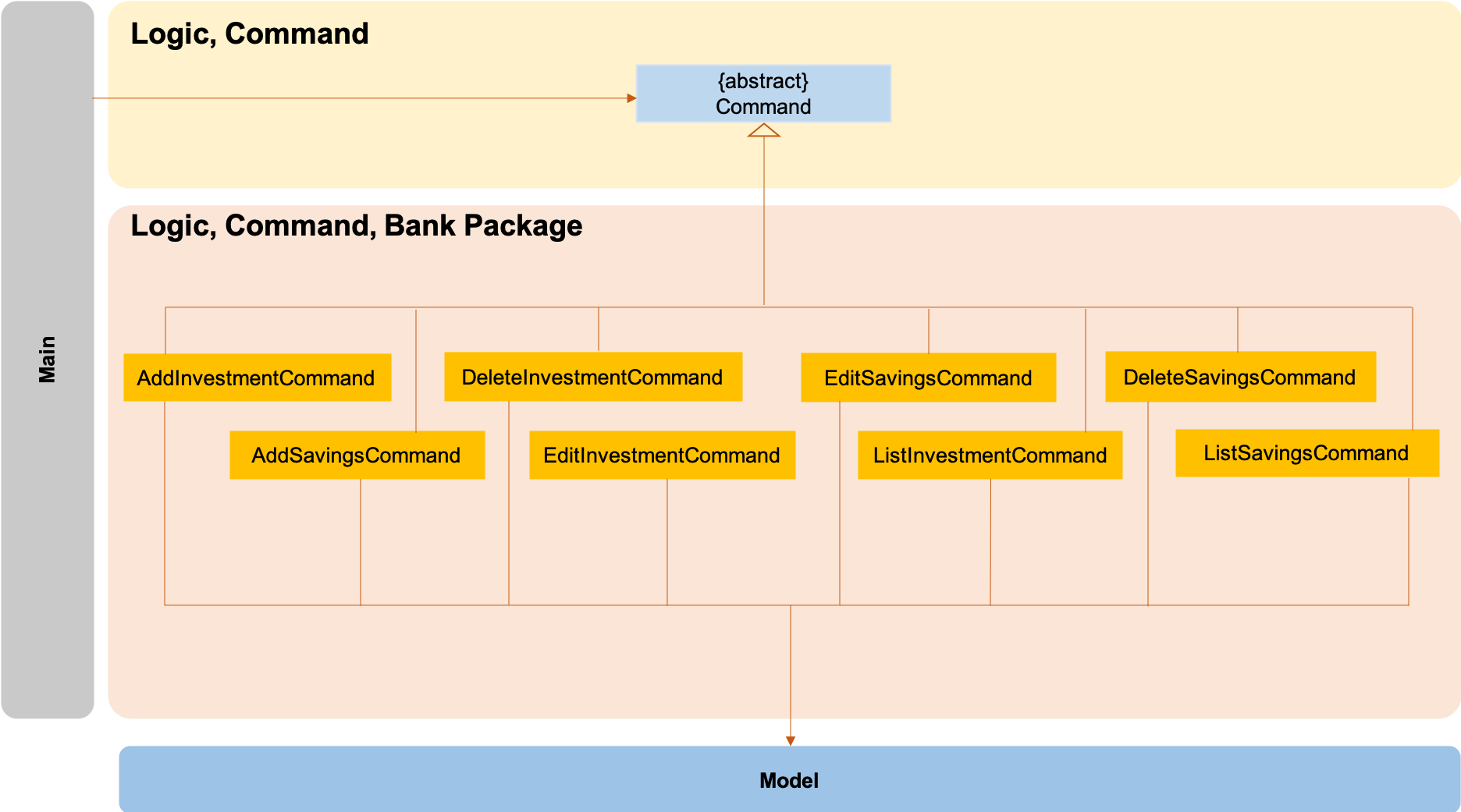
The logic.command.bank package consists of Savings and Investment classes which inherits from the Command class.
Both the Savings and Investments classes have the following common features:
-
Add
-
Edit
-
Delete
-
List
Main will call the specific Savings or Investment command class that will construct the required
parameters before calling the Profile class in Model to execute.
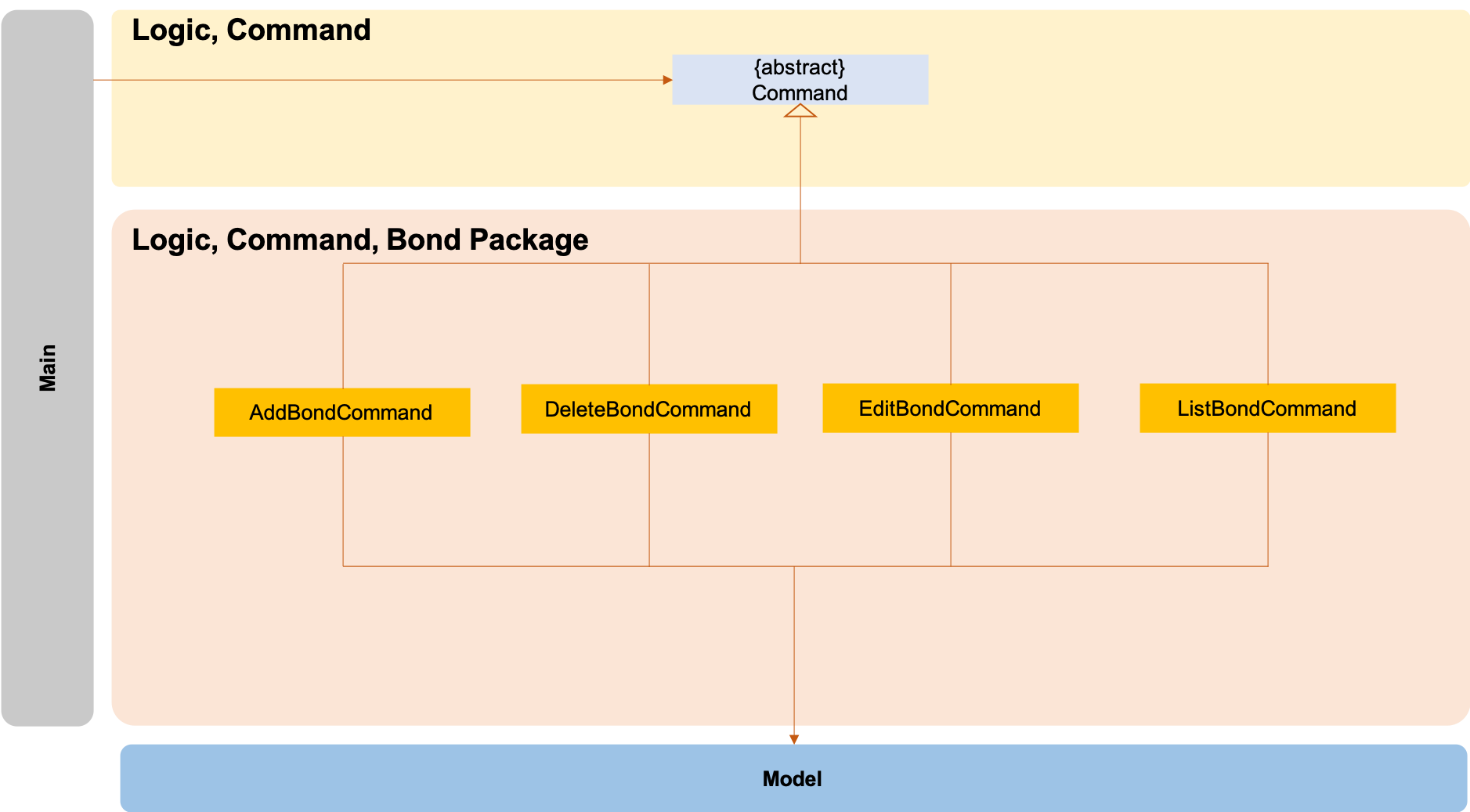
The logic.command.bond package consists of Bond classes with the following features:
-
Add
-
Edit
-
Delete
-
List
Main will call the specific Bond command class that will construct the required parameters before calling the
Profile class in Model to execute.
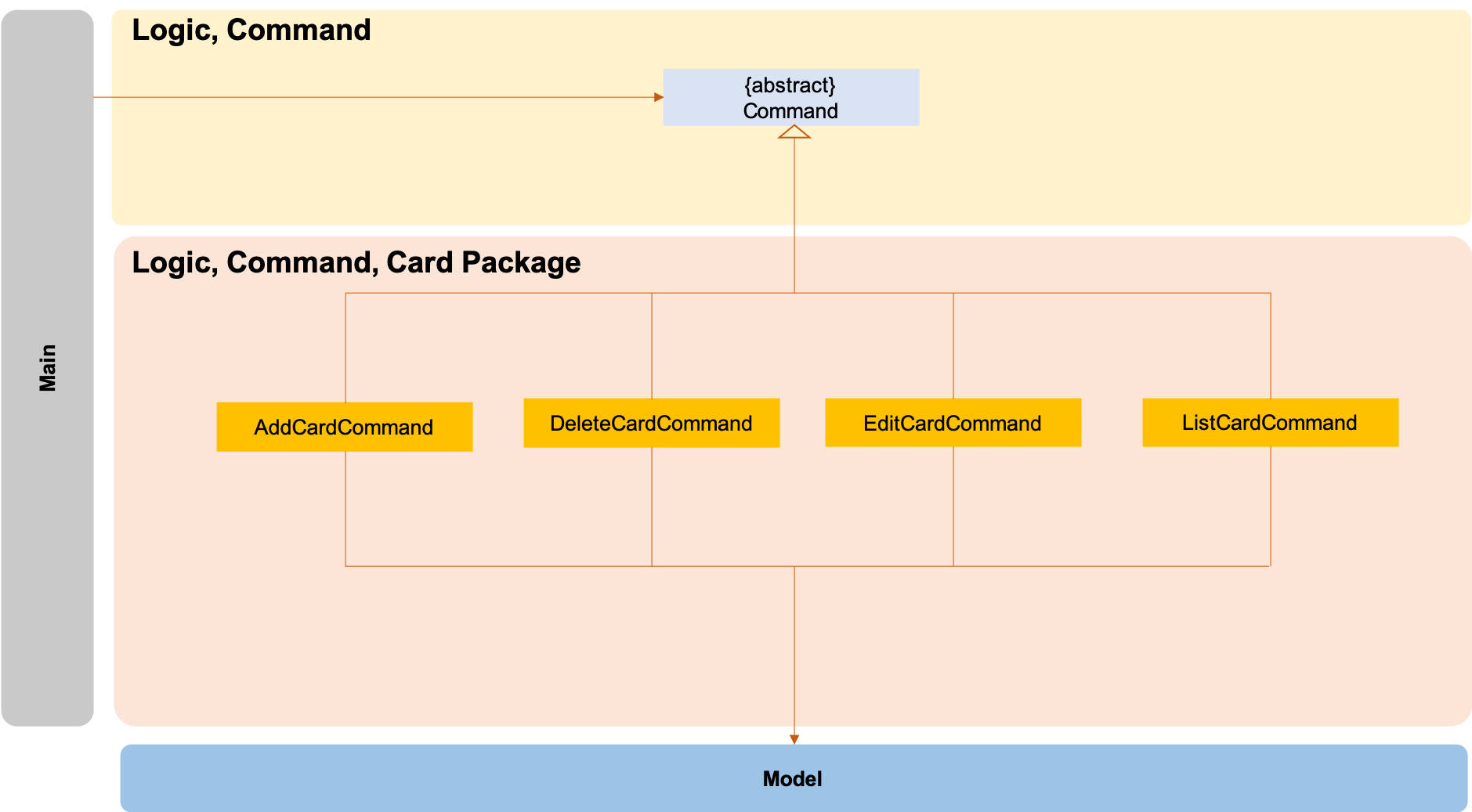
The logic.command.card package consists of Card classes with the following features:
-
Add
-
Edit
-
Delete
-
List
Main will call the specific Card command class that will construct the required parameters before calling the
Profile class in Model to execute.
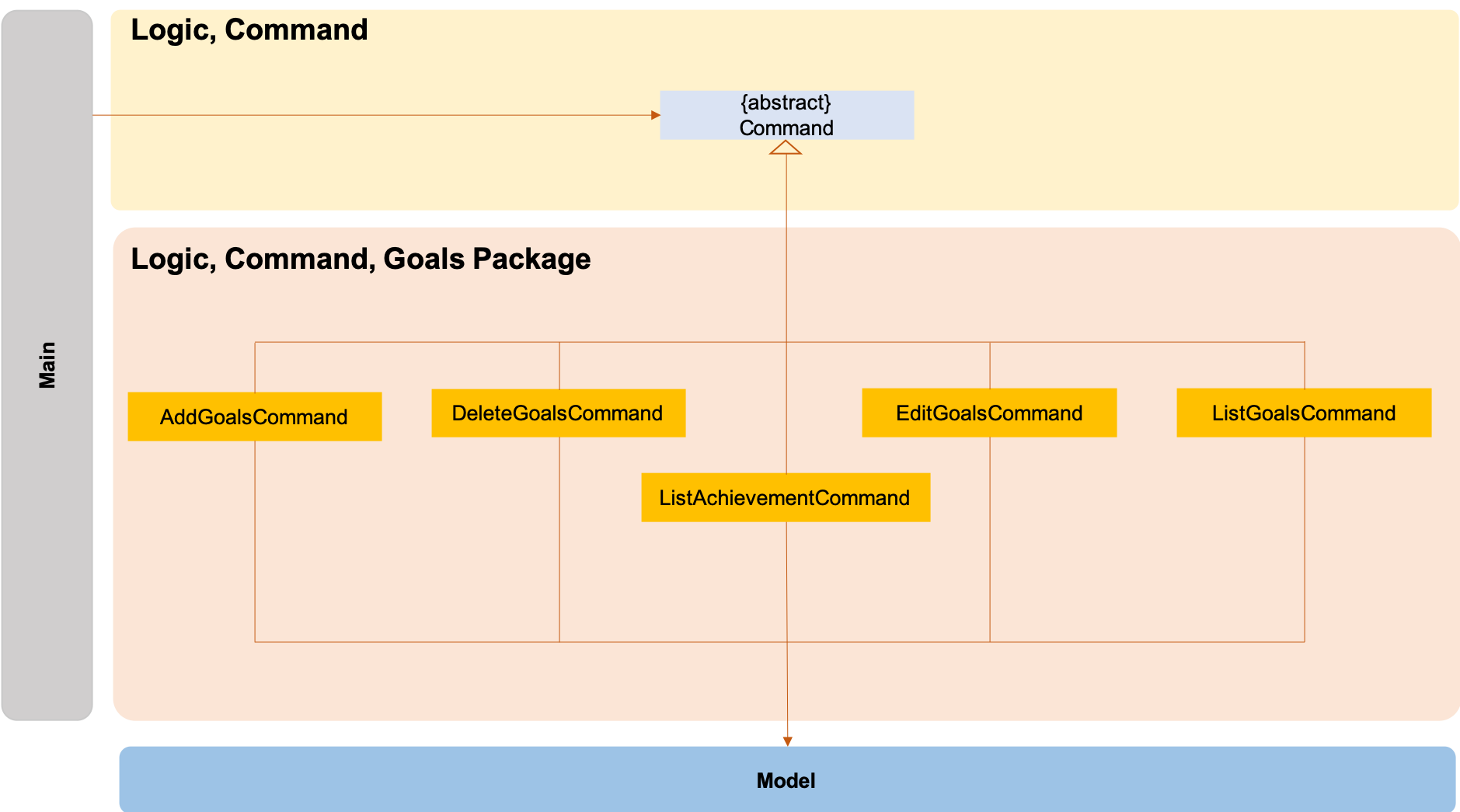
The logic.command.goals package consist of Goals classes with the following features:
-
Add
-
Edit
-
Delete
-
List
Main will call the specific Goal command class that will construct the required parameters before calling the
Profile class in Model to execute.
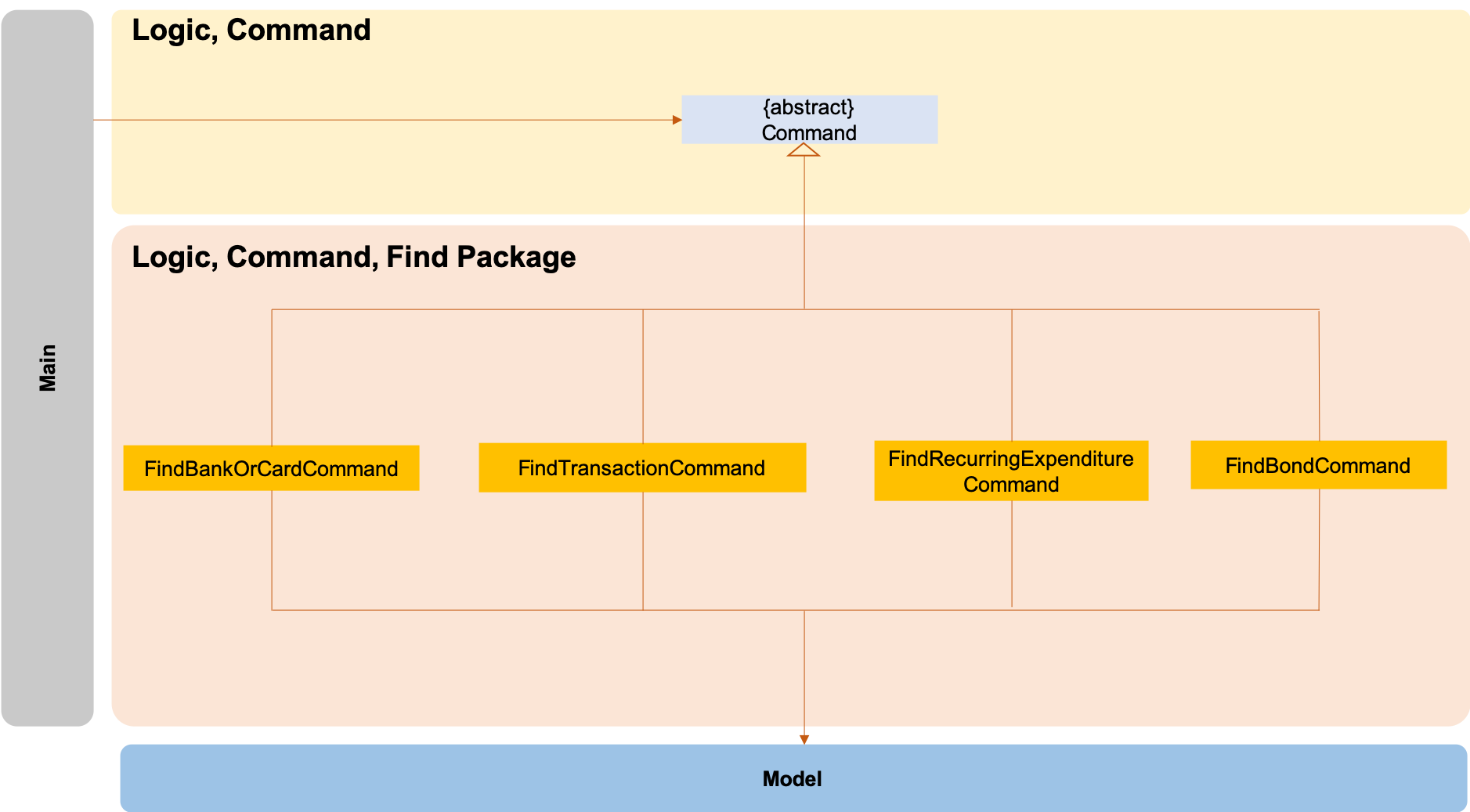
The logic.command.find package consist of Find classes with the ability to find any:
-
Bank accounts
-
Cards
-
Bonds
-
Card transactions
-
Bank transactions
-
Recurring Expenditures
Main will call the specific Find command class that will construct the required parameters before calling the
Profile class in Model to execute.
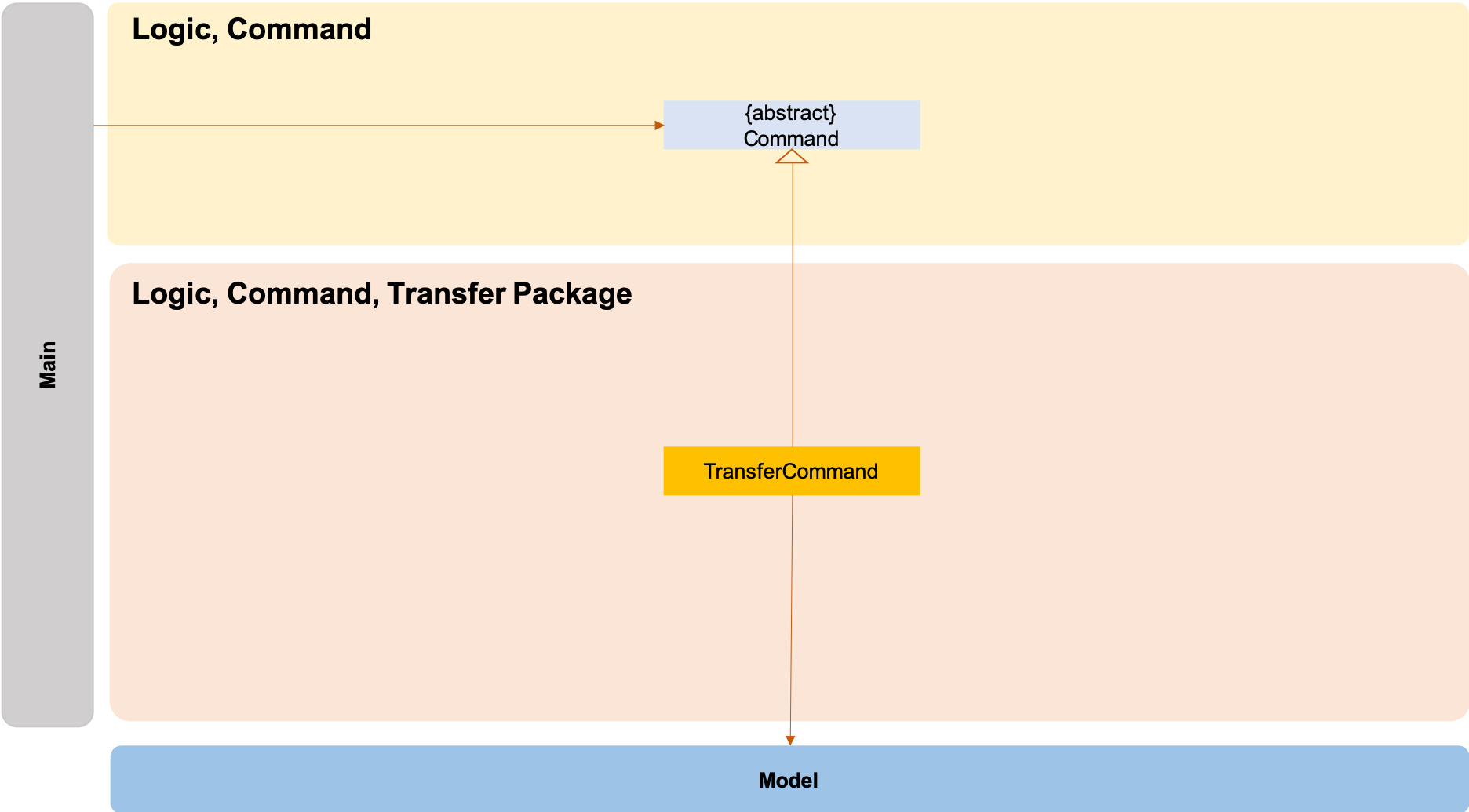
The Transfer Package under logic.command.transfer consists of the TransferCommand class which inherits from
Command.
Main will call the TransferCommand class that will construct the required parameters before calling the Profile
class in Model to execute.
3.4. Model Component
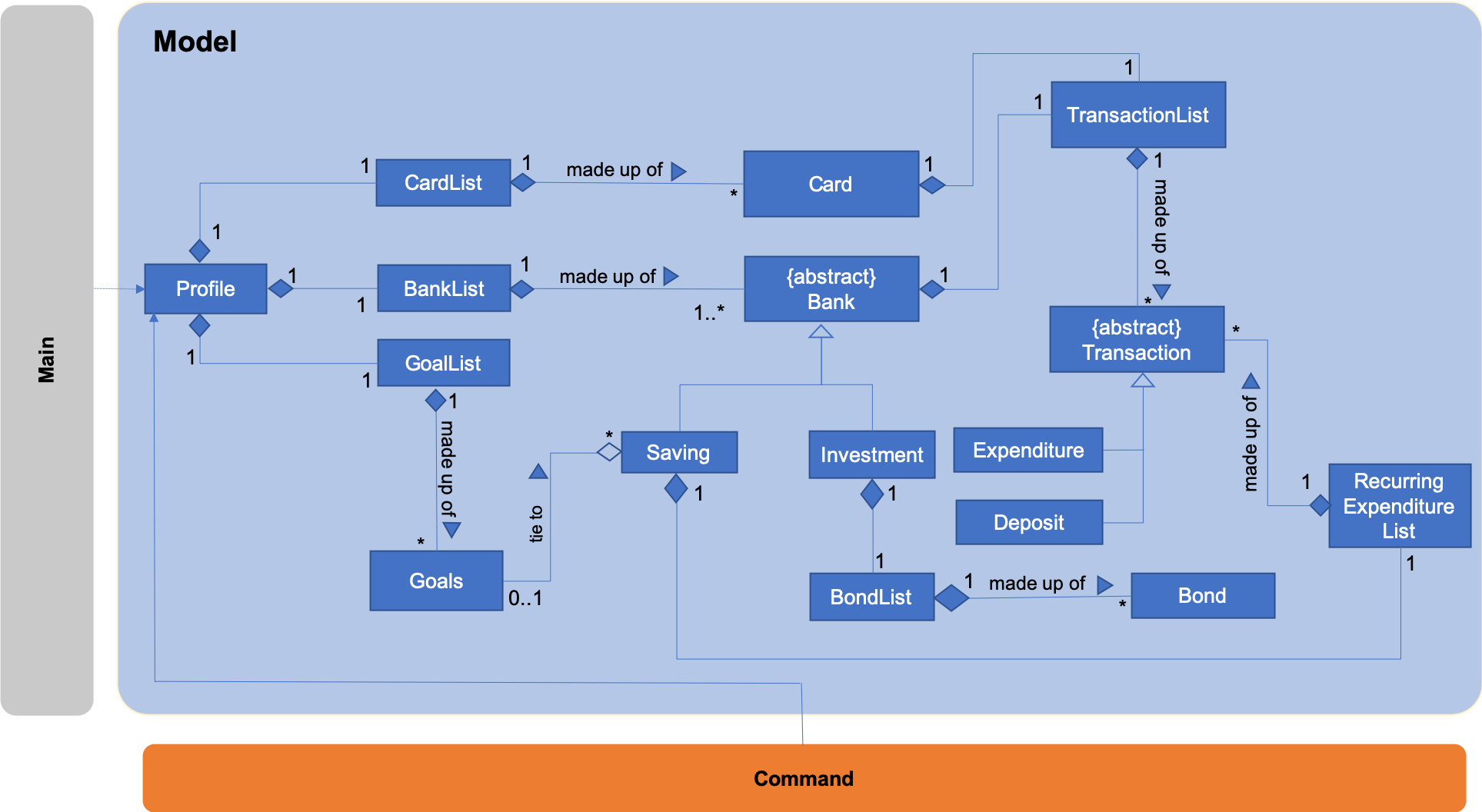
The Model contains multiple packages that are responsible for specifying the structures and constraints of the core
functionalities of OwlMoney as well as the storing of data of the application in memory.
In general, the Model contains the following packages:
-
bank→ responsible for the savings and investment accounts. -
bond→ responsible for the investment bonds. -
card→ responsible for the credit cards. -
goals→ responsible for financial goals. -
profile→ responsible for the user profile. -
transaction→ responsible for expenditures and deposits which are classified under the umbrella term Transaction.
To execute any command, Main will invoke profile.Profile to execute commands.
Profile has access to each individual ArrayList such as CardList, BankList, GoalList that stores objects of
cards, bank accounts and financial goals respectively. Both Card and Bank objects each contain a TransactionList
which holds records of transactions.
If the Card or the Bank objects are deleted, its corresponding TransactionList that contains the records of
transactions will be deleted along with it given that it has a composite relationship with TransactionList.
Notice a layer of abstraction on the individual ArrayList that stores objects such as bank, bond, card, etc.
The purpose of this extra layer of abstraction is to hide unwanted default ArrayList methods from developers and to
provide more extensive checks such as wrapping around when the ArrayList is full which the default
methods are unable to do.
3.5. Storage Component
The Storage component:
-
can save user data in
.csvformat and read it back.
OwlMoney uses OpenCSV during both importing and exporting data when acting on
.csv files.
This allows users to see and modify saved data easily, with the use of clearly defined columns.
3.6. Common Classes
Classes used by multiple components are stored in the commons package. For example, the logging feature of
OwlMoney has its logging features centralised in owlmoney.commons.
4. Implementation
The following section describes the specific implementation of each feature and how data flows across various objects
and methods to obtain a successful execution.
4.1. Parsing Commands in General
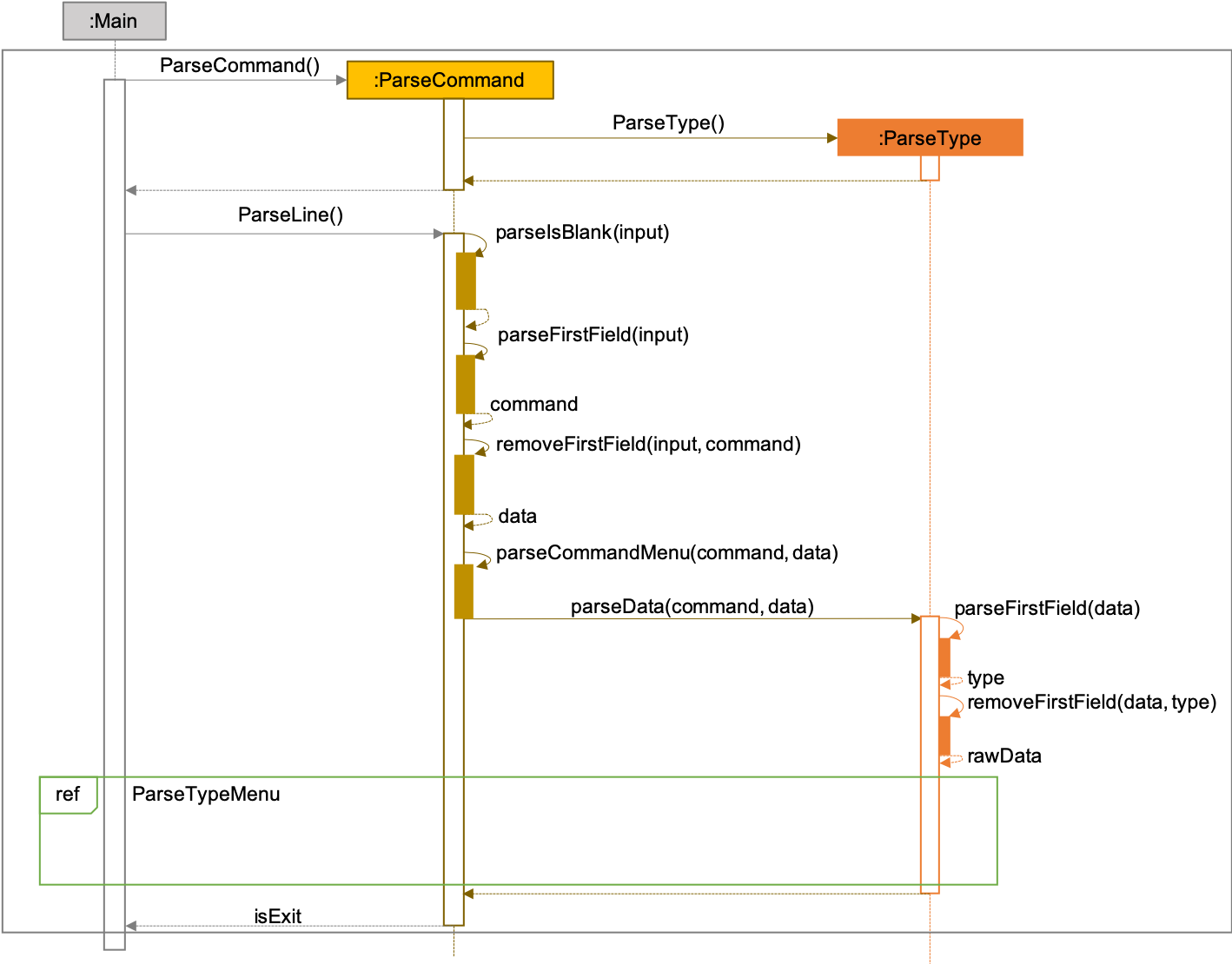
| The sequence diagram presented above is assumed to be a valid command which will generate in a successful result. |
The above sequence diagram depicts the general sequence of parsing user input for all commands in general, before going
into the specific Parser classes in ParseTypeMenu.
Depending on the type of command the user enters, the specific parser class invoked will be different (e.g.
ParseAddBond, ParseDeleteInvestment) which will return a Command object back to main to prepare for execution.
The execution of commands will be elaborated in subsequent diagrams below.
4.2. Adding Savings
The /add /savings feature aims to provide the user with the ability to add a new savings account into OwlMoney.
With this feature, the user will be able to start tracking their expenses.
Hence, allowing the user to track their monthly budget and save up effectively.
4.2.1. Current Implementation
The current implementation of adding a savings account requires 2 parameters; amount and income.
The ability to track the savings account is enhanced through monitoring the amount,
while also being able to update it through any income the user has.
Hence, the user will be able to control their spending effectively.
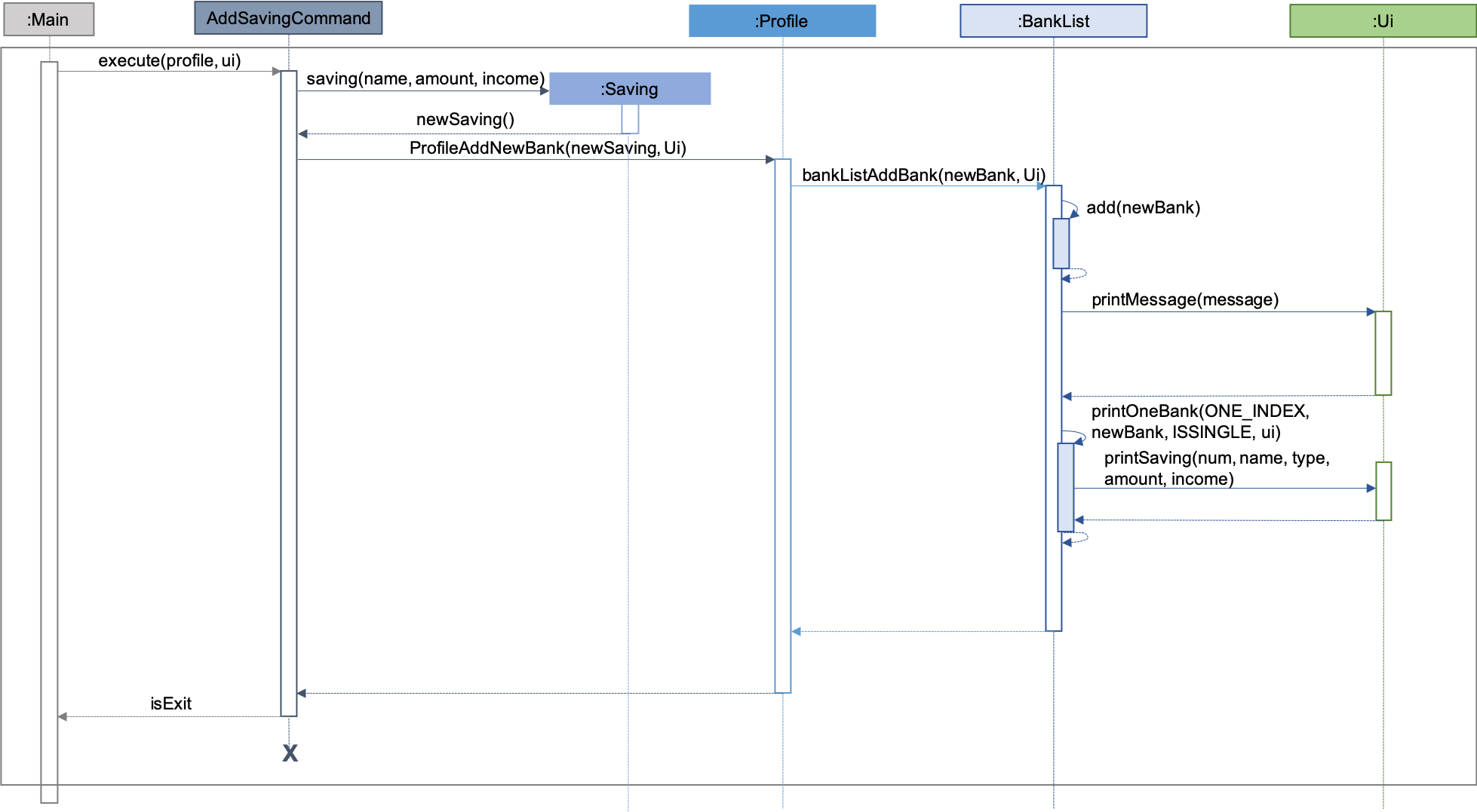
| The sequence diagram presented above is assumed to be a valid command which will generate in a successful result. |
The above sequence diagram depicts the interaction between the Logic and Model component for running
AddSavingsCommand.
The AddSavingsCommand requires 3 inputs:
-
Savings Account’s name
-
Amount
-
Income
When the user executes the AddSavingsCommand, the following steps are taken by the application:
-
When
AddSavingsCommandis executed, it creates a new savings object using the 3 inputs. -
After creating the savings object, the
AddSavingsCommandwill invoke the methodprofileAddNewBank. -
Within the invocation of
profileAddNewBank, a methodbankListAddBankwill be invoked to add the new savings object to an Arraylist containing all bank objects. -
Once
bankListAddBankis invoked, it will perform the following checks:-
Check if the bank name specified is unique among all bank accounts in the bank list through the method
bankAccountExists.
-
bankListAddBank will throw an error if the above check fails.
|
-
After passing the above checks,
bankListAddBankwill add the new savings object to the Arraylist which contains all bank objects. -
Once the savings object has been added, the details of the new savings object will be displayed to inform the user of the successful addition of the savings object.
4.2.2. Design consideration
This section describes the various design considerations taken when implementing the /add /savings feature.
Aspect: Choice of whether to set the account name as case-sensitive or case-insensitive
| Approach | Pros | Cons |
|---|---|---|
1. Case-insensitive name |
|
|
2. Case-sensitive name |
|
|
After weighing the pros and cons, approach 1 was taken.
By designing the name to be case-insensitive, it increases the user-friendliness of OwlMoney since bank names are commonly remembered without the exact capitalisation of letters. Also, in the event the user keys in a different capitalised character for the same bank, there is no need for the user to re-enter the command due to the bank account "not existing". Additionally, the case-sensitivity check can also be used with the Card function or with any other case-insensitive model or logic.
4.3. Editing Bonds
The /edit /bonds feature aims to help users update the specific details of the investment bonds that they
purchase. This is to enable them to not go through the trouble of deleting and re-adding the bond if they enter the
details wrongly by mistake.
4.3.1. Current Implementation
The current implementation of editing bonds only allows for the edition of rate and year where the year
parameter can only be changed to a higher integer than the original year currently stored. The reason behind only
allowing these 2 parameters to be changed was because we wanted consistency across all records of crediting
interest throughout the lifespan of the investment bond.
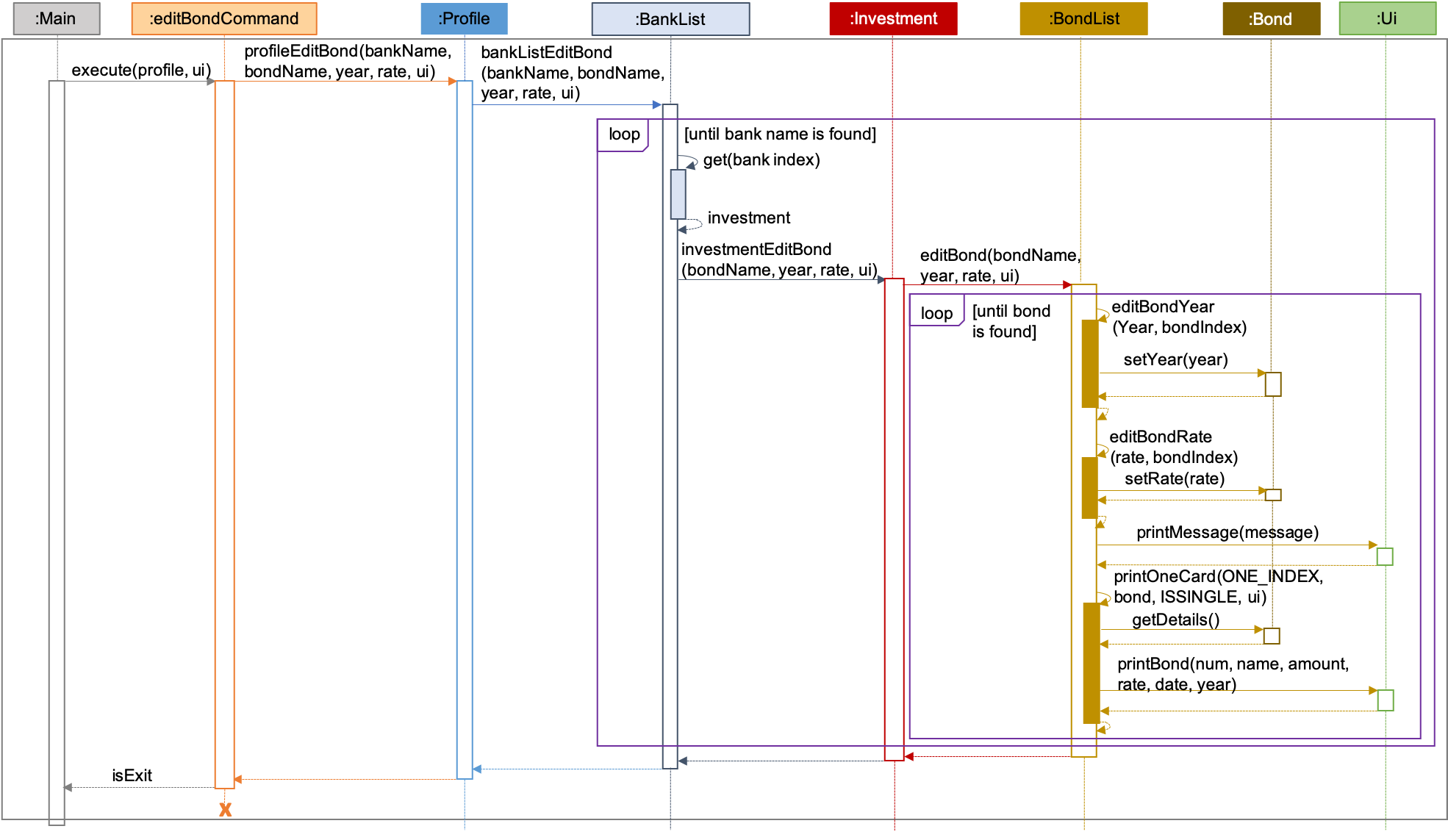
| The sequence diagram presented above is assumed to be a valid command which will produce a successful result. |
The sequence diagram presented above depicts the interaction between the Logic and Model component for running
EditBondCommand.
The EditBondCommand requires a minimum of 3 and up to a maximum of 4 inputs:
-
Investment Account’s name
-
Bond’s name
-
At least 1 of the 2 inputs:
-
Rate
-
Year of maturity
-
When the user executes the EditBondCommand, the following steps are taken by the application:
-
When
EditBondCommandis executed, it will invokeprofileEditBond. -
Within the invocation of
profileEditBond, a method namedbankListEditBondwill be invoked. -
Once invoked,
bankListEditBondwill perform the following checks based on the bank name specified:-
Check for the existence of the investment account containing the bond.
-
bankListEditBond will throw an error if the above check fails.
|
-
After passing the above checks, the method
investmentEditBondwill be invoked. -
Within
investmentEditBond, the method namededitBondwill be invoked. -
Once invoked,
editBondwill perform the following checks:-
Check for the existence of the bond within the investment account.
-
Check whether the newly specified year of maturity for the bond is more than or equal to the current year of maturity through the method
editBondYear.
-
editBond will throw an error if the above check fails.
|
-
After passing all of the above checks,
editBondwill update the bond details with the new details specified using:-
editBondRate→ edits bond’s interest or coupon rate. -
editBondYear→ edits year of maturity.
-
-
Once the bond object has been edited, the updated details of that bond object will be displayed to inform the user of the successful editing of the bond.
4.3.2. Design Considerations
This section describes the various design considerations taken when implementing the /edit /bonds feature.
Aspect: Choice of whether to allow editing of the bond to tie to which investment account as well as its name
| Approach | Pros | Cons |
|---|---|---|
1. Allowing changing of the investment bank account that the bond ties to. |
|
|
2. Allowing the changing of bond’s name. |
|
|
3. Disallowing the changing of both parameters. |
|
|
After weighing the pros and cons, approach 3 was taken.
Firstly, doing so would reduce the coupling and dependencies between transactions and investment banks. Although it may seem restrictive to limit the type and number of parameters that can be changed, it is beneficial both to you, the developer and the user, when developing and using the program. Developing the alternative ideas mentioned would result in a high risk of logic and coding errors, leaving room for bugs to be exploited.
4.4. Deleting Credit Card
The /delete /card feature aims to help users remove credit cards that they no longer wish to store in their
profile. This could be because the credit card has expired and they no longer wish to keep track of it.
4.4.1. Current Implementation
The current implementation of deleting card allows users to remove a credit card from their profile by entering
the credit card name. Because we allow entering of card name that is case and trailing whitespace insensitive, users do
not need to worry about typing the exact card name. Although each credit card has it’s own Universal Unique Identifier
(UUID), it is not exposed to the users because UUID is a string of 32 alphanumeric characters and it will be very
unintuitive for them to enter it into the command.
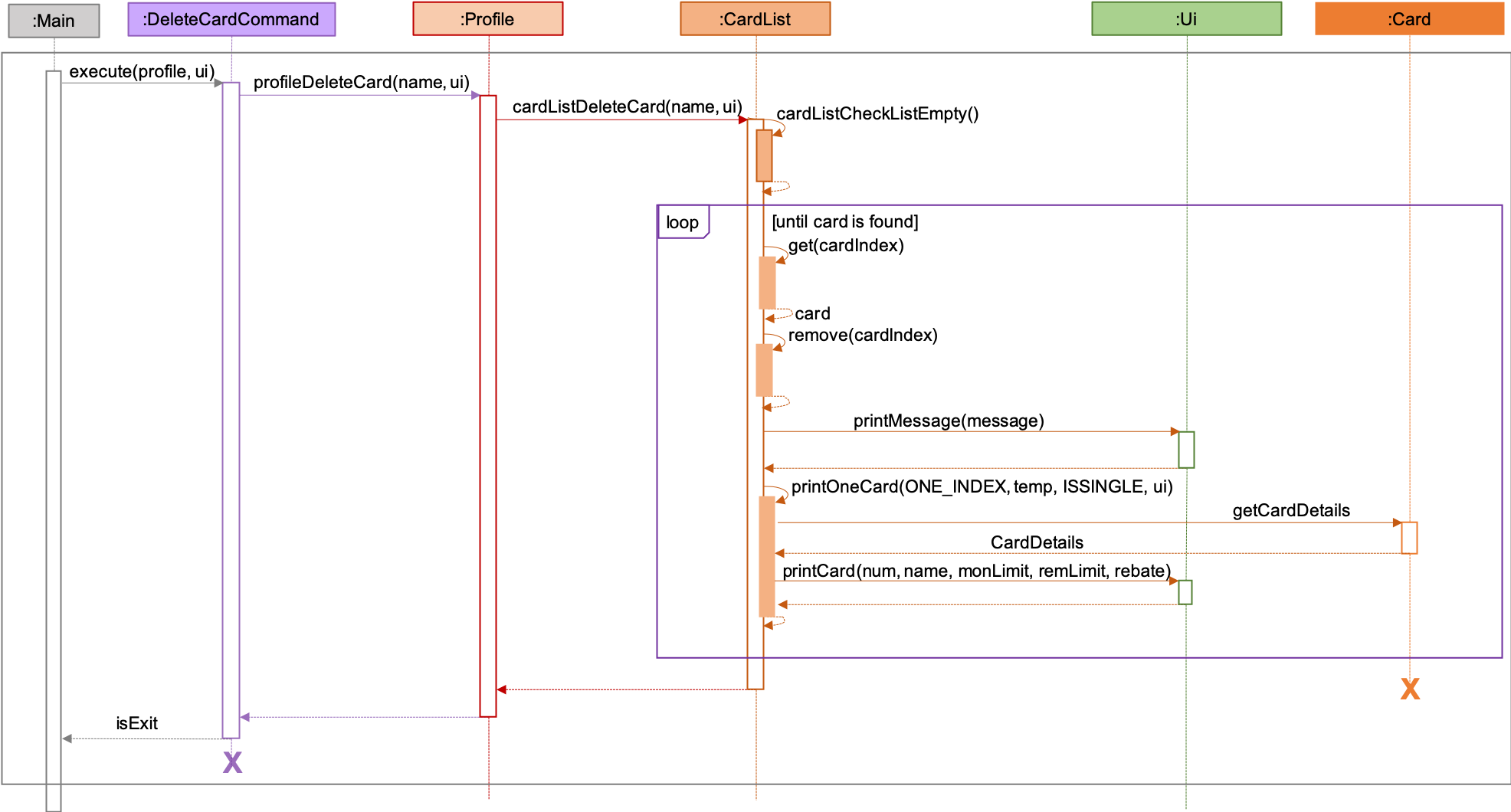
| The sequence diagram presented above is assumed to be a valid command which will produce a successful result. |
The above sequence diagram depicts the interaction between the Logic and Model component for running
DeleteCardCommand.
The DeleteCardCommand requires 1 input:
-
Credit Card’s name.
When the user executes the DeleteCardCommand, the following steps are taken by the application:
-
When
DeleteCardCommandis executed, it will invokeprofileDeleteCard. -
Within the invocation of
profileDeleteCard, a method namedcardListDeleteCardwill be invoked. -
Once invoked,
cardListDeleteCardwill perform the following checks:-
Check the Arraylist containing all card objects is not empty through the method cardListCheckListEmpty .
-
Check for the existence of the card with the specified name.
-
cardListDeleteCard will throw an error if any of the above checks fail.
|
-
After passing the above checks,
cardListDeleteCardwill delete the card with the specified name from the Arraylist. -
Once the card object has been deleted, the details of the deleted card object will be displayed to inform the user of the successful deletion of the card object.
4.4.2. Design Considerations
This section describes the various design considerations taken when implementing the /delete /card feature.
Aspect: Choice of using which parameters for the deletion of credit cards
| Approach | Pros | Cons |
|---|---|---|
1. Allowing the deletion of credit cards by specifying the card name (case and trailing whitespace insensitive). |
|
|
2. Allowing the deletion of credit cards by specifying the exact card name (case and trailing whitespace sensitive). |
|
|
3. Allowing the deletion of credit cards by specifying the card’s order number. |
|
|
4. Allowing the deletion of credit cards by specifying the card’s UUID. |
|
|
After careful consideration and weighing of pros and cons, we decided to use approach 1.
Although approach 1 is the hardest to implement, it is the most intuitive for users because they do not need to memorise unnecessary order numbers, random 32 characters alphanumeric string, or the exact name. In addition, we have decided for cards to have case insensitive names, so that users cannot add cards with the same name but different cases. Therefore, since card names are case insensitive, it makes sense for users to expect case insensitive names in the command.
4.5. Finding of Savings Account
The /find /savings feature aims to provide the user with the ability to search for a savings account that matches the
keyword specified by the user. This enables the user to have great flexibility to view their savings account details
without the need of memorising each of their savings account names within OwlMoney. By allowing the user to search for
a specific savings account, it also aids in the operation of editing or deleting of savings account.
4.5.1. Current Implementation
The current implementation of finding savings account only allows the user to search through the name of the account. The reason to only allows the user to search through the account name was that searching through parameters such as income may be inaccurate, as a user’s income may change over time resulting in inconsistency in the search.
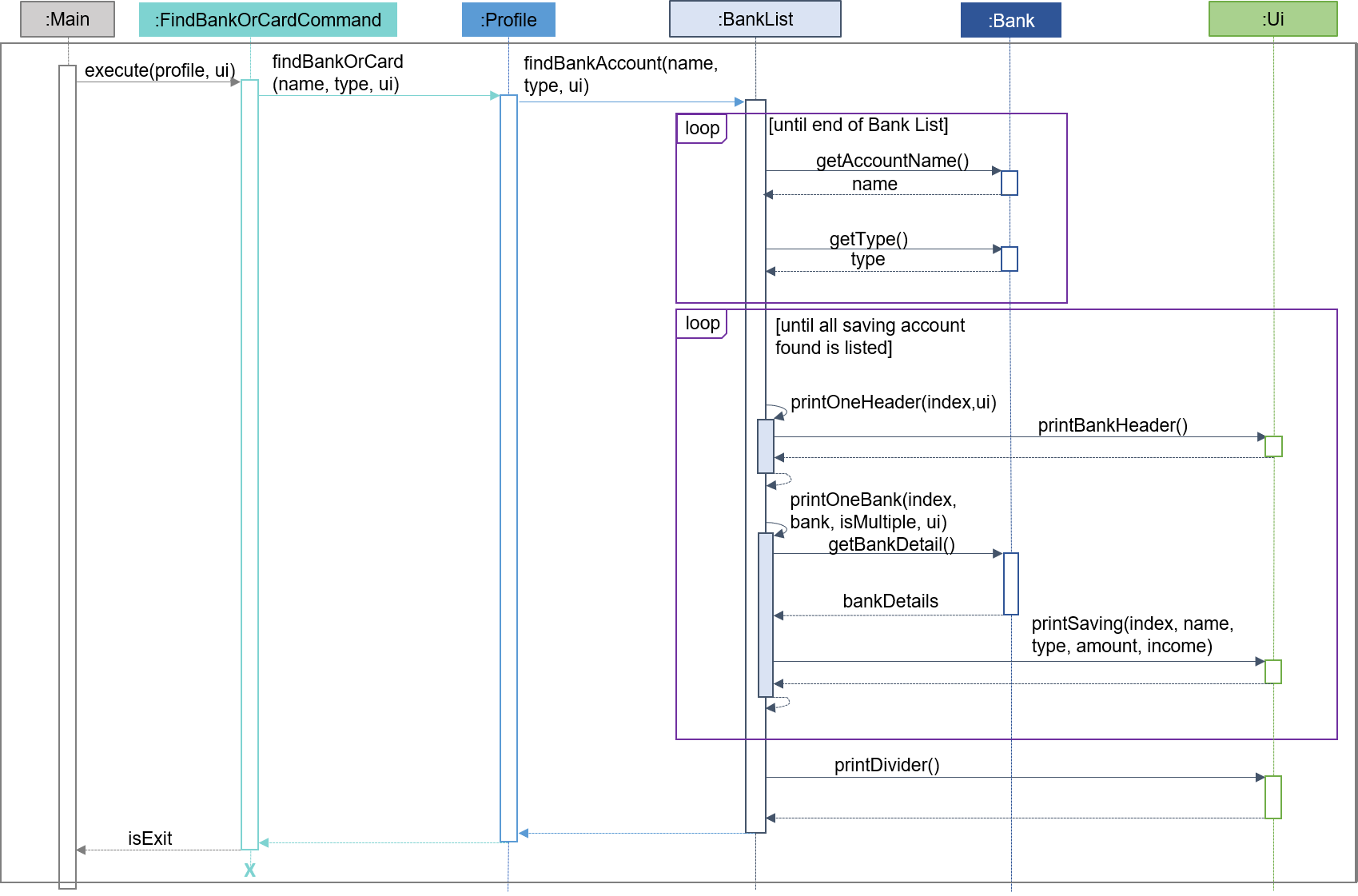
| The sequence diagram presented above is assumed to be a valid command which will produce a successful result. |
The sequence diagram presented above depicts the interaction between the Logic, Model and Ui component for running
FindBankOrCardCommand.
The FindBankOrCardCommand requires 2 inputs:
-
The name of the account that acts as a keyword for the search.
-
Type of object to be searched (e.g.
card,savingsorinvestment)
When the user executes the FindBankOrCardCommand to search for a savings account, the following steps are taken by the
application:
-
When the
FindBankOrCardCommandis executed, it will invokefindBankOrCard. -
Once invoked,
findBankOrCardwill perform the following checks:-
Check the type of object to be searched is either
card,savingsorinvestment.
-
-
After passing the above checks,
findBankOrCardwill invokefindBankAccount. -
Within the invocation of
findBankAccount, it will perform the following checks:-
Check for matching account name with the keyword among all accounts stored in the ArrayList.
-
Check whether the account that matches the keyword is indeed a savings account.
-
findBankAccount will throw an error if all bank accounts within the application fail the above checks.
|
-
Once the search has been completed, the details of all matching savings account will be displayed to inform the user of the successful matches.
4.5.2. Design Considerations
This section describes the various design considerations taken when implementing the find feature (e.g. /find
/savings or /find /banktransaction).
Aspect: Choice of whether the keyword (E.g. ACCOUNT_NAME, DESCRIPTION or CATEGORY) to be searched should be
case-sensitive or case-insensitive
| Approach | Pros | Cons |
|---|---|---|
1. Searching of objects based on the keyword is case-sensitive. |
|
|
2. Searching of objects based on the keyword is case-insensitive. |
|
|
After weighing the pros and cons, approach 2 was taken.
The reason for choosing approach 2 over approach 1 is mainly due to the flexibility that it can provide to a user. Although, searching for the object with case insensitivity might cause more unwanted results being displayed. We felt that the ability to easily match keyword with the object that the user would like to find is more important, as it enhanced the user-friendliness of OwlMoney.
4.6. Adding Goals
The /add /goals feature allows users to add in any financial goals they have in mind to achieve for their future
plans.
This also aims to encourage users who have yet to have savings to start saving and track their goals.
4.6.1. Current Implementation
The current implementation of adding goals allows users to either manually track their goals or track via an existing
saving account. Also, the /amount parameter that users specify should be the total amount they wish to
have in their savings account.
The reason for providing these two options to users is that we consider that some users may prefer to do manual tracking
while others would prefer tracking them using an existing savings account.
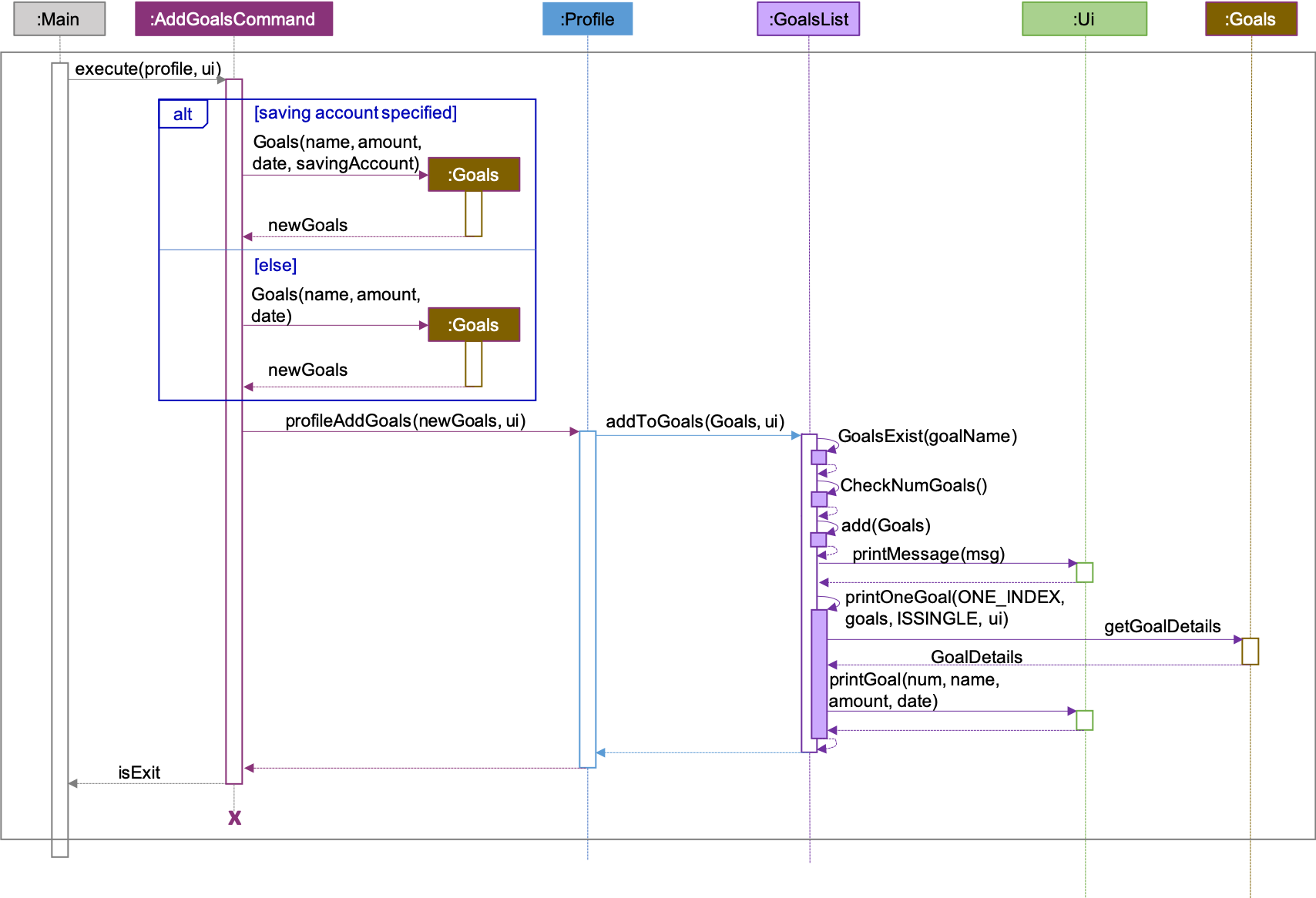
| The sequence diagram presented above is assumed to be a valid command which will produce a successful result. |
The sequence diagram presented above depicts the interaction between the Logic and Model component for running
AddGoalsCommand.
The AddGoalsCommand requires a minimum of 3 and up to a maximum of 4 inputs:
-
Goal name
-
Intended amount to save
-
Date they wish to achieve the goal by
-
OPTIONAL input:
-
Savings Account Name
-
When the user executes the AddGoalsCommand, the following steps are taken by the application:
-
When
AddGoalsCommandis executed, a new goal object is created with the provided inputs. -
After creation of the goal object is created, the
AddGoalsCommandwill invoke the methodprofileAddGoals. -
Within the invocation of
profileAddGoals, a method namedaddToGoalswill be invoked to add the new goal object to an ArrayList containing all goals objects. -
Once invoked,
addToGoalswill perform the following checks:-
Checks if goal name specified is unique among all goals in the existing list through the method of
goalsExist -
If a savings account was specified, it will check for if the amount of money in the account is lesser than the goals amount specified
-
Checks for the size of goals list through the method of
CheckNumGoals
-
AddGoalsCommand will throw an error if the above check fails.
|
-
After passing the above checks,
addToGoalswill add the new goals object into the existing list containing all goals objects. -
Once the goal object has been added, the details of the new goal object will be displayed to inform the user of the successful addition of the goal object.
4.6.2. Design Considerations
This section describes the various design considerations taken when implementing the /add /goals feature.
Aspect: Choice of whether to allow tying of savings account to a goals
| Approach | Pros | Cons |
|---|---|---|
1. Allowing the option of tying of savings account |
|
|
2. Disallow tying of savings account |
|
|
Approach 1 was taken after serious consideration and weighing out the pros and cons.
Firstly, the original intention of goals feature is to model real-life implementation of having goals,
encourages users to save and enable an easy yet convenient way of tracking on status of goals.
Although it may increase coupling and dependencies, the implementation of goals evidently shows that the pros
outweigh the cons despite these trade-offs.
5. Documentation
We use asciidoc for writing documentation. We recommend you to document features that you have done to keep other developers aware of your implementation.
Feel free to modify the documentation of our original features as well!
| We chose asciidoc over Markdown because asciidoc, although a bit more complex than Markdown, provides more flexibility in formatting. |
5.1. Editing Documentation
See UsingGradle.adoc to learn how to render .adoc files locally to preview the end result of your edits.
Alternatively, you can download the AsciiDoc plugin for IntelliJ, which allows you to preview the changes you have made to your .adoc files in real-time.
5.2. Publishing Documentation
See UsingTravis.adoc to learn how to deploy GitHub Pages using Travis.
5.3. Converting Documentation to PDF format
We use Google Chrome for converting the documentation to PDF format, as Chrome’s PDF engine preserves hyperlinks used in webpages.
Here are the steps to convert the project documentation files to PDF format.
-
Follow the instructions in UsingGradle.adoc to convert the AsciiDoc files in the
docs/directory to HTML format. -
Go to your generated HTML files in the
build/docsfolder, right-click on them and selectOpen with→Google Chrome. -
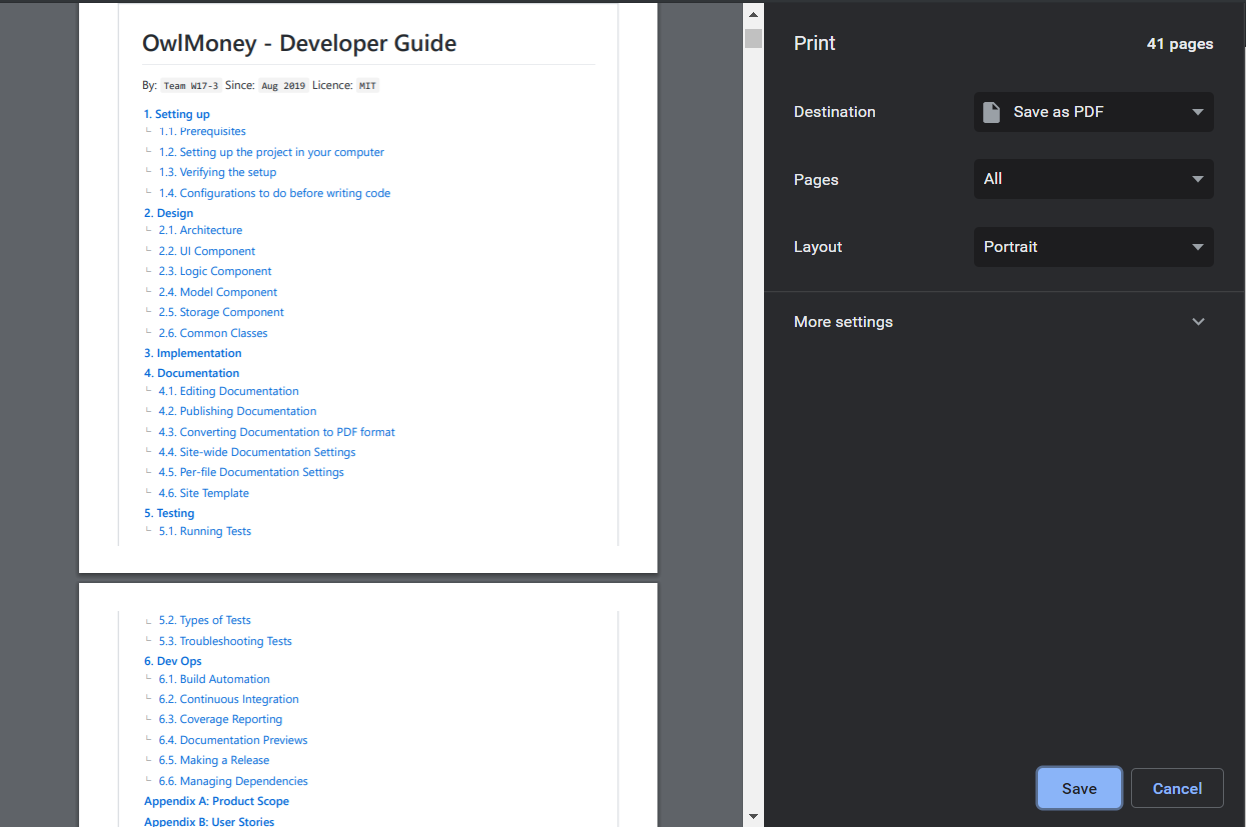
Within Chrome, click on the
Printoption in Chrome’s menu. -
Set the destination to
Save as PDF, then clickSaveto save a copy of the file in PDF format. For best results, use the settings indicated in the screenshot below.
5.4. Site-wide Documentation Settings
The build.gradle file specifies some project-specific asciidoc attributes which affects how all documentation files within this project are rendered.
Attributes left unset in the build.gradle file will use their default value, if any.
|
| Attribute name | Description | Default value |
|---|---|---|
|
The name of the website. If set, the name will be displayed near the top of the page. |
not set |
|
URL to the site’s repository on GitHub. Setting this will add a "View on GitHub" link in the navigation bar. |
not set |
|
Define this attribute if the project is an official SE-EDU project. This will render the SE-EDU navigation bar at the top of the page, and add some SE-EDU-specific navigation items. |
not set |
5.5. Per-file Documentation Settings
Each .adoc file may also specify some file-specific asciidoc attributes which affects how the file is rendered.
Asciidoctor’s built-in attributes may be specified and used as well.
Attributes left unset in .adoc files will use their default value, if any.
|
| Attribute name | Description | Default value |
|---|---|---|
|
Site section that the document belongs to.
This will cause the associated item in the navigation bar to be highlighted.
One of: * Official SE-EDU projects only |
not set |
|
Set this attribute to remove the site navigation bar. |
not set |
5.6. Site Template
The files in docs/stylesheets are the
CSS stylesheets of the site.
You can modify them to change some properties of the site’s design.
The files in docs/templates controls the rendering of .adoc files into HTML5.
These template files are written in a mixture of Ruby and Slim.
|
Modifying the template files in |
6. Testing
Testing is integral to the success of OwlMoney. We perform tests regularly during the development of OwlMoney and recommend you to be consistent with this ideology and do so too!
6.1. Running Tests
There are 2 ways to run tests.
Method 1: Using IntelliJ JUnit test runner
-
To run all tests, right-click on the
src/test/javafolder and chooseRun 'All Tests' -
To run a subset of tests, you can right-click on a test package, test class, or a test and choose
Run 'ABC'
Method 2: Using Gradle
-
Open a console and run the command
gradlew clean allTests(Mac/Linux:./gradlew clean allTests)
6.2. Types of tests
We have two types of tests:
-
System Tests that test the OwlMoney by running base level automated tests on AppVeyor.
-
Unit tests that test the individual components. These are in
test.javapackage. -
Unit tests targeting the lowest level methods/classes.
e.g.owlmoney.model -
Integration tests that are checking the integration of multiple code units (those code units are assumed to be working).
e.g.owlmoney.model.bond.BondListTest -
Hybrids of unit and integration tests. These test are checking multiple code units as well as how the are connected together.
e.g.owlmoney.model.bond.BondListTest
7. Dev Ops
Development and Operations (Dev Ops) is integral to ensure consistent releases and updates are produced to fix bugs and introduce new features to OwlMoney while ensuring existing features do not break. We use multiple tools to automate checks and ensure high levels of consistency across the board.
Below are configurations and services that were used during the development of OwlMoney.
7.1. Build Automation
See UsingGradle.adoc to learn how to use Gradle for build automation.
7.2. Continuous Integration
See UsingTravis.adoc and UsingAppVeyor.adoc for more details.
7.3. Coverage Reporting
We use Coveralls to track the code coverage of our projects.
See UsingCoveralls.adoc for more details.
We use Codecov as well to provide an alternative perspective from coveralls.
See Codecov Quick Start for more details.
7.4. Documentation Previews
When a pull request has changes to asciidoc files, you can use Netlify to see a preview of how the HTML version of those asciidoc files will look like when the pull request is merged.
See UsingNetlify.adoc for more details.
7.5. Making a Release
Here are the steps to create a new release.
-
Update the version number in
build.gradle. -
Generate a JAR file using Gradle.
-
Tag the repo with the version number. e.g.
v1.8 -
Create a new release using GitHub and upload the JAR file you created.
7.6. Managing Dependencies
A project often depends on third-party libraries.
Managing these dependencies can be automated using Gradle.
For example, Gradle can download the dependencies automatically, which is better than these alternatives:
-
Include those libraries in the repo (this bloats the repo size)
-
Require developers to download those libraries manually (this creates extra work for developers)
Appendix A: Product Scope
Target User Profile:
-
Undergraduates and fresh graduates
-
Have some form of income in terms of allowance, pocket money or salary
-
Has interest in managing his finances
-
Prefers desktop applications over other types
-
Able to type fast
-
Prefers typing over other means of input
-
Is reasonably comfortable using CLI applications
Value Proposition:
-
Helps the target user manage their finances as they start to take charge of more money
-
Helps the target user budget their expenses based on their goals
-
Automatically reminds you of upcoming bills that are due to pay
-
Automatically deducts or credit to account based on recurring income and expenses monthly
-
See everything from account balances and expenses to give target users a full picture of their financial health.
-
Works offline
Appendix B: User Stories
Priorities: High (must have) - * * *, Medium (nice to have) - * *, Low (unlikely to have) - *
S/N |
Priority Level |
As a … |
I can … |
So that I can … |
1 |
* * * |
new user |
create my own profile |
start keeping track of my finances |
2 |
* * * |
user |
add saving accounts |
categorise my finances |
3 |
* * * |
user |
add income |
calculate my recommended budget |
4 |
* * * |
existing user |
edit my profile details |
keep my details up to date |
5 |
* * * |
existing user |
edit my saving account |
correct any errors |
6 |
* * * |
existing user |
edit my income |
change it when there are changes to my income. |
7 |
* * * |
spendthrift |
add expenditures |
keep track of my spending |
8 |
* * * |
careless user |
edit my expenditure |
correct my errors. |
9 |
* * * |
careless user |
delete my expenditure |
remove wrongly added expenses |
10 |
* * * |
organised user |
list my expenditure |
have a view of my spending |
11 |
* * * |
existing user |
search for specific transaction by category, description or date |
search and view specific transaction records. |
12 |
* * |
existing user |
set short and long term financial goals |
I can achieve financial stability. |
13 |
* * |
indecisive user |
edit my existing financial goals |
adapt to any changes |
14 |
* * |
existing user |
undo my last command |
revert back to the previous state in the event of a mistake |
15 |
* * |
existing user |
compare overall expenditure of different month |
review my spending |
16 |
* * |
credit card user |
add new credit cards to my account |
credit my spending till the end of the month |
17 |
* * |
credit card user |
charge my expenditures to my credit card |
track my credit card expenses and rebates |
18 |
* * |
credit card user |
edit my credit card details |
update the details when there are changes to my card |
19 |
* * |
spendthrift |
be warned when I am close to exceeding my budget or have exceeded my budget |
reduce my spending |
20 |
* * |
existing user |
recurring expenditures |
relax and not need to enter it repeatedly for each month. |
21 |
* * |
user with income |
set recurring income |
relax and not need to enter it repeatedly for each month. |
22 |
* * |
existing user |
view recurring expenditure |
review it to check for error |
23 |
* * |
user with income |
view recurring income |
review it to check for error |
24 |
* * |
existing user |
edit recurring expenditure |
amend the recurring expenses when it increases or decreases |
25 |
* * |
user with income |
edit recurring income |
I can remove or change it accordingly |
26 |
* * |
existing user |
be reminded when my payment is due |
pay on time without penalties |
27 |
* * |
organised user |
export to view my expenditures statement |
review my expenditure records with ease |
28 |
* * |
achievement oriented user |
gain achievements when I achieve system pre-defined goals |
be motivated to pursue my financial goal |
29 |
* * |
achievement oriented user |
view different types of achievements |
view my achievement that has been attained or yet to be attained |
30 |
* * |
achievement oriented user |
view the description of an achievement |
understand how to achieve it |
31 |
* * |
existing user |
add investment account (bond) |
track my investment bond earnings. |
32 |
* * |
existing user |
edit my investment account (bond) |
amend any errors in my investment bond account |
33 |
* * |
existing user |
delete my investment account (bond) |
sell it before the maturity date. |
34 |
* * |
existing user |
have my investment account’s (bond) interest being accumulated automatically every half yearly |
do not have to go through the hassle of entering it manually |
35 |
* * |
existing user |
have my money transfer from one bank account to another bank account |
I can organize them as investment or saving account for ease in tracking different expenditure |
36 |
* * |
credit card user |
list my credit card details |
have an overview of all my credit card details like card limit and cash back rates. |
37 |
* * |
credit card user |
list my credit card expenditures |
have an overview of my spendings to keep track and to avoid overspending. |
38 |
* * |
existing user |
search for specific bank account, credit card or bonds |
search and view the details of the specific bank account, credit card or bonds with ease. |
39 |
* * |
organised user |
view my financial details in a user friendly format |
so that I can review my expenses with ease. |
40 |
* * |
existing user |
search for specific recurring expenditure |
search and view the details of the specific recurring expenditure. |
41 |
* * |
credit card user |
delete credit cards from my account |
remove unwanted or incorrectly added credit cards. |
42 |
* * |
credit card user |
edit my credit card expenditures |
amend any incorrect expenditures. |
43 |
* * |
credit card user |
delete my credit card expenditures |
remove any unwanted or incorrectly added expenditures. |
44 |
* * |
credit card user |
add my credit card bill to my savings account |
track my credit card bill payments and rebates. |
45 |
* * |
credit card user |
delete my credit card bill from my savings account |
undo the bill payment in order to edit my expenditures or to pay using another savings account. |
Appendix C: Use Cases
(For all use cases below, the System is OwlMoney, unless specified otherwise)
-
User choose to setup account.
-
System requests personal details.
-
User enters personal details.
-
System requests for bank account details.
-
User enters bank account details (UC-2).
-
System requests for income details.
-
User enters income details (UC-3).
-
System will setup a profile tied to new bank account with the details specified.
Use case ends.
Extensions
-
3a. System detects invalid personal details.
-
3a1. System requests for the correct personal details.
-
3a2. User re-enters the personal details.
-
Steps 3a1-3a2 are repeated until the personal details entered are correct.
-
Use case resumes from step 4.
-
-
5a. System detects invalid bank account details.
-
5a1. System requests for the correct bank account details.
-
5a2. User re-enters the bank account details.
-
Steps 5a1-5a2 are repeated until the bank account details entered are correct.
-
Use case resumes from step 6.
-
-
7a. System detects invalid income details.
-
7a1. System requests for the correct income details.
-
7a2. User re-enters the income details.
-
Steps 7a1-7a2 are repeated until the income details entered are correct.
-
Use case resumes from step 8.
-
-
User has a profile created
Main success scenario:
-
User chooses to add a savings account.
-
System requests for savings account details.
-
User enters details for the new savings account.
-
System creates a new savings account with the details specified.
Use case ends.
Extensions
-
3a. System detects invalid details for the new savings account.
-
3a1. System requests for the correct savings account details.
-
3a2. User re-enters the details for new savings account.
-
Steps 3a1-3a2 are repeated until the details for new savings account is entered correctly.
-
Use case resumes from step 4.
-
-
User has a profile created
Main success scenario:
-
User chooses to add income.
-
System requests for income details.
-
User enters income details.
-
System creates a new income with the details specified.
Use case ends.
Extensions
-
3a. System detects invalid income details.
-
3a1. System requests for the correct income details.
-
3a2. User re-enters the income details.
-
Steps 3a1-3a2 are repeated until the income details entered are correct.
-
Use case resumes from step 4.
-
-
User has a profile created
Main success scenario:
-
User chooses to edit his/her profile.
-
System requests for new profile details.
-
User enters new profile details.
-
System update the profile details
Use case ends.
Extensions
-
3a. System detects invalid profile details.
-
3a1. System requests for the correct profile details.
-
3a2. User re-enters the profile details.
-
Steps 3a1-3a2 are repeated until the profile details entered are correct.
-
Use case resumes from step 4.
-
-
User has a profile created
-
User has an existing savings account
Main success scenario:
-
User chooses to edit his/her specific savings account details.
-
System requests for the savings account and newly specified information of savings account details.
-
User enters the savings account with new savings account information he/she like to change.
-
System updates the savings account with new savings account details.
Use case ends.
Extensions
-
3a. System detects invalid savings account or invalid new savings account details.
-
3a1. System requests for the correct savings account and savings account details.
-
3a2. User re-enters the savings account and new savings account details.
-
Steps 3a1-3a2 are repeated until the savings account and savings account details are entered correctly.
-
Use case resumes from step 4.
-
-
User has a profile created
-
User has an existing income account
Main success scenario:
-
User chooses to edit his/her income.
-
System requests new income details.
-
User enters new income details.
-
System updates the income details.
Use case ends.
Extensions
-
3a. System detects invalid income details.
-
3a1. System requests for the correct income details.
-
3a2. User re-enters the income details.
-
Steps 3a1-3a2 are repeated until the income details entered are correct.
-
Use case resumes from step 4.
-
-
User has a profile created
Main success scenario:
-
User chooses to add new expenditure record.
-
System requests expenditure details and the account to add the expenditure.
-
User enters expenditure details.
-
System adds new expenditure record into the specified account.
Use case ends.
Extensions
-
3a. System detects invalid expenditure details or account.
-
3a1. System requests for the correct expenditure details and the account to add the expenditure.
-
3a2. User re-enters the expenditure details and the account to add the expenditure.
-
Steps 3a1-3a2 are repeated until the expenditure details and the account to add the expenditure are entered correctly .
-
Use case resumes from step 4.
-
-
User has a profile created
-
User has existing expenditure records
Main success scenario:
-
User chooses to edit expenditure record.
-
System requests for the new expenditure details and the expenditure to be edited.
-
User enters new expenditure details and the expenditure to be edited.
-
System updates the expenditure record.
Use case ends.
Extensions
-
3a. System detects invalid expenditure details or expenditure to be edited.
-
3a1. System requests for the correct expenditure details and expenditure to be edited.
-
3a2. User re-enters the expenditure details and expenditure to be edited.
-
Steps 3a1-3a2 are repeated until the expenditure details and expenditure to be edited entered are correct.
-
Use case resumes from step 4.
-
-
User has a profile created
-
User has existing expenditure records
Main success scenario:
-
User chooses to delete expenditure record.
-
System requests expenditure to be deleted and the account to delete the expenditure from.
-
User specifies the expenditure to be deleted and the account to delete the expenditure from.
-
System deletes the specified record from the database.
Use case ends.
Extensions
-
3a. System detects invalid expenditure to be deleted or account to delete the expenditure from.
-
3a1. System requests for the correct expenditure to be deleted and the account to delete the expenditure from.
-
3a2. User re-enters the expenditure to be deleted and the account to delete the expenditure from.
-
Steps 3a1-3a2 are repeated until the expenditure to be deleted the account to delete the expenditure from are entered correctly.
-
Use case resumes from step 4.
-
-
User has a profile created
-
User has existing expenditure records
Main success scenario:
-
User chooses to list the expenditure record.
-
System requests the account to list from.
-
User specifies the account to list from.
-
System displays the expenditure records specified.
Use case ends.
Extensions
-
3a. System detects invalid account to list from.
-
3a1. System requests for the correct account to list from.
-
3a2. User re-enters the account to list from.
-
Steps 3a1-3a2 are repeated until the account to list from is entered correctly.
-
Use case resumes from step 4.
-
-
User has a profile created
-
User has at least an existing card, savings account or investment account
-
User has existing transaction records
Main success scenario:
-
User chooses to search for transaction record.
-
System requests the keywords to be search.
-
User specifies the keywords to be search.
-
System displays information found from the search.
Use case ends.
Extensions
-
3a. System detects invalid keywords to be search.
-
3a1. System requests for the correct keywords to be search.
-
3a2. User re-enters the keywords to be search.
-
Steps 3a1-3a2 are repeated until the keywords to be search is entered correctly.
-
Use case resumes from step 4.
-
-
User has a profile created
Main success scenario:
-
User chooses to set financial goals.
-
System requests the type of financial goal to be set.
-
User specifies the type of financial goal to be set.
-
System requests information for the financial goal.
-
User enters the information required for setting the financial goal.
-
System creates the financial goal.
Use case ends.
Extensions
-
3a. System detects invalid type of financial goal to be set.
-
3a1. System requests for the correct type of financial goal to be set.
-
3a2. User re-enters the type of financial goal to be set.
-
Steps 3a1-3a2 are repeated until the type of financial goal to be set is entered correctly.
-
Use case resumes from step 4.
-
-
5a. System detects invalid information required for setting the financial goal.
-
5a1. System requests for the correct information required for setting the financial goal.
-
5a2. User re-enters the information required for setting the financial goal.
-
Steps 5a1-5a2 are repeated until the information required for setting the financial goal is entered correctly.
-
Use case resumes from step 6.
-
-
User has a profile created
-
User has a financial goal set up
Main success scenario:
-
User chooses to edit existing financial goal.
-
System requests the financial goal to be edited.
-
User specifies the financial goal to be edited.
-
System requests the information to be edited.
-
User enters the information to be updated.
-
System updates existing financial goal.
Use case ends.
Extensions
-
3a. System detects invalid financial goal to be edited.
-
3a1. System requests for the correct financial goal to be edited.
-
3a2. User re-enters the financial goal to be edited.
-
Steps 3a1-3a2 are repeated until the financial goal to be edited is entered correctly.
-
Use case resumes from step 4.
-
-
5a. System detects invalid information to be updated.
-
5a1. System requests for the correct information to be updated.
-
5a2. User re-enters the information to be updated.
-
Steps 5a1-5a2 are repeated until the information to be updated is entered correctly.
-
Use case resumes from step 6.
-
-
User has a profile created
-
User entered at least one command in the system
Main success scenario:
-
User enters the undo command.
-
System returns to the state before the previous command is entered.
Use case ends.
-
User has a profile created
-
User has at least two previous month expenditure to compare with
Main success scenario:
-
User chooses to compare overall expenditure of different months.
-
System requests the months to be compared.
-
User specifies the months to be compared.
-
System displays the compared result.
Use case ends.
Extensions
-
3a. System detects invalid months to be compared.
-
3a1. System requests for the correct months to be compared.
-
3a2. User re-enters the months to be compared.
-
Steps 3a1-3a2 are repeated until the months to be compared is entered correctly.
-
Use case resumes from step 4.
-
-
User has a profile created
Main success scenario:
-
User chooses to add a credit card to his/her account.
-
System requests the details for creating credit card.
-
User enters the details for creating credit card.
-
System creates the credit card.
Use case ends.
Extensions
-
3a. System detects invalid details for creating credit card.
-
3a1. System requests for the correct details for creating credit card.
-
3a2. User re-enters the details for creating credit card.
-
Steps 3a1-3a2 are repeated until the details for creating credit card is entered correctly.
-
Use case resumes from step 4.
-
-
User has a profile created
-
User has credit card added to profile
Main success scenario:
-
User chooses to charge expenditure to credit card.
-
System requests the expenditure information and the card to be charged.
-
User enters the expenditure information and the card to be charged.
-
System creates the credit card expenditure record.
Use case ends.
Extensions
-
3a. System detects invalid expenditure information or card to be charged.
-
3a1. System requests for the correct expenditure information and card to be charged.
-
3a2. User re-enters the expenditure information and card to be charged.
-
Steps 3a1-3a2 are repeated until the expenditure information and card to be charged are entered correctly.
-
Use case resumes from step 4.
-
-
User has a profile created
-
User has credit card added to profile
Main success scenario:
-
User chooses to edit credit card details.
-
System requests for new credit card details and the credit card to be edited.
-
User enters new credit card details and the credit card to be edited.
-
System updates the credit card details.
Use case ends.
Extensions
-
3a. System detects invalid credit card details or credit card to be edited
-
3a1. System requests for the correct credit card details and credit card to be edited.
-
3a2. User re-enters the credit card details and the credit card to be edited.
-
Steps 3a1-3a2 are repeated until the credit card details and the credit card to be edited are entered correctly.
-
Use case resumes from step 4.
-
Actor: Spendthrift user
Use case: UC19 - System warns user when exceeding or have exceeded budget
Preconditions:
-
User has a profile created
Main success scenario:
-
User adds expenditure (UC-7).
-
System warns user if total expenditure is exceeding or have exceeded budget.
Use case ends.
-
User has a profile created
Main success scenario:
-
User chooses to set recurring expenditure.
-
System requests for details of recurring expenditure and the savings account to be charged.
-
User enters details of recurring expenditure and the savings account to be charged.
-
System creates recurring expenditure.
Use case ends.
Extensions
-
3a. System detects invalid details of recurring expenditure or savings account to be charged.
-
3a1. System requests for the correct details of recurring expenditure and savings account to be charged.
-
3a2. User re-enters the details of recurring expenditure and the savings account to be charged.
-
Steps 3a1-3a2 are repeated until the details of recurring expenditure and savings account to be charged are entered correctly.
-
Use case resumes from step 4.
-
-
User has a profile created
Main success scenario:
-
User chooses to set recurring income.
-
System requests for details of recurring income.
-
User enters details of recurring income.
-
System creates recurring income.
Use case ends.
Extensions
-
3a. System detects invalid details of recurring income.
-
3a1. System requests for the correct details of recurring income.
-
3a2. User re-enters the details of recurring income.
-
Steps 3a1-3a2 are repeated until the details of recurring income is entered correctly.
-
Use case resumes from step 4.
-
-
User has a profile created
-
User has at least a recurring expenditure.
Main success scenario:
-
User chooses to view recurring expenditure.
-
System requests the savings account to be listed.
-
User enters the savings account to be listed.
-
System displays all recurring payments.
Use case ends.
Extensions
-
3a. System detects invalid savings account to be listed.
-
3a1. System requests for the correct savings account to be listed.
-
3a2. User re-enters the savings account to be listed.
-
Steps 3a1-3a2 are repeated until the savings account to be listed is entered correctly.
-
Use case resumes from step 4.
-
-
User has a profile created
-
User has at least a recurring income.
Main success scenario:
-
User chooses to view recurring income.
-
System displays all recurring income in chronological order.
Use case ends.
-
User has a profile created
-
User has at least a recurring expenditure.
Main success scenario:
-
User chooses to edit recurring expenditure.
-
System requests from user the recurring expenditure to be edited and the savings account.
-
User specifies the recurring expenditure and the savings account.
-
System requests for the new recurring expenditure details.
-
User enters the new recurring expenditure details.
-
System updates the recurring expenditure.
Use case ends.
Extensions
-
3a. System detects invalid recurring expenditure or savings account being specified.
-
3a1. System requests for the correct recurring expenditure and savings account.
-
3a2. User re-enters the recurring expenditure and savings account.
-
Steps 3a1-3a2 are repeated until the recurring expenditure and savings account are entered correctly.
-
-
Use case resumes from step 4.
-
5a. System detects invalid recurring expenditure details.
-
5a1. System requests for the correct recurring expenditure details.
-
5a2. User re-enters the recurring expenditure details.
-
Steps 5a1-5a2 are repeated until the recurring expenditure details is entered correctly.
-
Use case resumes from step 6.
-
-
User has a profile created
-
User has at least a recurring income.
Main success scenario:
-
User chooses to edit recurring income.
-
System requests from user the recurring income to be edited.
-
User specifies the recurring income.
-
System requests for the new recurring income details.
-
User enters the new recurring income details.
-
System updates the recurring income.
Use case ends.
Extensions
-
3a. System detects invalid recurring income being specified.
-
3a1. System requests for the correct recurring income.
-
3a2. User re-enters the recurring income.
-
Steps 3a1-3a2 are repeated until the recurring income entered are correct.
-
Use case resumes from step 4.
-
-
5a. System detects invalid recurring income details.
-
5a1. System requests for the correct recurring income details.
-
5a2. User re-enters the recurring income details.
-
Steps 5a1-5a2 are repeated until the recurring income details entered are correct.
-
Use case resumes from step 6.
-
-
User has a profile created
-
User has at least a recurring expenditure or credit card expenditure
Main success scenario:
-
User chooses to check for due payment.
-
System display due payment.
Use case ends.
-
User has a profile created
Main success scenario:
-
User chooses to make changes to expenditures.
-
System requests for which expenditure to modify.
-
User specifies the details of the expenditure and the details to modify.
-
System exports the expenditure details as CSV.
Use case ends.
Extensions
-
3a. System detects invalid months being specified.
-
3a1. System requests for the correct months.
-
3a2. User re-enters the months.
-
Steps 3a1-3a2 are repeated until the months entered are correct.
-
Use case resumes from step 4.
-
-
User has a profile created
Main success scenario:
-
User meets a predefined achievement criteria.
-
System informs user that an achievement has been achieved.
Use case ends.
Actor: Achievement oriented user
Use case: UC29 - View different types of achievements
Preconditions:
-
User has a profile created.
Main success scenario:
-
User chooses to view achievements.
-
System requests for types of achievement to view.
-
User specifies the type of achievement.
-
System displays all achievements of the specified type.
Use case ends.
Extensions
-
3a. System detects invalid type of achievement.
-
3a1. System requests for the correct type of achievement.
-
3a2. User re-enters the type of achievement.
-
Steps 3a1-3a2 are repeated until the type of achievement entered are correct.
-
Use case resumes from step 4.
-
-
User has a profile created.
Main success scenario:
-
User chooses to view achievement description.
-
System requests for which specific achievement to view.
-
User specifies the achievement.
-
System displays description of the achievement.
Use case ends.
Extensions
-
3a. System detects invalid achievement being specified.
-
3a1. System requests for the correct achievement.
-
3a2. User re-enters the achievement.
-
Steps 3a1-3a2 are repeated until the achievement entered are correct.
-
Use case resumes from step 4.
-
-
User choose to add investment account.
-
System requests for investment account details.
-
User enters investment account details.
-
System creates an investment account.
Use case ends.
Extensions
-
3a. System detects invalid investment account details.
-
3a1. System requests for the correct investment account details.
-
3a2. User re-enters the investment account details.
-
Steps 3a1-3a2 are repeated until the investment account details entered are correct.
-
Use case resumes from step 4.
-
-
User choose to edit investment account.
-
System requests for new investment account details and the investment account to be edited.
-
User enters investment account details and the investment account to be edited.
-
System updates the investment account.
Use case ends.
Extensions
-
3a. System detects invalid investment account details or investment account to be edited.
-
3a1. System requests for the correct investment account details and the investment account to be edited.
-
3a2. User re-enters the investment account details and the investment account to be edited.
-
Steps 3a1-3a2 are repeated until the investment account details and the investment account to be edited entered are correct.
-
Use case resumes from step 4.
-
-
User choose to delete investment account.
-
System requests for investment account to be deleted.
-
User selects the investment account to be deleted.
-
System deletes the investment account.
Use case ends.
Extensions
-
3a. System detects invalid investment account being selected for deletion.
-
3a1. System requests for the correct investment account to be deleted.
-
3a2. User re-enters the investment account to be deleted.
-
Steps 3a1-3a2 are repeated until the investment account to be deleted is entered correctly.
-
Use case resumes from step 4.
-
Actor: Existing user
Use case: UC34 - Automatically calculate half yearly interest for investment account (bond)
Main success scenario:
-
User starts up the program.
-
System runs the check and calculate the interest accordingly.
Use case ends.
Actor: Existing user
Use case: UC35 - Transfer money between different bank accounts
Main success scenario:
-
User choose to transfer money to another bank account.
-
System requests for sender account, receiver account and amount to transfer.
-
User enters the sender account, receiver account and amount to transfer.
-
System transfers the amount to the specified account.
Use case ends.
Extensions
-
3a. System detects invalid sender account, receiver account or amount to transfer.
-
3a1. System requests for the correct sender account, receiver account and amount to transfer.
-
3a2. User re-enters the sender account, receiver account and amount to transfer.
-
Steps 3a1-3a2 are repeated until the sender account, receiver account and amount to transfer is entered correctly.
-
Use case resumes from step 4.
-
-
User has a profile created
-
User has added a credit card to the profile
Main success scenario:
-
User choose to list credit card details.
-
System displays all credit card details.
Use case ends.
-
User has a profile created
-
User has added a credit card to the profile
-
User has expenditure added to credit card
Main success scenario:
-
User chooses to list the card expenditure record.
-
System requests name of the card for the expenditure to be listed.
-
User specifies the name of the card for the expenditure to be listed.
-
System displays the expenditure records specified.
Use case ends.
Extensions
-
3a. System detects invalid name of the card for the expenditure to be listed.
-
3a1. System requests for the correct name of the card for the expenditure to be listed.
-
3a2. User re-enters the name of the card for the expenditure to be listed.
-
Steps 3a1-3a2 are repeated until the name of the card for the expenditure to be listed is entered correctly.
-
Use case resumes from step 4.
-
Actor: Existing user
Use case: UC38 - Search for specific bank account, credit card or bonds
Preconditions:
-
User has a profile created
-
User has added a bank account to the profile
-
User has added a credit card to the profile
-
User has added an investment bond tied to his investment bank account
Main success scenario:
-
User choose to search for specific bank account, credit card or bonds.
-
System requests for the keywords to be used for searching.
-
User specifies the keywords to be used for searching.
-
System displays information found from the search.
Use case ends.
Extensions
-
3a. System detects invalid keywords to be used for searching.
-
3a1. System requests for the correct keywords to be used for searching.
-
3a2. User re-enters the keywords to be used for searching.
-
Steps 3a1-3a2 are repeated until the keywords to be used for searching is entered correctly.
-
Use case resumes from step 4.
-
Actor: Organized User
Use case: UC39 - View financial details in a user friendly format
Preconditions:
-
User has a profile created
-
User has existing financial details (e.g. transaction records, goals)
Main success scenario:
-
User chooses the type of financial details to list.
-
System requests for the type of financial details to be listed.
-
User specifies the type of financial details to be listed.
-
System displays the information in a table format.
Use case ends.
Extensions
-
3a. System detects invalid type of financial details to be listed.
-
3a1. System requests for the correct type of financial details to be listed.
-
3a2. User re-enters the type of financial details to be listed.
-
Steps 3a1-3a2 are repeated until the type of financial details to be listed is entered correctly.
-
Use case resumes from step 4.
-
-
User has a profile created
-
User has added a savings account to the profile
-
User has added recurring expenditure to the savings account
Main success scenario:
-
User choose to search for specific recurring expenditure.
-
System requests for the keywords to be used for searching.
-
User specifies the keywords to be used for searching.
-
System displays information found from the search.
Use case ends.
Extensions
-
3a. System detects invalid keywords to be used for searching.
-
3a1. System requests for the correct keywords to be used for searching.
-
3a2. User re-enters the keywords to be used for searching.
-
Steps 3a1-3a2 are repeated until the keywords to be used for searching is entered correctly.
-
Use case resumes from step 4.
-
-
User has a profile created
-
User has a credit card in profile
Main success scenario:
-
User choose to delete credit card.
-
System requests for credit card to be deleted.
-
User selects the credit card to be deleted.
-
System deletes the credit card.
Use case ends.
Extensions
-
3a. System detects invalid credit card being selected for deletion.
-
3a1. System requests for the credit card to be deleted.
-
3a2. User re-enters the credit card to be deleted.
-
Steps 3a1-3a2 are repeated until the credit card to be deleted is entered correctly.
-
Use case resumes from step 4.
-
-
User has a profile created
-
User has credit cards in profile
-
User has existing unpaid expenditure records in credit card
Main success scenario:
-
User chooses to edit credit card expenditure record.
-
System requests for the new expenditure details, expenditure to be edited and name of card.
-
User enters new expenditure details, expenditure to be edited and name of card.
-
System updates the credit card expenditure record.
Use case ends.
Extensions
-
3a. System detects invalid new expenditure details, expenditure to be edited or name of card.
-
3a1. System requests for the correct new expenditure details, expenditure to be edited and name of card.
-
3a2. User re-enters the new expenditure details, expenditure to be edited and name of card.
-
Steps 3a1-3a2 are repeated until the new expenditure details, expenditure to be edited and name of card entered are correct.
-
Use case resumes from step 4.
-
-
User has a profile created
-
User has credit cards in profile
-
User has existing unpaid expenditure records in credit card
Main success scenario:
-
User chooses to delete credit card expenditure record.
-
System requests expenditure to be deleted and the credit card to delete the expenditure from.
-
User specifies the expenditure to be deleted and the credit card to delete the expenditure from..
-
System deletes the specified record from the database.
Use case ends.
Extensions
-
3a. System detects invalid expenditure to be deleted or credit card to delete the expenditure from.
-
3a1. System requests for the correct expenditure to be deleted and the credit card to delete the expenditure from.
-
3a2. User re-enters the expenditure to be deleted and the credit card to delete the expenditure from.
-
Steps 3a1-3a2 are repeated until the expenditure to be deleted and the credit card to delete the expenditure from are entered correctly.
-
Use case resumes from step 4.
-
-
User has a profile created
-
User has savings account in profile
-
User has credit cards in profile
-
User has existing unpaid expenditure records in credit card
Main success scenario:
-
User chooses to add new credit card bill.
-
System requests details for payment of credit card bill.
-
User enters credit card, savings account, and date for payment of credit card bill.
-
System adds new credit card bill expenditure record in savings account.
Use case ends.
Extensions
-
3a. System detects invalid credit card bill details.
-
3a1. System requests for the correct credit card bill details.
-
3a2. User re-enters the credit card bill details.
-
Steps 3a1-3a2 are repeated until the credit card bill details entered are correct.
-
Use case resumes from step 4.
-
-
User has a profile created
-
User has savings account in profile
-
User has credit cards in profile
-
User has existing paid expenditure records in credit card
Main success scenario:
-
User chooses to delete credit card bill.
-
System requests details of credit card bill to be deleted.
-
User enters credit card, savings account, and date of credit card bill to be deleted.
-
System deletes the specified credit card bill expenditure record from savings account.
Use case ends.
Extensions
-
3a. System detects invalid credit card bill details.
-
3a1. System requests for the correct credit card bill details.
-
3a2. User re-enters the credit card bill details.
-
Steps 3a1-3a2 are repeated until the credit card bill details entered are correct.
-
Use case resumes from step 4.
-
Appendix D: Non Functional Requirements
-
The application should work on any computer running a mainstream OS that has Java 11 installed.
-
The application should work on both 32-bit and 64-bit environments.
-
The application should work without requiring any internet access.
-
The application should work without requiring an installer.
-
The application should be able to store at least 3500 transactions per year.
-
A user with above average typing speed for regular English text (i.e. not code, not system admin commands) should be able to accomplish most tasks faster using CLI than GUI.
-
The application should store relevant user data locally on the filesystem and should be persistent, ensuring that the data can be restored on the next startup of the application.
-
The application should have good user documentation, which details all aspects of the application to assist new users on how to use this application.
-
The application should have good developer documentation to allow developers to understand the design of the application easily so that they can further develop it.
-
The application should be easily testable.
Appendix F: Instructions for Manual Testing
| These instructions only provide a starting point for testers to work on; testers are expected to do more exploratory testing. |
Test data has been included for your convenience, feel free to deviate from the sample commands during testing.
F.1. Launch and Shutdown
-
Initial launch
-
Download
OwlMoney-v1.4.jarfile and copy into an empty folder. -
Open a Command Prompt or Powershell, navigate to the folder where you placed
OwlMoney-v1.4.jarin and typejava -jar ./OwlMoney-v1.4.jarto start OwlMoney.
Expected: Shows the CLI stating that a profile cannot be loaded since this is the first time OwlMoney is starting up. Maximise the Command Prompt or Powershell to enjoy the best experience OwlMoney has to offer. -
Enter your name to create your profile for the first time. (e.g. john)
-
F.2. Adding a savings account
-
Adding a new
savingsaccount-
Prerequisites: There are currently no
savingsorinvestmentaccount with the same name.There are less than 7 existing
savingsaccount. -
Test case:
/add /savings /name JunBank Savings Account /amount 15000 /income 5000
Expected: Newsavingsaccount is added into the profile.
-
-
Adding a duplicate
savingsaccount-
Prerequisites: A
savingsorinvestmentaccount with the same name has already been created. -
Test case:
/add /savings /name JunBank Savings Account /amount 15000 /income 5000
Expected: Error saying that there is already an existing bank account with the same name.
-
F.3. Editing a savings account
-
Editing the name of a
savingsaccount-
Prerequisites: There is an existing
savingsaccount to be edited. -
Test case:
/edit /savings /name JunBank Savings Account /newname BunBank Savings Account
Expected: Updated name of thesavingsaccount being displayed after being edited.
-
-
Editing the amount of a
savingsaccount-
Prerequisites: There is an existing
savingsaccount to be edited. -
Test case:
/edit /savings /name BunBank Savings Account /amount 21000
Expected: Updated amount of thesavingsaccount being displayed after being edited.
-
F.4. Deleting a savings account
-
Deleting the
savingsaccount with the specified name-
Prerequisites: There is an existing
savingsaccount to be deleted. -
Test case:
/delete /savings /name JunBank Savings Account
Expected: Details of the deletedsavingsaccount being displayed after being deleted.
-
|
If you have previously changed the savings account name from |
F.5. Adding an investment account
-
Adding a new
investmentaccount-
Prerequisites: There are currently no
investmentorsavingsaccount with the same name.There are less than 3 existing
investmentaccounts. -
Test case:
/add /investment /name DBB Vickers Account /amount 20000
Expected: Newinvestmentis added into the profile.
-
-
Adding a duplicate
investmentaccount-
Prerequisites: A
savingsorinvestmentaccount with the same name has already been created. -
Test case:
/add /investment /name DBB Vickers Account /amount 20000
Expected: Error saying that there is already an existing bank account with the same name.
-
F.6. Editing an investment account
-
Editing the name of an
investmentaccount-
Prerequisites: There is an existing
investmentaccount to be edited. -
Test case:
/edit /investment /name DBB Vickers Account /newname BBB Vickers Account
Expected: Updated name of theinvestmentaccount being displayed after being edited.
-
-
Editing the amount of an
investmentaccount-
Prerequisites: There is an existing
investmentaccount to be edited. -
Test case:
/edit /investment /name BBB Vickers Account /amount 21000
Expected: Updated amount of theinvestmentaccount being displayed after being edited.
-
F.7. Deleting an investment account
-
Deleting the
investmentaccount with the specified name-
Prerequisites: There is an existing
investmentaccount to be deleted. -
Test case:
/delete /investment /name DBB Vickers Account
Expected: Details of the deletedinvestmentaccount being displayed after being deleted.
-
|
If you have previously changed the investment account name from |
F.8. Adding an investment bond
-
Adding a new
investmentbondtied to an existinginvestmentaccount-
Prerequisites: There is an existing
investmentaccount to tie thebondto.There is enough money in the
investmentaccount to add thebond. -
Test case:
/add /bonds /name test SSB /amount 1000 /rate 1.65 /year 7 /date 1/10/2019 /from BBB Vickers Account
Expected: New details of the test SSBbondbeing displayed after being added.
-
|
If you have previously deleted |
F.9. Editing an investment bond
-
Editing the rate of an existing
investmentbondtied to an existinginvestmentaccount-
Prerequisites: There is an existing
bondtied to an existinginvestmentaccount. -
Test case:
/edit /bonds /from BBB Vickers Account /name test SSB /rate 1.90
Expected: Updated rate of the test SSBbondbeing displayed after being edited.
-
-
Editing the years of an existing
investmentbondtied to an existinginvestmentaccount-
Prerequisites: There is an existing
bondtied to an existinginvestmentaccount. -
Test case:
/edit /bonds /from BBB Vickers Account /name test SSB /year 10
Expected: Updated year of the test SSBbondbeing displayed after being edited.
-
|
If you have previously deleted |
F.10. Deleting an investment bond
-
Deleting an existing
investmentbondtied to an existinginvestmentaccount-
Prerequisites: There is an existing
bondtied to an existinginvestmentaccount. -
Test case:
/delete /bonds /from BBB Vickers Account /name test SSB
Expected: Details of the deletedbondbeing displayed after being deleted.
-
|
If you have previously deleted |
F.11. Adding a bank expenditure transaction
-
Adding a new bank
expenditureto asavingsaccount-
Prerequisites: There is an existing
savingsaccount to add theexpenditureto.There is enough money in the
savingsaccount to add the expenditure. -
Test case:
/add /bankexpenditure /from JunBank Savings Account /desc Bubble Tea /amount 4.30 /date 02/11/2019 /category Food and Drinks
Expected: New details of the Bubble Teaexpenditurebeing displayed after being added.
-
|
If you have previously deleted |
-
Adding a new bank
expenditureto asavingsaccount with insufficient money-
Prerequisites: There is an existing
savingsaccount to add theexpenditureto.There is not enough money in the
savingsaccount to add the expenditure. -
Test case:
/add /bankexpenditure /from JunBank Savings Account /desc car /amount 80000 /date 01/11/2019 /category Transport
Expected: Error saying the bank account cannot have a negative amount.
-
F.12. Editing a bank expenditure transaction
-
Editing the amount of an existing bank
expendituretied to an existingsavingsaccount-
Prerequisites: There is an existing
expendituretied to an existingsavingsaccount.There is enough money in the
savingsaccount for the change of amount. -
Test case:
/edit /bankexpenditure /from JunBank Savings Account /transno 1 /amount 3.70
Expected: Updated the amount of theexpenditurein index 1 of thetransaction listin JunBank Savings Account being displayed after being edited.
-
-
Editing the description and category of an existing bank
expendituretied to an existingsavingsaccount-
Prerequisites: There is an existing
expendituretied to an existingsavingsaccount. -
Test case:
/edit /bankexpenditure /from JunBank Savings Account /transno 4 /desc Top Up EZLink Card /category Transport
Expected: Updated the description and category of theexpenditurein index of thetransaction listin JunBank Savings Account being displayed after being edited.
-
|
If you have do not have at least 4 transactions in |
F.13. Deleting a bank expenditure transaction
-
Delete an existing bank
expenditurein asavingsaccount.-
Prerequisites: There is an existing
expendituretied to an existingsavingsaccount. -
Test case:
/delete /bankexpenditure /from JunBank Savings Account /transno 1
Expected: Details of theexpenditurein index 1 of thetransaction listin JunBank Savings Account being displayed before being deleted.
-
F.14. Adding a deposit transaction
-
Adding a new
depositto asavingsaccount-
Prerequisites: There is an existing
savingsaccount to add thedepositto. -
Test case:
/add /deposit /to JunBank Savings Account /desc FREELANCE /amount 300 /date 29/10/2019
Expected: New details of the FREELANCEdepositbeing displayed after being added.
-
F.15. Editing a deposit transaction
-
Editing the amount and date of an existing
deposittied to an existingsavingsaccount-
Prerequisites: There is an existing
deposittied to and existingsavingsaccount.There is enough money in the bank account to change the amount.
-
Test case:
/edit /deposit /from JunBank Savings Account /transno 5 /amount 200 /date 30/10/2019
Expected: Updated amount and date of thedepositin index 5 of thetransaction listin JunBank Savings Account being displayed after being edited.
-
|
If you have do not have at least 5 transactions in |
F.16. Deleting a deposit transaction
-
Delete an existing bank
depositin asavingsaccount.-
Prerequisites: There is an existing
deposittied to an existingsavingsaccount. -
Test case:
/delete /deposit /from JunBank Savings Account /transno 1
Expected: Details of thedepositin index 1 of thetransaction listin JunBank Savings Account being displayed before being deleted.
-
F.17. Adding a recurring bank expenditure transaction
-
Adding a new bank
expenditureto asavingsaccount-
Prerequisites: There is an existing
savingsaccount to add theexpenditureto. -
Test case:
/add /recurbankexp /from JunBank Savings Account /desc Netflicks /amount 10.98 /category Entertainment
Expected: New details of the Netflicks recurringexpenditurebeing displayed after being added.
-
F.18. Editing a recurring bank expenditure transaction
-
Editing the amount of an existing bank
expendituretied to an existingsavingsaccount-
Prerequisites: There is an existing
expendituretied to an existingsavingsaccount. -
Test case:
/edit /expenditure /from JunBank Savings Account /transno 1 /amount 49.90
Expected: Updated the amount of therecurring expenditurein index 1 of thetransaction listof recurring expenditures in JunBank Savings Account being displayed after being edited.
-
-
Editing the description and category of an existing bank
expendituretied to an existingsavingsaccount-
Prerequisites: There is an existing
recurring expendituretied to an existingsavingsaccount. -
Test case:
/edit /recurbankexp /from JunBank Savings Account /transno 4 /desc Phone bill /category Bills
Expected: Updated the description and category of therecurring expenditurein index 4 of thetransaction listof recurring expenditures in JunBank Savings Account being displayed after being edited.
-
|
If you have do not have at least 4 recurring expenditures in |
F.19. Deleting a recurring bank expenditure transaction
-
Delete an existing bank recurring
expenditurein asavingsaccount.-
Prerequisites: There is an existing recurring
expendituretied to an existingsavingsaccount. -
Test case:
/delete /recurbankexp /from JunBank Savings Account /transno 1
Expected: Details of the recurringexpenditurein index 1 of thetransaction listofrecurring expenditurein JunBank Savings Account being displayed before being deleted.
-
F.20. Adding a credit card
-
Adding a new card
-
Prerequisites: There are currently no
cardwith the same name. -
Test case:
/add /card /name POBB Tomorrow Card /limit 10000 /rebate 1.5
Expected: Newcardis added into the profile.
-
-
Adding a duplicate
card-
Prerequisites: There is currently a
cardwith the same name. -
Test case:
/add /card /name POBB Tomorrow Card /limit 10000 /rebate 1.5
Expected: Error saying that there is already an existing card with the same name.
-
F.21. Editing a credit card
-
Editing the name of the
card-
Prerequisites: There is an existing
cardto be edited and there must be no unpaid card expenditures. -
Test case:
/edit /card /name POBB Tomorrow Card /newname JunBank GoodVibes Card
Expected: Updated name of thecardbeing displayed after being edited.
-
-
Editing the limit of the
card-
Prerequisites: There is an existing
cardto be edited and there must be no unpaid card expenditures. -
Test case:
/edit /card /name JunBank GoodVibes Card /limit 10000
Expected: Updated limit of thecardbeing displayed after being edited.
-
F.22. Deleting a credit card
-
Deleting a
cardthat exist-
Prerequisites: The
cardto be deleted exist. -
Test case:
/delete /card /name JunBank GoodVibes Card
Expected: Deletedcarddetails will be displayed after being deleted.
-
-
Deleting a
cardthat do not exist-
Prerequisites: The
cardto be deleted does not exist. -
Test case:
/delete /card /name POBB Tomorrow Card
Expected: Error sayingcardto be deleted does not exist.
-
F.23. Adding a card expenditure
-
Adding a
card expenditureinto acard.-
Prerequisites:
Card expendituremust be added into acardthat exist and that month’s expenditures
must be unpaid. -
Test case:
/add /cardexpenditure /from POBB Tomorrow Card /amount 300 /date 01/11/2019 /desc Chicken Rice
Expected:Card expendituresuccessfully added intocard.
-
-
Adding a
card expenditureinto acardwhich exceeds the monthlycardlimit.-
Prerequisites:
Card expendituremust be added into acardthat exist andexpenditure amountmust
be abovecardlimit. -
Test case:
/add /cardexpenditure /from POBB Tomorrow Card /amount 1200 /date 02/11/2019 /desc Fried Rice
Expected:Card expenditurefailed to be added because amount has exceeded monthlycardlimit.
-
F.24. Listing card expenditures
-
Listing
card expenditurefrom acard.-
Prerequisites:
Card expendituremust exist insidecard. -
Test case:
/list /cardexpenditure /from POBB Tomorrow Card
Expected: Paid and unpaidcard expenditureare being listed.
-
F.25. Deleting a card expenditure
-
Deleting a
card expenditurefrom acard.-
Prerequisites:
Cardmust be contain the expenditure to be deleted and expenditure must be unpaid. -
Test case:
/delete /cardexpenditure /from POBB Tomorrow Card /transno 1
Expected:Card expenditure#1 successfully deleted fromcard.
-
F.26. Adding a card bill
-
Adding a
card billtosavingsaccount.-
Prerequisites:
Card expenditurefor the particular month andsavingsaccount must exist. -
Test case:
/add /cardbill /card POBB Tomorrow Card /date 11/2019 /bank JunBank Savings Account
Expected:Card billwith total amount spent for the specified month added intosavingsexpenditure and total rebates added intosavingsdeposit. When listingcardexpenditures with/list /cardexpenditure /from POBB Tomorrow Card, expenditures for that particular month will be transferred from unpaid to paid.
-
F.27. Deleting a card bill
-
Deleting a
card billfromsavingsaccount.-
Prerequisites:
Card billfor the particular month must exist insavingsaccount. -
Test case:
/delete /cardbill /card POBB Tomorrow Card /date 11/2019 /bank JunBank Savings Account
Expected:Card billexpenditure and deposit insavingsaccount will be deleted. When listingcardexpenditures with/list /cardexpenditure /from POBB Tomorrow Card, expenditures for that particular month will be transferred from paid to unpaid.
-
F.28. Transferring fund
-
Transferring fund between
bankaccount (sufficient fund for transfer)-
Prerequisites: There are at least two existing
bankaccounts, and the sender account have sufficient fund for the transfer. -
Test case:
/transfer /fund /from JunBank Savings Account /to POBB Savings Account /amount 500 /date 1/1/2019
Expected: Fund successfully transfers between thebankaccount with the transaction being displayed.
-
-
Transferring fund between
bankaccount (insufficient fund for transfer)-
Prerequisites: There are at least two existing
bankaccounts, and the sender account does not have sufficient fund for the transfer. -
Test case:
/transfer /fund /from JunBank Savings Account /to POBB Savings Account /amount 500 /date 1/1/2019
Expected: Error saying that the sender account has insufficient funds to be transferred.
-
F.29. Finding savings accounts
-
Searching for existing
savingsaccount-
Prerequisites: There is at least one existing
savingsaccounts. -
Test case:
/find /savings /name Jun
Expected: Found matchingsavingsaccount and displays the results.
-
-
Searching for non-existing
savingsaccount-
Prerequisites: There are currently no existing
savingsaccounts. -
Test case:
/find /savings /name Jun
Expected: Error saying that there is nosavingsaccount found.
-
F.30. Finding investment accounts
-
Searching for existing
investmentaccount-
Prerequisites: There is at least one existing
investmentaccounts. -
Test case:
/find /investment /name Vickers
Expected: Found matchinginvestmentaccount and displays the results.
-
-
Searching for non-existing
investmentaccount-
Prerequisites: There are currently no existing
investmentaccounts. -
Test case:
/find /investment /name Vickers
Expected: Error saying that there is noinvestmentaccount found.
-
F.31. Finding cards
-
Searching for existing
card-
Prerequisites: There is at least one existing
card. -
Test case:
/find /card /name POBB
Expected: Found matchingcardand displays the results.
-
-
Searching for non-existing
card-
Prerequisites: There are currently no existing
card. -
Test case:
/find /card /name POBB
Expected: Error saying that there is nocardfound.
-
F.32. Finding bonds
-
Searching for existing
bond-
Prerequisites: There is at least one existing
bondwithin theinvestmentaccount. -
Test case:
/find /bonds /name SSB /from DBB Vickers Account
Expected: Found matchingbondand displays the results.
-
-
Searching for non-existing
bond-
Prerequisites: There are currently no
bondwithin theinvestmentaccount. -
Test case:
/find /bonds /name SSB /from DBB Vickers Account
Expected: Error saying that there is nobondfound.
-
F.33. Finding bank transactions
-
Searching for existing transaction records based on the description
-
Prerequisites: There is at least one transaction record and the
bankto be searched must exist. -
Test case:
/find /banktransaction /name JunBank Savings Account /desc bubble tea
Expected: Found matchingbanktransaction record and displays the results.
-
-
Searching for existing transaction records based on category
-
Prerequisites: There is at least one transaction record and the
bankto be searched must exist. -
Test case:
/find /banktransaction /name JunBank Savings Account /category food
Expected: Found matchingbanktransaction record and displays the results.
-
F.34. Finding card transactions
-
Searching for existing transaction records based on the description
-
Prerequisites: There is at least one transaction record and the
cardto be searched must exist. -
Test case:
/find /cardtransaction /name POBB Tomorrow Card /desc bubble tea
Expected: Found matchingcardtransaction record and displays the results.
-
-
Searching for existing transaction records based on category
-
Prerequisites: There is at least one transaction record and the
cardto be searched must exist. -
Test case:
/find /cardtransaction /name POBB Tomorrow Card /category food
Expected: Found matchingcardtransaction record and displays the results.
-
F.35. Finding recurring expenditure in a savings account
-
Searching for existing recurring expenditure based on the description
-
Prerequisites: There is at least one recurring expenditure and the
savingsaccount to be searched must exist. -
Test case:
/find /recurbankexp /name JunBank Savings Account /desc spotif
Expected: Found matching recurring expenditure insavingsaccount and displays the results.
-
-
Searching for existing recurring expenditure based on category
-
Prerequisites: There is at least one recurring expenditure and the
savingsaccount to be searched must exist. -
Test case:
/find /recurbankexp /name JunBank Savings Account /category bills
Expected: Found matching recurring expenditure insavingsaccount and displays the results.
-
F.36. Adding new goals
-
Add new goals by specifying the date, name and amount to achieve
-
Pre-requisites: There are currently no goals with the same name
-
Test case:
/add /goals /name GRAD TRIP /by 10/11/2020 /amount 3000
Expected: New details of goal displayed
-
-
Add new goals by specifying number of days, name and amount
-
Pre-requisites: There are currently no goals with the same name
-
Test case:
/add /goals /name GRAD TRIP /amount 3000 /in 365
Expected: New details of goal displayed
-
-
Add new goals by specifying number of days, name and existing saving accounts
-
Pre-requisites:
-
A savings account with specified name should exist
-
There are no goals with the same name
-
Total amount in savings account specified is less than goals amount specified
-
-
Test case:
/add /goals /name GRAD TRIP /from JunBank /amount 3000 /in 365
Expected: New details of goal displayed
-
-
Add new goals by specifying number of days, name and existing saving accounts (sufficient amount in account)
-
Pre-requisites:
-
A savings account with specified name should exist
-
There are no goals with the same name
-
Total amount in savings account specified is more than goals amount specified
-
-
Test case:
/add /goals /name GRAD TRIP /from JunBank /amount 3000 /in 365
Expected: New details of goal displayed
-
-
Add duplicate goals
-
Test case:
/add /goals /name GRAD TRIP /amount 3000 /in 365
Expected: Error showing that there is already a goal with the same name: GRAD TRIP
-
F.37. Edit goals
-
Edit goals name
-
Pre-requisites: Goal with specified name must exist, and there are currently no goals with the same name as the new intended name
-
Test case:
/edit /goals /name GRAD TRIP /newname KOREA GRAD
Expected: New edited details is displayed
-
-
Edit goals name
-
Pre-requisites: Goal with specified name must exist, and there is currently a goal with the same name as the new intended name
-
Test case:
/edit /goals /name GRAD TRIP /newname KOREA GRAD
Expected: There is already a goal name: KOREA GRAD
-
-
Edit goals amount
-
Pre-requisites: Goal with specified name must exist
-
Test case:
/edit /goals /name GRAD TRIP /amount 5000
Expected: New edited details is displayed
-
-
Edit goals date
-
Pre-requisites: Goal with specified name must exist
-
Test case:
/edit /goals /name GRAD TRIP /in 300
Expected: New edited details is displayed
-
-
Edit goals date using both /in and /by parameters
-
Test case:
/edit /goals /name GRAD TRIP /in 300 /by 20/10/2020
Expected: Error saying "/by and /in cannot be specified concurrently when editing goals"
-
-
Edit the saving account tied to goals (can either add / edit / delete)
-
Pre-requisites: Goal with specified name must exist and name of saving account specified must exist
-
Test case:
/edit /goals /name GRAD TRIP /from JunBank
Expected: New edited details is displayed
-
-
Mark un-tracked goals as done
-
Pre-requisites: Goal with specified name must exist, goals must not have a saving account tied to it
-
Test case:
/edit /goals /name GRAD TRIP /mark 1
Expected: New edited details is displayed
-
-
Mark un-tracked goals as done with savings account tied
-
Pre-requisites: Goal with specified name must exist and savings account tied
-
Test case:
/edit /goals /name GRAD TRIP /mark 1
Expected: You cannot mark a goal that is linked to a saving account!
-
-
Edit goal when goal is achieved
-
Pre-requisites: Goal with specified name must exist and goal has already been achieved
-
Test case:
/edit /goals /name GRAD TRIP /mark 1
Expected: Sorry, you cannot edit a goal that’s already achieved! Try creating a new goal instead!
-
F.38. Delete goals
-
Delete existing goals
-
Pre-requisites: Goal specified should exist
-
Test case:
/delete /goals /name GRAD TRIP
Expected: Details of goal deleted being displayed
-
-
Delete a non-existent goals
-
Test case:
/delete /goals /name GRAD TRIP 1
Expected: There are no goals with the name: GRAD TRIP 1
-
F.39. List goals and achievement
-
List goals
-
Pre-requisites: Goals list must not be empty
-
Test case:
/list /goals
Expected: Details of goals being displayed
-
-
List goals when list is empty
-
Test case:
/list /goals
Expected: There are no goals set!
-
-
List achievements
-
Pre-requisites: There are some achievements
-
Test case:
/list /achievement
Expected: Details of achievement being displayed
-